


Automatic Logon is a service which enables configuration f built-in Windows' auto-logon mechanism. Rather than waiting for the user to enter their respective names and passwords it allows them to enter their credentials with auto logon and store an encrypted format in the Registry, and allows automatic sign-in of the user.
Now, most of the available logon services use one of the two approaches either they store data in system registry or in the Local Security Authority storage (LSASecret ).

There are many transformations of the two basic ideologies including variations on a solution or from customary registry changes to separate programming technologies. But there are major flaws in the two systems as data from Registry can be accessed using RegEdit and data in LSASecret can be retrieved through LSASecret passwords, and these locations are accessible through a network. Hence, making the above two solutions insecure.
LogonExpert provides a secure approach for automatic logon. Data stored is encrypted using AES 256 algorithm, which interacts with WinLogon directly to ensure complete security.
A Glimpse at Some of the Amazing Features
- Secured automatic logon unlike other services for autologon LogonExpert encrypts data using AES 256 algorithm. AES stands for Advanced Encryption System.
- Multiple users can logon using the command line simultaneously. One can also easily activate, log on, lock the logon credentials using the command line both remotely or locally.
- Supports all versions of Windows ranging from Windows XP to Windows 10 and covering all the other versions of Windows.
- Works perfectly in the safe mode as well. Capacity can be allowed or denied due to the easy configuration.
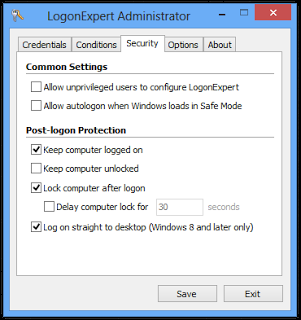
- You can also secure data and lock the workstation after logging on so as to avoid any unauthorized attacks.
How to Install and Use LogonExpert
- First of all download LogonExpert software. This provides the newest version released on March 30th, 2016.
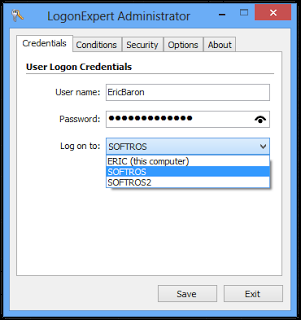
- Now start the LogonExpert Administrator. I n the credentials section types in the User Name, the password and the system to be logged on to.
Managing Tasks

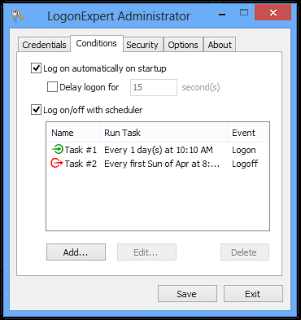
The scheduled tasks can have multiple settings these include firstly the event type which can be login in or logging off, and deciding whether to put the system in sleep mode or not. Next, the frequency of the tasks can be decided under the heading Task Settings and Schedule task, this may be once, weekly, monthly etc.
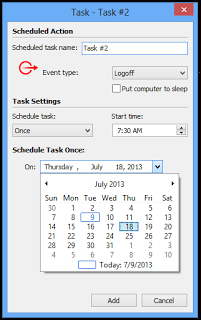
The starting time of the task can be chosen and the date from which the task activity should occur can be decided. Add the task, the task can also be edited afterward and can also be removed.
Depending on the number of license, you can buy LogonExpert. Here are the plans offered:
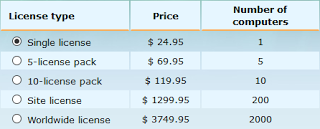
Payment can be made through various modes including Credit card, debit cars, cheques, money orders, bank transfers, PayPal, Amazon payments and others.
The
There is also a 10-day evaluation or trial period for the ease of users.
They also provides a 30-day money back guarantee if the users feel unsatisfied with the product. The refund process is made through the Softros System website.
LogonExpert provides a secure, authenticated and reliable way for logon into Windows System available for almost all versions. It is better than most of the free solutions for automatic logon as they have many security loopholes. maintenance period is 1 year after that all users who own the license can upgrade and claim for maintenance with about 50% discount at all offers. During the time span of the first year, all users can upgrade their software free of cost, the payment needs to be done only once and the license is valid forever.







