A weak WiFi signal is more than an inconvenience. It can interrupt video calls, slow down work, cause streaming to buffer, and make smart home devices unreliable. In many cases, however, poor wireless performance can be improved without replacing your entire internet service. By understanding how WiFi signals behave and making a few careful adjustments, you can extend coverage, improve stability, and get more consistent speeds throughout your home or office.
TLDR: To extend your WiFi range, start by placing your router in a central, elevated, and open location. Reduce interference, use the right WiFi band, update your router, and secure your network. If coverage is still weak, consider adding a mesh WiFi system, range extender, or wired access point for stronger performance in distant rooms.
Understand What Affects WiFi Range
WiFi uses radio signals to transmit data between your router and connected devices. These signals weaken as they travel through distance, walls, floors, furniture, appliances, and other obstacles. Materials such as concrete, brick, metal, glass, and radiant barrier insulation can significantly reduce signal strength. Even common household electronics, such as microwave ovens, cordless phones, baby monitors, and Bluetooth devices, may create interference.
It is also important to distinguish between internet speed and WiFi signal strength. Your internet plan determines the maximum speed coming into your home, but your WiFi network determines how effectively that connection reaches your devices. If your phone shows one bar of WiFi in a bedroom, upgrading your internet plan may not solve the problem. You need to improve the wireless connection itself.
Place Your Router in the Best Location
Router placement is one of the most effective and overlooked ways to improve WiFi range. A router hidden inside a cabinet, placed on the floor, or positioned at one end of the house will usually perform poorly. For best results, place the router in a central location, preferably near the middle of the area where you need coverage.
Keep the router elevated, such as on a shelf or table, rather than on the floor. WiFi signals spread outward and downward, so height matters. Avoid placing the router behind televisions, inside closets, near large metal objects, or next to thick walls. If possible, keep it in an open area with a clear path to the rooms where you use WiFi most often.

If your internet modem is installed in a poor location, such as a basement or utility room, consider using a longer Ethernet cable to move the router to a better position. A small change in location can produce a noticeable improvement in coverage and reliability.
Adjust Router Antennas Properly
If your router has external antennas, their position can affect signal distribution. A common mistake is pointing all antennas in the same direction. For broad coverage, position one antenna vertically and another horizontally if your router has multiple antennas. This helps devices connect more reliably because phones, laptops, and tablets may be held or positioned in different orientations.
Do not expect antenna adjustments to solve major coverage problems by themselves, but they can improve performance in combination with better router placement and reduced interference.
Use the Right WiFi Band
Most modern routers support at least two frequency bands: 2.4 GHz and 5 GHz. Newer routers may also support 6 GHz through WiFi 6E or WiFi 7. Each band has advantages and limitations.
- 2.4 GHz: Offers longer range and better wall penetration, but it is slower and more crowded.
- 5 GHz: Provides faster speeds and less congestion, but it has shorter range.
- 6 GHz: Offers high speed and low congestion for compatible devices, but range is more limited.
If you need WiFi in a distant room, the 2.4 GHz band may be more reliable. If you are close to the router and need maximum speed for streaming, gaming, or large downloads, 5 GHz or 6 GHz may perform better. Many routers automatically steer devices to the best band, but the feature is not always perfect. If needed, you can create separate network names for each band and manually connect devices to the most appropriate one.
Reduce Wireless Interference
Interference can make a strong WiFi signal behave like a weak one. In apartment buildings, townhomes, and dense neighborhoods, many routers may compete on the same wireless channels. This can cause slower speeds, dropped connections, and inconsistent performance.
Log in to your router settings and check whether the channel selection is set to automatic. In many cases, automatic channel selection works well. If it does not, use a reputable WiFi analyzer app to identify crowded channels and manually select a less congested one. For 2.4 GHz networks, channels 1, 6, and 11 are usually recommended because they do not overlap with each other.
Also keep the router away from electronics that can interfere with signals. Microwave ovens are especially known for affecting 2.4 GHz WiFi. Large speakers, wireless cameras, baby monitors, and older cordless phones can also contribute to problems.
Update Your Router Firmware
Router firmware is the software that controls your router. Manufacturers release updates to improve performance, fix bugs, and patch security vulnerabilities. An outdated router may deliver weaker performance, less stability, and greater security risk.
Check your router’s administration page or mobile app for firmware updates. Some newer routers update automatically, but many require manual approval. Before updating, make sure you are using the official manufacturer interface and avoid downloading firmware from untrusted sources. If your router is several years old and no longer receives updates, it may be time to replace it.
Secure Your Network
An unsecured or poorly secured WiFi network can reduce performance if unauthorized users connect to it. It can also expose your devices and personal information to unnecessary risk. Use WPA2 or WPA3 security, and create a strong password that is not easy to guess.
Avoid old security standards such as WEP, which are no longer considered safe. If your router supports a guest network, use it for visitors and smart home devices when appropriate. This keeps your main devices better protected and can make network management easier.
Upgrade Old Equipment
If your router is old, it may not support modern WiFi standards or handle the number of devices in your home. A router purchased many years ago may struggle with multiple phones, laptops, smart TVs, cameras, speakers, thermostats, and gaming consoles. Even if your internet plan is fast, outdated WiFi hardware can become a bottleneck.
Look for routers that support current standards such as WiFi 6 or WiFi 6E. These standards are designed to manage busy networks more efficiently and provide better performance with many connected devices. WiFi 7 is also emerging, though it may be more expensive and unnecessary for many households at this point.
When choosing a router, consider the size of your space, number of floors, building materials, and number of connected devices. Do not rely only on advertised maximum speeds, which are often measured under ideal conditions. Real-world performance depends heavily on layout and interference.
Use a Mesh WiFi System for Larger Homes
For homes with multiple floors, thick walls, or wide layouts, a single router may not provide enough coverage. A mesh WiFi system uses a main router and one or more satellite nodes to create a unified wireless network. Devices can move between nodes without requiring you to manually switch networks.
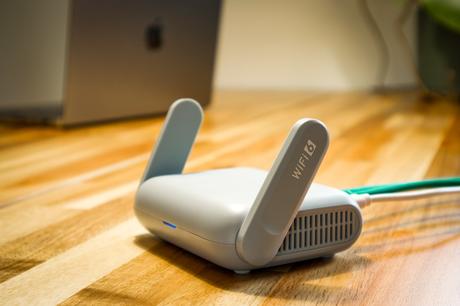
Mesh systems are often more reliable than traditional range extenders because they are designed to work together as one system. Placement still matters, however. Satellite nodes should be close enough to the main router to receive a strong signal, but far enough away to extend coverage. If a mesh node is placed in an area where the signal is already weak, it may simply repeat a poor connection.
For best performance, choose a mesh system with dedicated wireless backhaul or connect nodes with Ethernet cables where possible. Wired backhaul provides the most stable connection between mesh units.
Consider a WiFi Range Extender
A WiFi range extender can be a cost-effective solution for a specific dead zone, such as a bedroom, garage, or patio. It receives your existing WiFi signal and rebroadcasts it to extend coverage. However, extenders have limitations. If placed too far from the router, they will amplify a weak signal, resulting in slow and unstable performance.
Place the extender roughly halfway between the router and the weak coverage area. It should still receive a strong signal from the router. Many extenders include signal indicators to help you find a suitable location.
Range extenders can be useful, but they are not always the best option for larger homes or demanding networks. In those cases, a mesh system or wired access point usually provides better results.
Install a Wired Access Point
A wired access point is one of the most reliable ways to improve WiFi coverage. It connects to your main router using an Ethernet cable and broadcasts WiFi from another location. Because the connection back to the router is wired, performance is usually stronger and more stable than with wireless extenders.
This solution is especially effective for home offices, detached garages, basements, and large houses. If running Ethernet cable is difficult, you may consider hiring a professional installer. In some homes, existing Ethernet wiring may already be available behind wall plates.
Powerline adapters are another option, using electrical wiring to carry network data. Results vary widely depending on the age and quality of the electrical system, so they should be considered a practical but less predictable alternative.
Manage Connected Devices
Too many devices competing for bandwidth can make your WiFi feel weak even when signal strength is acceptable. Streaming video, cloud backups, online gaming, security cameras, and large downloads can consume significant bandwidth.
Check your router’s device list to see what is connected. Remove unknown devices, disconnect equipment you no longer use, and schedule large downloads or backups during off-hours. Many routers include Quality of Service settings, often called QoS, that allow you to prioritize important activities such as video calls or gaming.
Test Your Improvements
After making changes, test your WiFi performance in different areas. Use the same device and test from the same locations so results are comparable. Check both signal strength and real-world performance, such as video quality, page loading, and call stability.

Run speed tests near the router and in problem areas. If speeds are excellent near the router but poor elsewhere, the issue is likely coverage. If speeds are poor everywhere, the issue may involve your internet plan, modem, router hardware, or service provider.
When to Contact Your Internet Provider
If you have optimized your WiFi but still experience slow speeds or frequent outages, contact your internet service provider. Ask them to test the connection to your modem and confirm that your equipment is compatible with your plan. In some cases, the problem may be outside your home, such as a damaged line, signal issue, or overloaded local network.
Before calling, record your test results, router model, modem model, and examples of when the issue occurs. Clear information helps technical support identify the problem more efficiently.
Final Thoughts
Extending your WiFi range and boosting signal strength requires a practical, step-by-step approach. Start with the basics: move the router, reduce interference, use the right band, update firmware, and secure your network. If those steps do not provide enough improvement, consider stronger solutions such as mesh WiFi, a wired access point, or a modern router.
Reliable WiFi depends on both good equipment and smart placement. With careful adjustments and the right upgrade when necessary, you can reduce dead zones, improve speed, and maintain a stronger connection across your home or workplace.