


You can build a Discord-style community on WordPress with three free plugins: BuddyNext for the server-and-member layer (Spaces, sub-spaces, profiles, notifications), WPMediaVerse for the direct-messaging engine underneath it (text, photo, video and voice messages), and Jetonomy for the structured discussion boards inside each Space (threaded discussion, Q&A, polls). All three are already wired together, a toggle inside a Space’s settings creates or links a Jetonomy discussion for it, and BuddyNext’s own messaging runs on WPMediaVerse, so you are not duct-taping separate plugins by hand.
Every screenshot below is from a real build on a live WordPress install, not a mockup, we created the Space, flipped the settings, and opened the resulting pages as we wrote each step. We will also be upfront about the one thing this stack does not give you, because a Discord clone that overpromises on voice chat is worse than one that is honest about what it covers.
Why Run Your Own Server Instead of Renting Space on Discord
Discord is free because the product is the server, not the content on it. Nothing posted in a Discord server is indexed by Google, so a year of genuinely useful answers in your support server brings you zero new members from search. The content lives behind a login wall, owned by Discord, searchable only by someone who is already a member and already scrolling.
Self-hosting flips that trade. Every thread Jetonomy stores sits in your own WordPress database, on your own domain, crawlable by Google the same way any blog post is. You decide what happens to a member’s data, you are not one Terms of Service update away from your community getting nuked, and if you eventually want to charge for access, that revenue is yours instead of routed through someone else’s Nitro upsell. For a support community, a course cohort, or a niche hobby group, that ownership is usually the entire reason to move off Discord in the first place.
Who This Setup Fits Best
Not every Discord server needs to move. A twelve-person friend group chatting about a shared hobby loses nothing by staying on Discord, there is no content there worth indexing and no membership worth owning. This setup earns its keep for plugin and theme support forums answering the same question for the hundredth time, SaaS products trying to deflect tickets with searchable answers instead of repeating them in DMs, course creators and coaches running a paid cohort, and niche communities that have watched years of good discussion disappear into Discord’s search-proof history. If your server’s value is the conversation history, not just the chat itself, that is the signal to move.
Where Discord Clones Usually Fall Apart
Most “build your own Discord” attempts fail in one of two ways. The common one: they bolt a forum plugin onto a generic member-directory plugin, and the two have no idea the other exists, so a member’s profile on one has nothing to do with their posts on the other. The second: they promise full feature parity, voice channels, bots, the whole thing, and ship none of it well.
The setup below avoids the first problem because BuddyNext, WPMediaVerse, and Jetonomy are built by the same team to share one member identity. It does not solve the second. Be clear with your members up front: this gives you servers, channels, roles, and rich direct messages. It does not give you live voice chat or a bot ecosystem, covered in detail further down.
What You Need
Before touching plugins, you need a place to put them. Buy hosting from any provider that runs PHP 8.1 or newer with at least 512 MB of memory available, most mainstream WordPress hosts qualify, then use the host’s one-click WordPress installer (nearly every host has one) to get a fresh WordPress site running. That whole step, from checkout to a working wp-admin login, usually takes under fifteen minutes and needs no command-line or server knowledge. Once you can log into your WordPress dashboard, everything from here happens inside Plugins → Add New.
- WordPress, self-hosted, on the hosting account above.
- BuddyNext, free, the server-and-member layer: Spaces, sub-spaces, profiles, notifications, moderation.
- WPMediaVerse, free, powers BuddyNext’s direct messaging: text, photo, video and voice messages, typing indicators, read state, and message requests. Without it, BuddyNext’s messaging stays limited to plain-text notifications.
- Jetonomy, free, the discussion-board layer: forums, Q&A, ideas boards, and a lightweight social feed, any of which can attach to a Space.
- A theme that already styles BuddyNext’s Space and profile templates, so the plugins look like one product. BuddyX Pro is built for this; BuddyX’s free tier works too, with fewer styling options.
Nothing above costs anything to get started. The paid tiers, covered near the end, only matter once you want to gate access behind a membership price or turn on extras like custom badges.
Step 1: Install the Server Layer (BuddyNext)
Go to Plugins → Add New, search for BuddyNext, install and activate it. BuddyNext does not require BuddyPress underneath it, it is a standalone architecture, so there is no separate framework to configure first.
Activating it registers the pages a community needs automatically: a member directory, profile pages, an activity feed, messaging, notifications, and a Spaces directory, the server browser your members will actually use.
Step 2: Create Your First Space (Your “Server”)
The Spaces directory is the closest thing BuddyNext has to Discord’s server list, a grid of cards with a cover image, a category, a member count, and a Join button. Click Create a space and fill in a name, a type (Open, Private, or Hidden), a category, and an optional parent space, then a description.
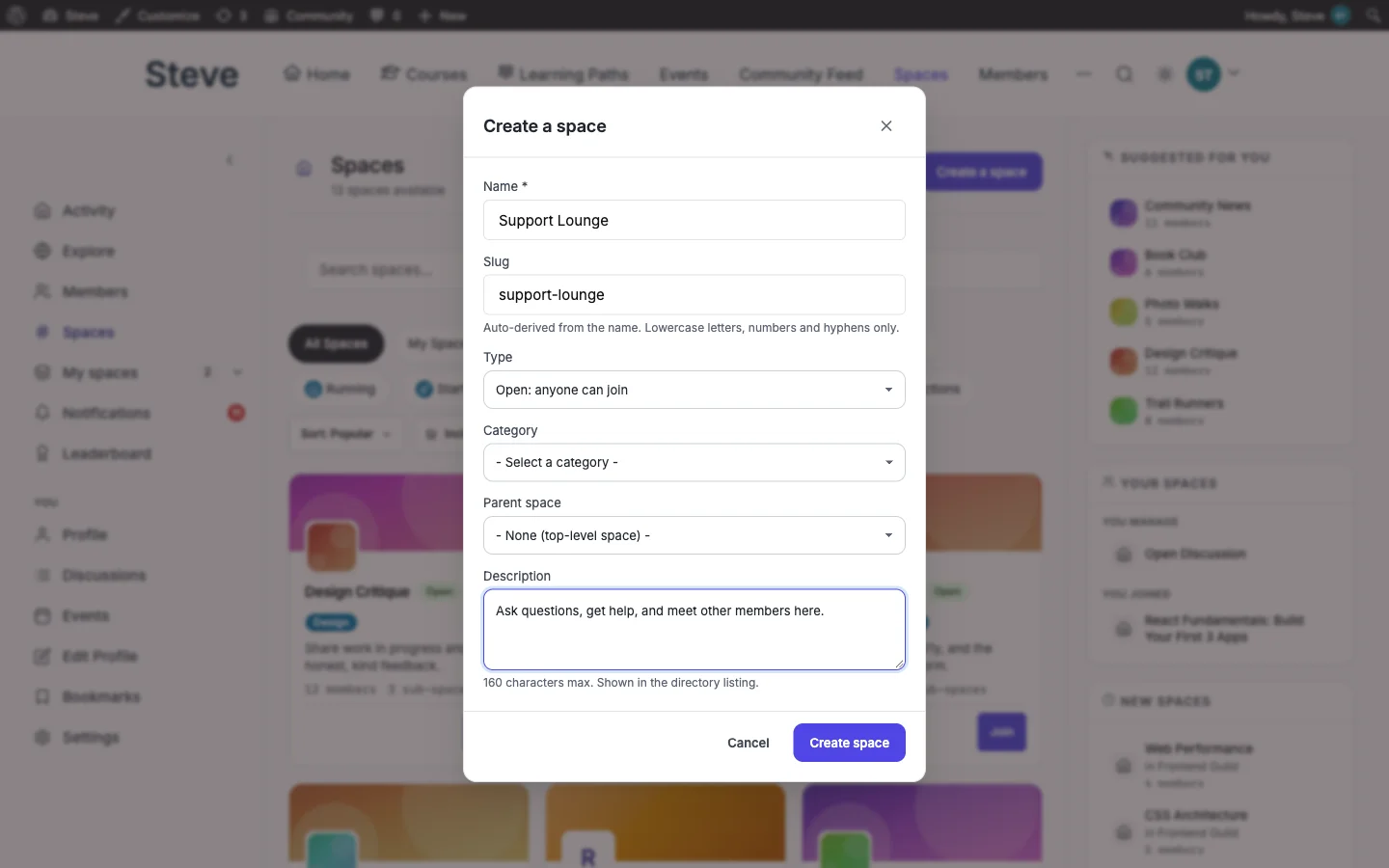 The actual Create a Space modal, filled in for a space called Support Lounge.
Submit it and BuddyNext drops you straight onto the new Space’s page: a Feed tab, a Members tab, an About tab, a Moderation tab, and, notably, a Sub-spaces tab.
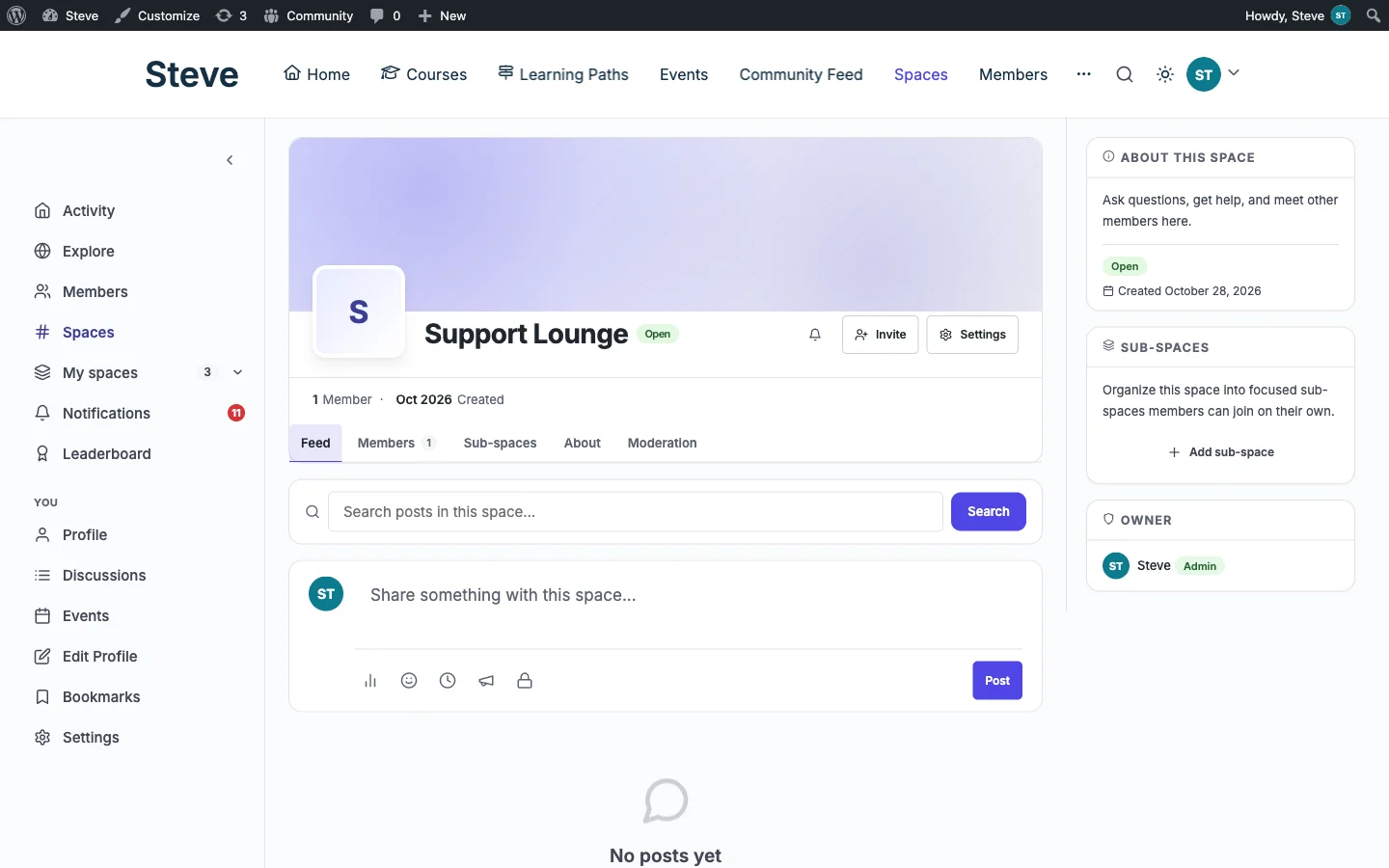 The Space exists the moment you submit the form, empty, but fully wired up.
Sub-Spaces Are the More Literal Channel Match
Here is a correction to the easy version of this analogy: a BuddyNext Space maps to a Discord server, but the closer match to a Discord channel is not a Jetonomy board, it is a sub-space. The Space settings panel describes it exactly this way: “Organize this space into focused sub-spaces members can join on their own.” A support Space can have a #bugs sub-space and a #feature-requests sub-space, each with its own membership, nested under the same parent, the same relationship a Discord server has to its channel list.
Running more than one unrelated community under one roof? Use separate top-level Spaces instead, one for support, one for announcements, one for general chat, and use sub-spaces for the topic breakdown inside each. Decide this structure before you open signups, restructuring an already-active Space is more disruptive than starting with the right shape.
Step 3: Turn On Discussion for the Space (Jetonomy)
Install Jetonomy the same way, Plugins → Add New, search, install, activate. Then go to the Space’s Settings → Integrations tab. The first toggle is Discussion: “Give this space its own discussion area. Turn the switch on and a discussion is created for it automatically.” There is also a field to link an existing discussion instead, useful if you already built out a Q&A board in Jetonomy’s own admin and want to attach it to this Space rather than create a new one.
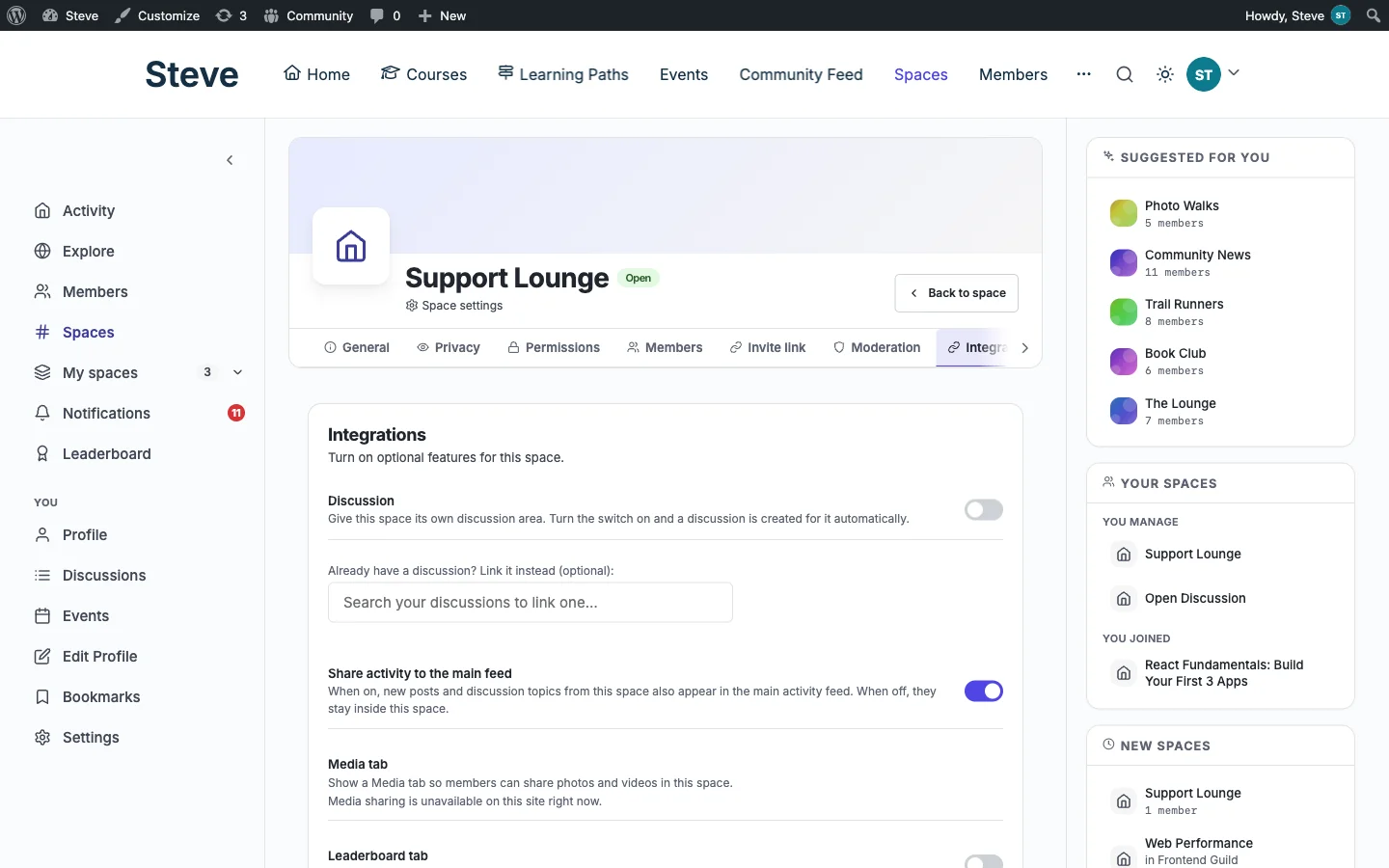 The actual toggle that bridges a Space to a Jetonomy discussion, no code, no separate setup screen.
Flip it on, save, and a Discussions tab appears on the Space next to Sub-spaces. That is the channel’s message board. The default discussion created this way behaves like a Forum, open-ended threaded topics. If you want a specific board type, Q&A with accepted answers, an Ideas board with voting, build it directly in Jetonomy’s admin first and link it here instead of letting the toggle auto-create one.
Jetonomy’s own community hub shows what each board type looks like once members are actually using it. These three boards are Q&A type, tagged, voted on, with an Answered badge once a reply gets accepted:
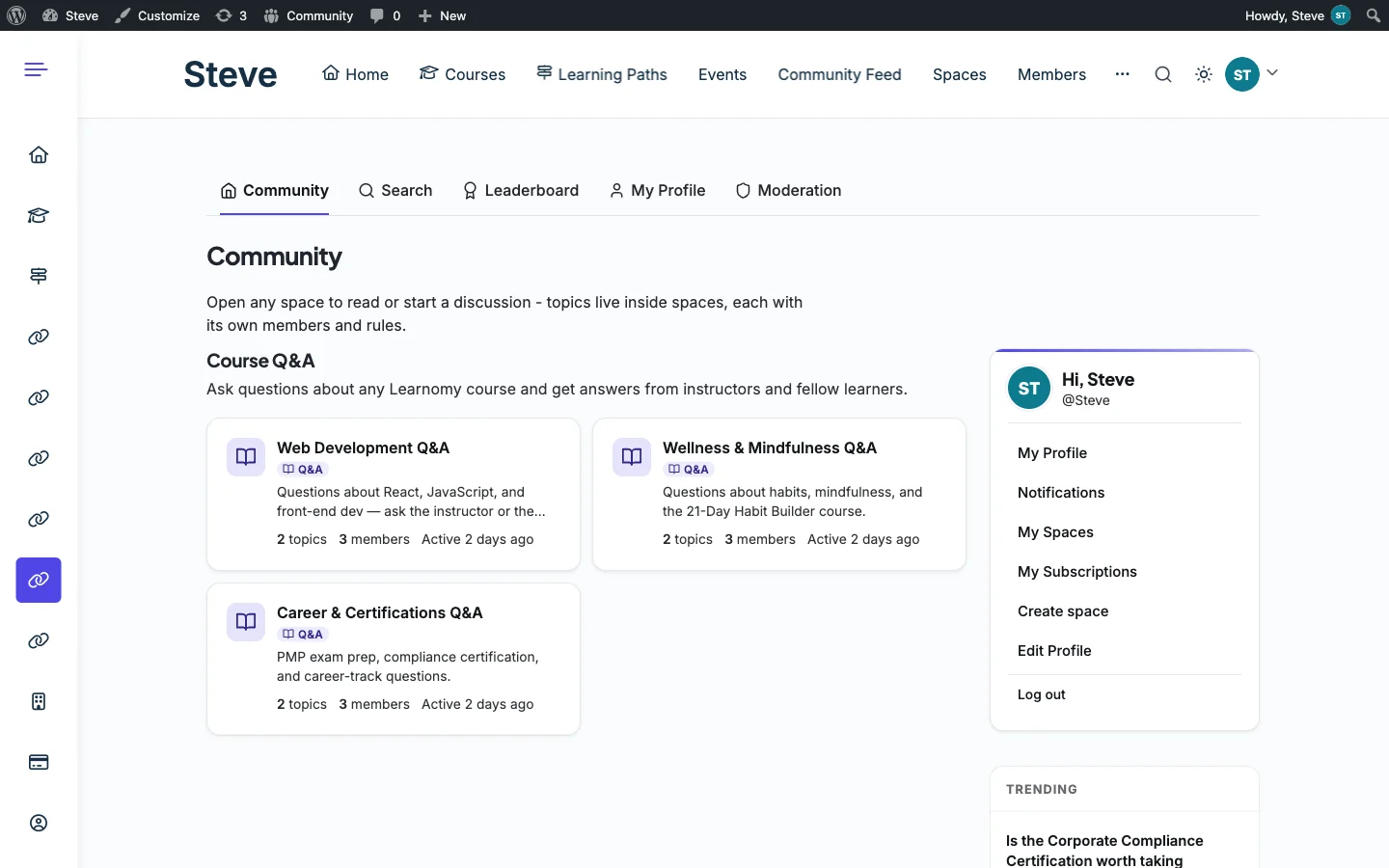 “Topics live inside spaces, each with its own members and rules”, straight from the Jetonomy community page.
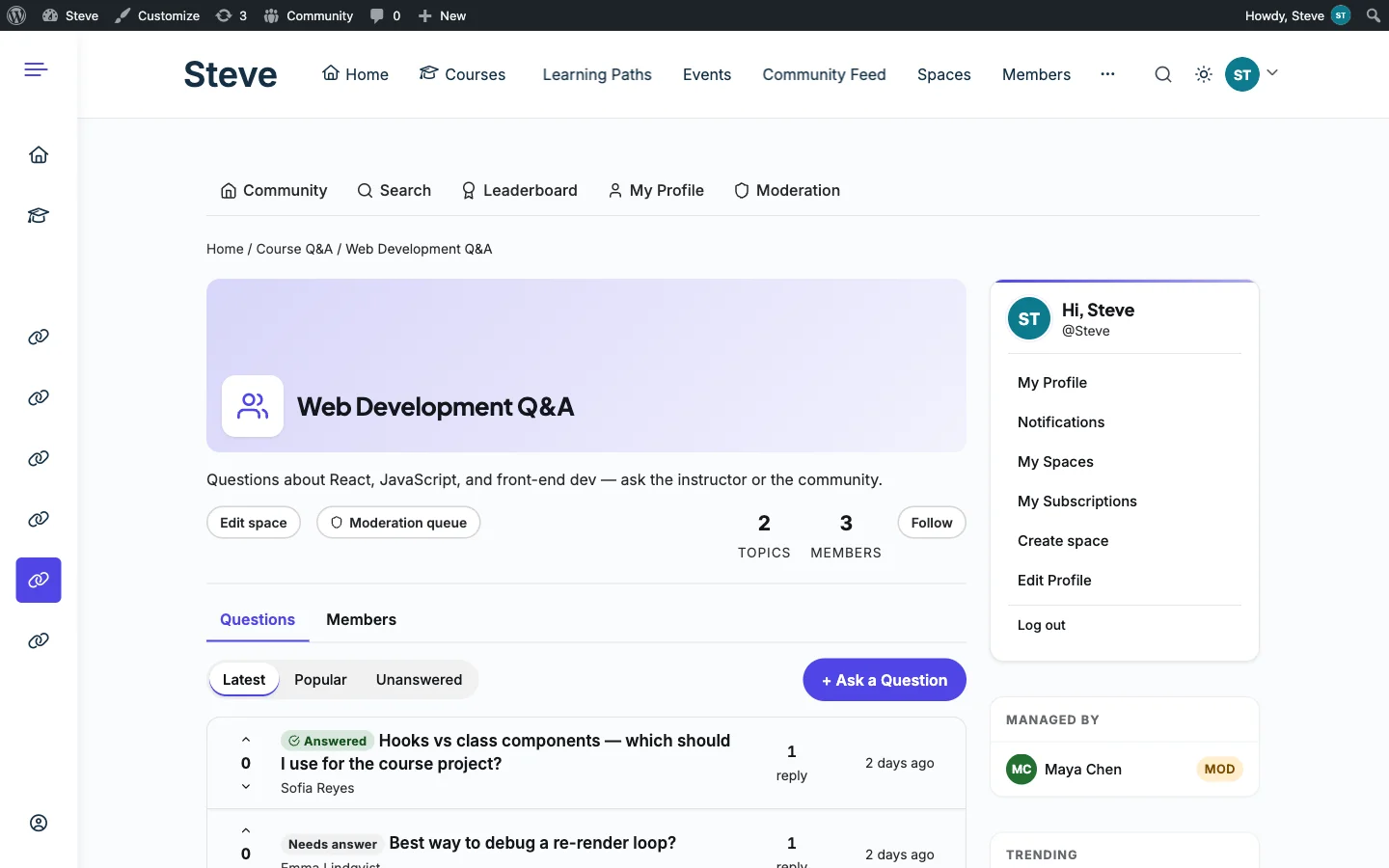 Inside a Q&A board: Answered and Needs answer tags, upvotes, and a moderation queue link right on the page.
Step 4: Set Up Roles and Permissions
Each Space’s Settings → Permissions tab is where the role logic actually lives, and it is more specific than a flat owner/moderator/member hierarchy. You set who can post (all members, or a smaller group), who can invite new members (moderators and owner by default), whether the Space requires approval to join, whether new members auto-join, and, if auto-join is on, whether it is limited to specific member types.
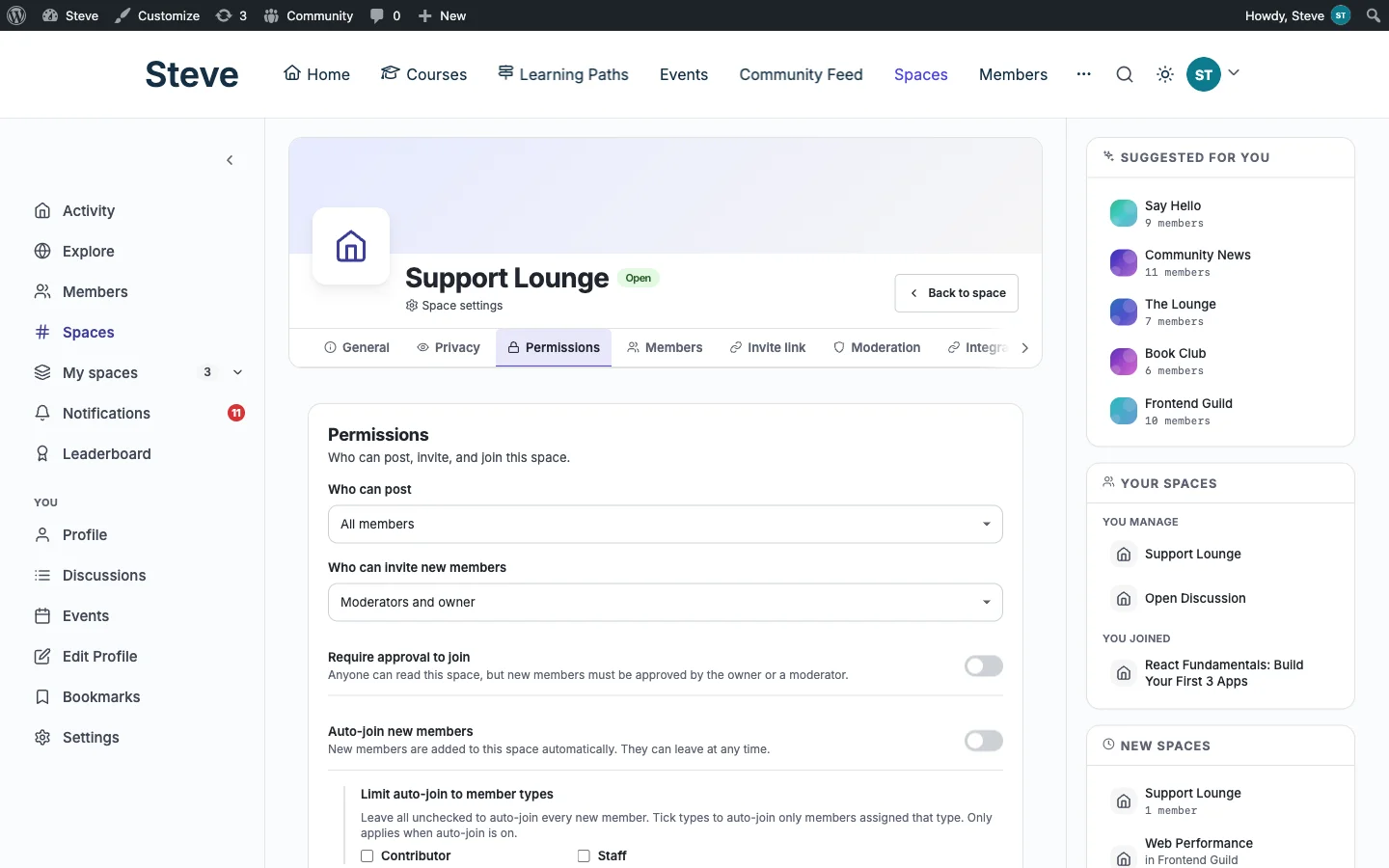 The real Permissions tab, this is the actual field set, not a paraphrase.
Jetonomy layers its own three-tier permission system (global, Space-level, board-level) on top of that, so a moderator can have full control in one board and read-only access in another, without touching a line of code.
Step 5: Turn On Rich Messaging (WPMediaVerse)
BuddyNext’s direct messaging is not BuddyNext’s own code. It runs on WPMediaVerse, a companion plugin BuddyNext leans on for anything past plain-text notifications. Install it the same way, Plugins → Add New, search, install, activate, and BuddyNext’s messaging upgrades from notifications into an actual conversation system: text, photo, video, and voice messages, read receipts, typing indicators, per-conversation search, and message requests a recipient can accept or decline before a stranger lands in their inbox.
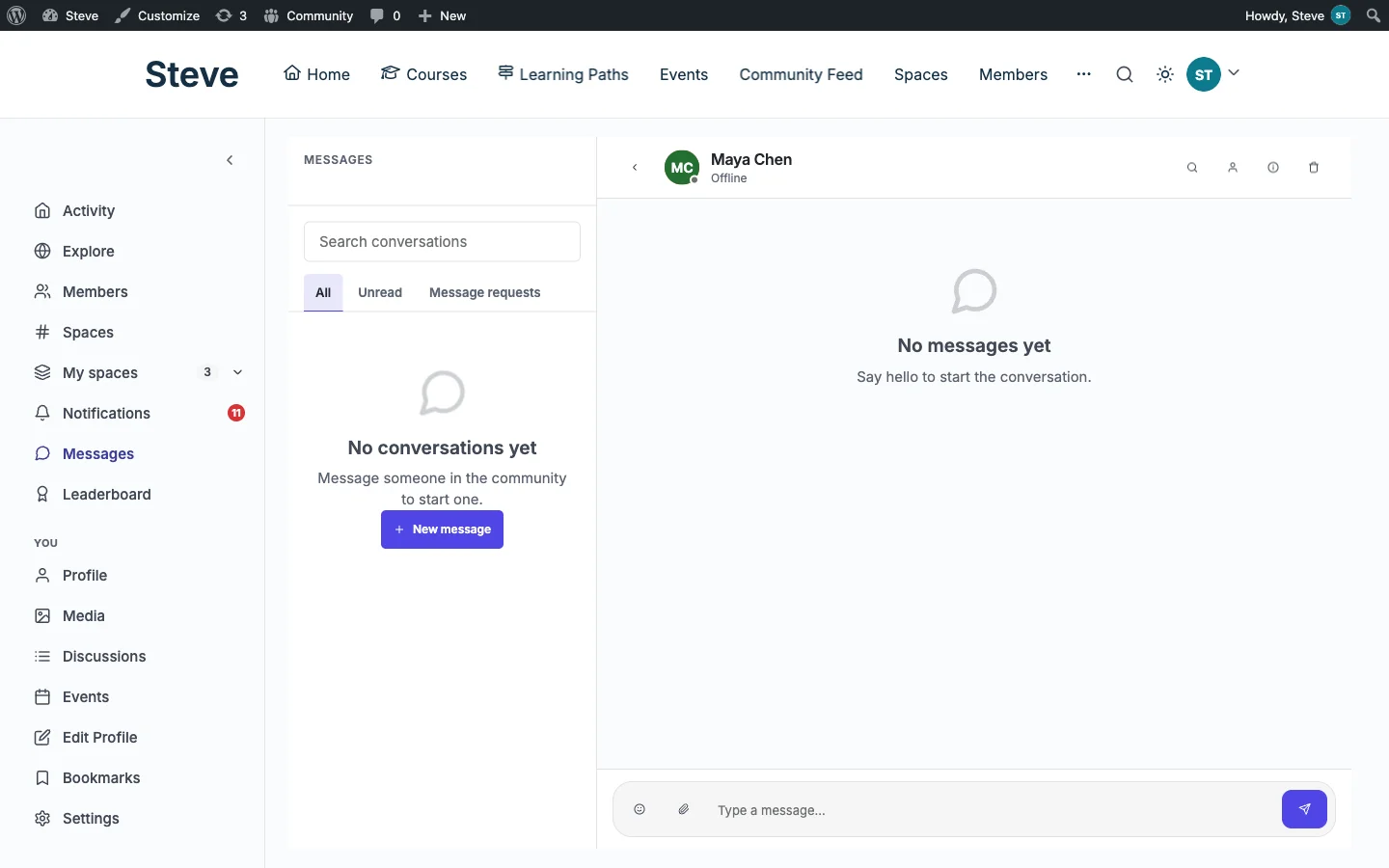 A real conversation thread, with the emoji and attachment icons WPMediaVerse adds to the compose bar.
That message-request behavior is closer to Instagram’s DM gate than anything Discord does. And the voice messages are asynchronous clips, not a live voice channel, a member records a short note and the other person plays it back whenever they open the conversation; nobody is talking over a mic in real time. If you want the Discord DM experience of dropping an image or a short clip into a conversation, WPMediaVerse is the plugin doing that work. Skip it, and BuddyNext’s messaging stays limited to plain text and system notifications.
Step 6: Invite Your First Members
Discord’s invite link lets anyone click through and land in a server with no account at all. BuddyNext works differently, and on purpose: every member is a real WordPress user, created through registration, an invite, or social login, not an anonymous join code. That is a slightly higher bar to clear on day one, but it is also why the member directory, profiles, and search all work later. An anonymous Discord-style join produces a server full of usernames with no identity behind them; a BuddyNext Space produces members with profiles, which is the whole point if you eventually want the directory to mean something.
Send invites, turn on social login if you want signup friction closer to Discord’s one-click join, and route new members straight to profile setup before they land in the Space. A new member who fills in a bio and a photo before their first post behaves differently than one who shows up as a blank username, and that difference compounds as the community grows.
Keeping the Space Healthy: Moderation
BuddyNext ships with reactive moderation out of the box: members post freely, and anything reported lands in a review queue a moderator acts on. That is the built-in version of what a lot of Discord servers bolt on with a third-party mod bot, except here it is already wired into the Space and role system, not a separate bot account with its own permissions to manage.
Jetonomy adds its own layer on top, moderators can hide, lock, or delete individual threads at the board level, independent of what happens in the rest of the Space, and every Q&A board surfaced a direct “Moderation queue” link in our test, no digging through an admin menu to find it. WPMediaVerse runs direct messages through the same content moderation as posts and comments, so a blocked word cannot be planted in a DM either, and members can block or unblock each other directly from a profile. If you want something closer to a configured Discord mod bot, keyword filters, rate limits, automatic action on low-reputation accounts, Jetonomy Pro’s advanced auto-moderation extension covers that ground without installing a separate bot account with access to your server.
What This Setup Does Not Do
Be straight with yourself and your members about this before launch. Neither plugin ships live voice or video channels, there is no “join voice” button here, WPMediaVerse’s voice messages are recorded clips inside a DM, not a persistent voice room, so that gap stands even with messaging fully wired up. Nothing in this stack ships a bot API or webhook system for the community side either, so the custom moderation bots, music bots, and slash-command integrations that make some Discord servers tick have no equivalent yet. If your community genuinely needs live voice alongside text, this stack is not a full replacement, it is a replacement for the text and community-management half of Discord, with the SEO and ownership upside Discord cannot offer.
A Realistic Launch Checklist
- Decide your Space and sub-space structure before opening signups, one catch-all Space with no sub-spaces is usually the wrong call once a community grows past a handful of topics.
- Turn on Discussion per Space deliberately, and link a purpose-built Q&A or Ideas board from Jetonomy’s admin when the default Forum type is not the right fit.
- Set the Permissions tab (who can post, who can invite, approval and auto-join rules) before your first public invite goes out.
- Install WPMediaVerse before launch if you want media and voice messages in DMs from day one, adding it later is fine, but early members will have formed habits around text-only messaging.
- Turn on at least one moderation safety net, the built-in report queue at minimum, before inviting anyone you do not already know.
- Tell new members up front that there is no live voice channel, so nobody joins expecting one and leaves disappointed.
Self-Hosted vs. Hosted Alternatives
DiscordYesNoYesDiscord’sFree; Nitro upsell
DiscourseCategories, not serversYesNoSelf-hosted or Discourse-hostedFree self-hosted; hosted plans from roughly $50+/mo
Circle / Mighty NetworksYes (spaces)PartialNoPlatform-hostedMonthly subscription per tier
BuddyNext + WPMediaVerse + JetonomyYes (Spaces + sub-spaces + boards)YesNoYours, self-hostedFree core; Pro tiers optional
The gap worth noticing goes the other direction too: Discourse, Circle, and Mighty Networks also lack live voice, same as this stack, but Discourse’s hosted tier and Circle’s subscription both carry a recurring cost this combination does not, and none of them give you a single member identity shared across a social feed, a messaging layer, a job board, and a course platform the way BuddyNext does across the rest of the Wbcom lineup. If voice is not the reason you are leaving Discord, in-app chat drama, zero SEO, no data ownership, usually is, this comparison is the one that matters more than the voice-chat gap.
Growing and Monetizing Your Community
The free tiers above are enough to launch and run a real community. Once it has active members, the usual next step is BuddyNext Pro for native, gateway-agnostic memberships, gate a premium Space behind a paid plan the way a Discord server owner might gate a “VIP” role behind Nitro boosting, except the money goes through your own Stripe account. Jetonomy Pro adds the extras Discord users expect by default: emoji reactions, polls inside a board, private messaging between members, and custom badges for top contributors, each one an optional extension you switch on individually rather than a forced bundle.
Running Both at Once
None of this requires picking a side forever. Plenty of sites run both: a Discord server for real-time hangout chat, and a Jetonomy-powered Space on their own WordPress site for the structured, searchable half of the community, support threads, documented answers, feature requests that need a paper trail. The two are not mutually exclusive, and migrating later is not an all-or-nothing call you need to get right on day one.
What actually matters is where the content worth keeping ends up. The explanations, the solved problems, the decisions a community made together, those are worth more sitting somewhere Google can find them and you can export, than sitting in a Discord search index that only members can query and only Discord controls. Treat this guide as the path to owning that half of the community, not necessarily as a reason to shut down an existing Discord server the same week.
Frequently Asked Questions
Do I need BuddyPress to run BuddyNext and Jetonomy?No. BuddyNext is a standalone plugin with its own architecture; it does not run on top of BuddyPress or require it installed. Jetonomy is independent of BuddyPress as well, built on its own custom database tables rather than WordPress posts.
What is the actual difference between a Space, a sub-space, and a Jetonomy discussion?A Space is the server. A sub-space is a nested Space members can join on their own, the closest structural match to a Discord channel. A Jetonomy discussion is the message board attached to a Space (or sub-space) through the Integrations tab’s Discussion toggle, threaded, searchable, and indexable, which plain Discord channels are not.
Do I actually need WPMediaVerse, or does BuddyNext handle messaging on its own?BuddyNext’s own messaging without WPMediaVerse installed stays limited to plain-text notifications. WPMediaVerse is what adds photo, video, and voice messages, typing indicators, read state, and message requests, it is the plugin actually running the conversation system underneath BuddyNext’s messaging UI.
Can members create their own Spaces, like anyone can create a Discord server?That depends on the permission you set. BuddyNext lets site owners allow any member to create a Space, or restrict Space creation to admins and moderators only, your call, set per site rather than hardcoded.
Is there a Discord-style invite link?Not an anonymous join code. BuddyNext members join through registration, an invite, or social login, which ties every member to a real account and profile rather than a disposable username, that is the trade-off for the member directory and search working properly later.
Can I import an existing Discord server’s messages?No, Discord does not export in a format either plugin can re-import, so a move off Discord specifically means starting the discussion history fresh. Jetonomy does ship one-click importers for bbPress, wpForo, and Asgaros, if you are consolidating from one of those instead.
Is there any way to add live voice chat later?Not natively in BuddyNext, WPMediaVerse, or Jetonomy today. WPMediaVerse covers asynchronous voice messages inside a DM, not a persistent voice room. A site owner who needs live voice alongside this stack would run a separate voice tool (Discord itself, or a WordPress-embeddable voice/video plugin) and treat it as a companion to the text community, not a replacement for it.
Is this free to run at real community size, or only for a small test?BuddyNext, WPMediaVerse, and Jetonomy are all free with no member, Space, or board caps in the free tier. Hosting cost scales with traffic and member count the way any WordPress site’s would; there is no per-member licensing fee the way a subscription community platform charges.
Related
Weighing Discord against other options before committing to a build? See Discord alternatives for WordPress community owners and what the most popular community platforms actually cost to run. Already running bbPress and want to move its content into Jetonomy instead of starting over? See moving off bbPress without losing your community. Curious why BuddyNext, Jetonomy, and Learnomy all use the word “Spaces”? See why three products all have Spaces, and how to run them together. Building a professional network instead of a chat community? See how to build a LinkedIn-style networking platform on WordPress.
Get Started
All three plugins are free to install today. Get BuddyNext to stand up the server layer, add WPMediaVerse for rich direct messaging, then add Jetonomy for the discussion boards inside it. If you want the exact look used in this guide, BuddyX Pro is the theme to pair with it.



THE %(site_name)s COMMUNITY

-
 umkhaloodie
3864140 pt -
Ch
3396455 pt -
 jesusmsanchezl
2453003 pt -
weddingblog2011
2205852 pt