How to Backup Android Phone Contacts: Present the world is with android trend and out of 7 one person has android mobile/device. We love android apps and games well. Many people change their mobiles regularly due to new features of their new devices and they may have a chance to lose their valuable contacts and we are here with an awesome article on How to Backup Android Phone Contacts.
Most of the android users aware of saving the contacts offline but they dont know the online method and we would like to give a brief explanation about the online method rather than offline, but let have a look on offline method too.
Backup Android Phone Contacts
1. Use Android App to Backup Phone Contacts
Android devices are popular for their free apps and you can check many apps which will help you to save and store your contacts. Their are many wonderful apps on the market where you can download from Google play store and use them. I personally suggest you to use
SMS Backup & Restore app which is very useful in storing you Contacts as well as SMS too. Download this app and install in your android device and then click on back up button to follow the backup process of your contacts and messages.

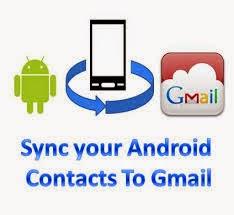
2. Sync your Android Contacts to Gmail
Now its time to know more about android, Google launched the android and forces the users to use their account to access all the things. We have a chance to access all their products like gmail, youtube and google+ and you can also save your contacts on google account and retrieve them when ever your need them. Go to settings and click on Google account, you will find
SYNC Contacts click on it and all your contacts will be saved on google account and you can retrieve them when ever you need them.
3. Backup Your contact offline Easily
Many of the users do this method. They simple open the contacts and find Export to SD option and create Vcard and click on yes and save all their contacts to Memory card. But I advice to save those contacts again to your pc/laptop which is the better way to get backup.



 Most of the android users aware of saving the contacts offline but they dont know the online method and we would like to give a brief explanation about the online method rather than offline, but let have a look on offline method too.







