


 How To Add Reactions widget in your blogger blog
Step 1
How To Add Reactions widget in your blogger blog
Step 11. Login to your blogger dashboard-->Layout
2. Click on the "edit" link under the blog posts
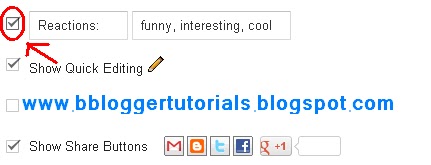
3.in the pop-up window check the "Reactions" widget, then pressing save button.
Step 2
1. Go to Blogger Dashboard > Template2. Download a copy of your template
3. Click on Edit HTML
4. Hit Proceed button
5. Find below code in your template
6. Then immediately after this line add the following code:<data:post.body/>
7. Save the template.<span class='reaction-buttons'> <b:if cond='data:top.showReactions'> <table border='0' cellpadding='0' width='100%'><tr> <td valign='center'><span class='reactions-label'> <data:top.reactionsLabel/></span> </td> <td><iframe allowtransparency='true' class='reactions-iframe' expr:src='data:post.reactionsUrl' frameborder='0' name='reactions' scrolling='no'/></td> </tr></table> </b:if> </span>
How To Customize Blogger Labels With CSS3?
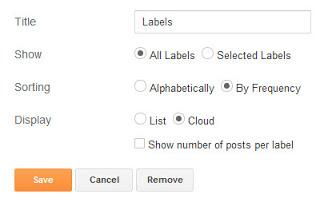
First we have to edit some settings of our label widget.Save your label widget settings as I have set in below image.
1. Now go to Blogger Dashboard > Template
2. Download a copy of your template
3. Click on Edit HTML
4. Hit Proceed button
5. Check Expand Widget Templates checkbox
6. Find below code in your template
]]></b:skin>
add below CSS code just above it,
#textwidget { color: #666; font-size: 0.925em; font-style: italic; line-height: 1.6em } a.tag { color: #777; font: 9px verdana; text-transform: uppercase; transition: border-color .218s; background: #f4f4f4; background: -webkit-gradient(linear, 0% 40%, 0% 70%, from(#F5F5F5), to(#F1F1F1)); display: inline-block; text-shadow: 0 1px 0 #fff; -webkit-transition: border-color .218s; -moz-transition: border .218s; -o-transition: border-color .218s; transition: border-color .218s; background: #f3f3f3; background: -webkit-gradient(linear, 0% 40%, 0% 70%, from(#F5F5F5), to(#F1F1F1)); background: -moz-linear-gradient(linear, 0% 40%, 0% 70%, from(#F5F5F5), to(#F1F1F1)); border: solid 1px #ccc; border-radius: 2px; -webkit-border-radius: 2px; -moz-border-radius: 2px; margin: 0 4px 4px 0; padding: 3px 5px; text-decoration: none } a.tag:hover { color: #333; border-color: #999; -moz-box-shadow: 0 2px 0 rgba(0, 0, 0, 0.2) -webkit-box-shadow:0 2px 5px rgba(0, 0, 0, 0.2); box-shadow: 0 1px 2px rgba(0,0,0,0.15) } a.tag:active { color: #000; border-color: #444 } .slides { font-size: 85%; line-height: 130%; overflow: hidden; padding: 0; margin: 30px 0 10px; border-bottom: 1px solid #000 }
Now find below code,
<b:widget id='Label1' locked='false'
find it until
</b:widget>
replace code from
<b:widget id='Label1' locked='false'.........to
</b:widget> with below code,
<b:widgetid='Label1'locked='false'title='Labels Cloud'type='Label'><b:includableid='main'><b:ifcond='data:title'><h2><data:title/></h2></b:if><divclass='textwidget'><divexpr:class='"widget-content " + data:display + "-label-widget-content"'><b:ifcond='data:display == "list"'><ul><b:loopvalues='data:labels'var='label'><li><b:ifcond='data:blog.url == data:label.url'><spanexpr:dir='data:blog.languageDirection'><data:label.name/></span><b:else/><aclass='tag'expr:dir='data:blog.languageDirection'expr:href='data:label.url'><data:label.name/></a></b:if><b:ifcond='data:showFreqNumbers'><spandir='ltr'>(<data:label.count/>)</span></b:if></li></b:loop></ul><b:else/><b:loopvalues='data:labels'var='label'><spanexpr:class='"label-size label-size-" + data:label.cssSize'><b:ifcond='data:blog.url == data:label.url'><spanexpr:dir='data:blog.languageDirection'><data:label.name/></span><b:else/><aclass='tag'expr:dir='data:blog.languageDirection'expr:href='data:label.url'><data:label.name/></a></b:if><b:ifcond='data:showFreqNumbers'><spanclass='label-count'dir='ltr'>(<data:label.count/>)</span></b:if></span></b:loop></b:if><b:includename='quickedit'/></div></div></b:includable></b:widget>
Now take a preview and save your template.







