


System administrators, developers, and users need to work with text files, configuration files, and log files when working on Linux. Some of these files are large; some of them are small or medium. The data contained in these files frequently needs to be viewed, updated, or extracted. In this section, we will learn how to manage and manipulate text files on Linux.
Different types of editor used to view file content
There are different types of editor used to view the content of files. Some editors, such as vim or nano, require the whole file to be loaded into memory first. These types of editors are not suitable for working on or viewing the contents of large log files, such as banking database log files, since as opening such large files can cause issues due to high memory utilization. However, in such scenarios, you can use the less command to view the contents of a large file, page by page, by scrolling up or down without the system having to place the entire file in memory at the beginning. This is much faster then a text editor, such as vi or nano.
less command
This is used to view larger files because it is a paging program; it displays the content page by page with scroll-back capabilities. We can also perform search operations and navigate inside the files:
/<string>: To search for the<string>in a forward direction?<string>: To search for the<string>in a backward directionq: To quit the less editor
Examples of the less command are as follows:
$ less /var/log/messages or
$ cat /var/log/messages | less
Main pages are displayed using the less utility.
more command
This program is also used to view larger files as it is also a paging program. It is an older utility with fewer options. The example of the more command is shown in the following screenshot:

cat command
Concatenate(cat) is one of the most frequently usedLinux command-line utilities. It is most commonly used to view the contents of asinglefileor concatenate the contents of multiple filesthat are not very long. It does not provide scroll-back functionality.
The following screenshot demonstrates utilization ofcatcommand with single file:

The following screenshot demonstrates utilization of the cat command with multiple files:
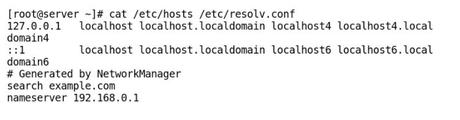
We can perform multiple tasks using the cat command, as listed in the following table:
Command
Description
cat file1 file2
Concatenatefile1andfile2and display the output. The entire contents offile1is followed by the contents offile2
cat file1 file2 > file3
Combine the contents offile1andfile2and save the output into a newfile,file3
cat demo1 >> demo2
Append the contents of the demo1 file to the end ofthe existing file,demo2
cat > demo
Any subsequent lines typed in the Terminal will go into thedemo file, untilCtrl+Dis pressed
cat >> demo
Any subsequent lines typed are appended to thedemo file, untilCtrl+Dis pressed
tac command
The tac command is used to view the contents of a file backward from bottom to top, starting from the last line.The syntax of tac is exactly same as that of the cat command, as shown in the following screenshot:

head command
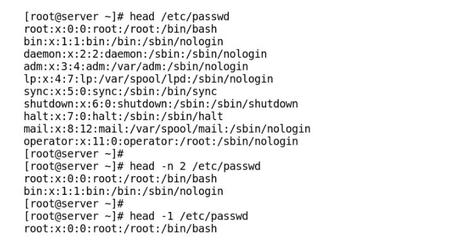
The head command is used to print the first 10 lines of a file by default. However, it can be used with the -n option, or just -<number>, to display a different number of lines as specified. The filename whose contents are to be displayed is passed as an argument to the head command as shown in the following screenshot:
tail command
The tail command is used to print last 10 lines of a file by default. However, like the head command, we can change the number number of lines to be displayed by using the -n option, or just -<number>, to display a different number of lines as specified. The filename whose contents are to be displayed is passed as an argument to the tail command, as shown in the following screenshot:
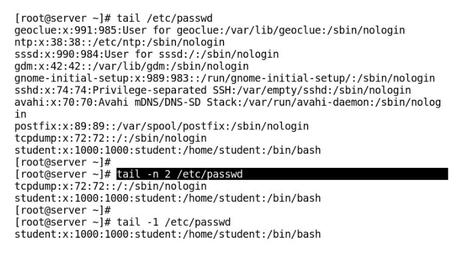
The tail command is more useful when we are troubleshooting issues using log files. It enables us to see the most recent lines of output by continuously displaying the addition of any new lines in the log file as soon as they appear. Thus, it enables us to monitor any current activity that is being reported or recorded, as shown in the following command line:
$ tail -f /var/log/messageswc command
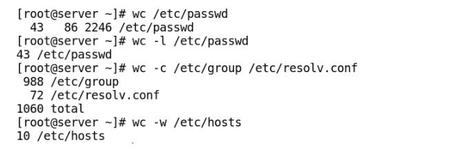
The wc command is used to count the lines, words, and characters in a file by default. It can accept -l, -w, or -c options to display only the lines, words, or characters respectively. The filename is passed as an argument to the wc command, as shown in the following screenshot:
file command
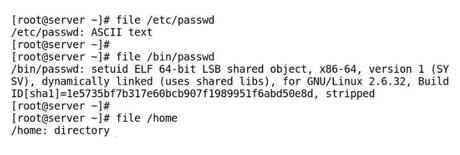
The file command scans the header of a file and tells us what kind of file itis. The file type to be identified is passed as an argument to the file command, as shown in the following screenshot:
Viewing compressed files
In Linux, we can view the contents of a compressedfilewithout decompressing it. It is a good option to view large log files, which are compressed using this utility. There are multiple utilities that have the letterzprefixed to their name for working with.gzipcompressed files.
This table lists somezfamily commands:
Command
Description
zcat demo.gz
To view a compresseddemo.gzfile
zless demo.gzorzmore demo.gz
To view a compresseddemo.gz file page by page
zgrep -i host demo.gz
To search inside a compressed demo.gz file
zdiff file1.gz file2.gz
To compare two compressed files, file1.gz, andfile2.gz, using the diffcommand
zcmp file1.gz file2.gz
To compare two compressed files, file1.gzand file2.gz using the cmp command
Similarly, for other text manipulation, utilities can also be clubbed with other compression methods, such as bzip2andxz. To display the contents of the file inside the bzip2compressed archive, we can use bzcat,bzless command and, to display the contents of the file inside the xzarchive, we can use the xzcatandxzlessrespectively.
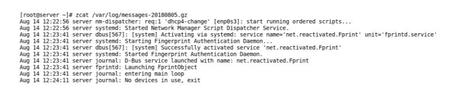
Utilization of the zcatcommand is shown in the following screenshot:
Utilization of the zgrep command is shown in the following screenshot:

cut command
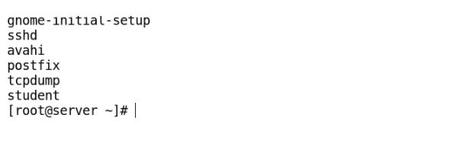
The cut command is used todisplay onlyspecific columns or characters from a text fileor from other command outputs. For example, in the following command, we display the login names from the /etc/passwd file:
$ cut -d: -f1 /etc/passwdOutput upon execution of the preceding command is shown in the following screenshot:
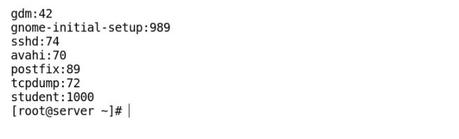
The following command line displays the first and third fields from a colon-delimited file(extra lines stripped from output):
$ cut -d: -f1,3 /etc/passwdOutput upon execution of the preceding command is shown in the following screenshot:
The following command line display only the first four characters of every line in the /etc/passwd file:
$ cut -c 1-4 /etc/passwdsort command
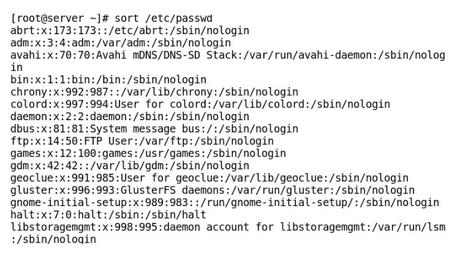
Thesortcommand is used to sort the lines of a textfilein ascending or descending order, or sort as per a specifiedkey.The following example illustrates the working of the sortcommand.
An example of the sortcommand to sort the/etc/passwd file in ascending order is shown in the following screenshot:
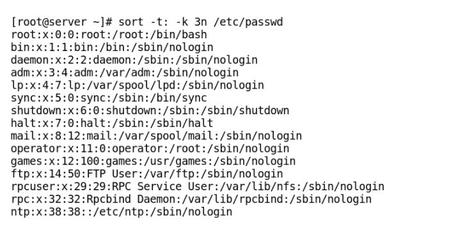
An example of the sort command to sort the /etc/passwd file by the third field numerically is shown in the following screenshot. Here, the -t option specifies a delimiter and the -k option specifies a field to be used for sorting:
uniq command
The uniq command isused to remove duplicate lines from a sorted file. It requires theduplicate entries to be in the adjacent linesand, hence, it ismostly used in combination with the sort command,which is used to sort the file contents first. The syntax of the uniq command is as follows:
$ sort <filename> | uniq
 or
$ sort -u <filename>
To count duplicate lines in the file, execute the command line, shown as follows :
$ sort <filename> | uniq -cTo display only the entries that are duplicates, execute the command line, shown as follows:
$ sort <filename> | uniq -cdpaste command
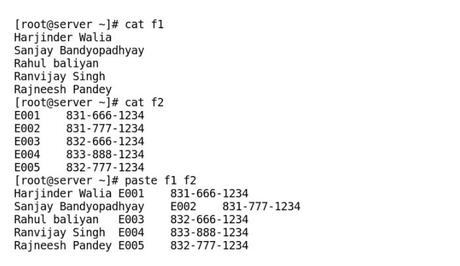
Thepastecommand is used to combine fields fromdifferentfiles, or combine lines from multiple files. For example, we have two files, f1containing the employee name, and f2containing their employee ID andphone number.
To paste content from f1andf2, execute the steps in the command line, as shown in the following screenshot:
To paste the contents separated with a delimiter, execute the paste command, as shown in the following screenshot:
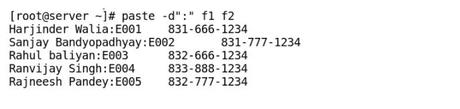
The commonly used delimiters with the -d option are space, Tab, |, :, and comma. An enhanced version of the paste command is join, which can work on files that have similar columns.






