


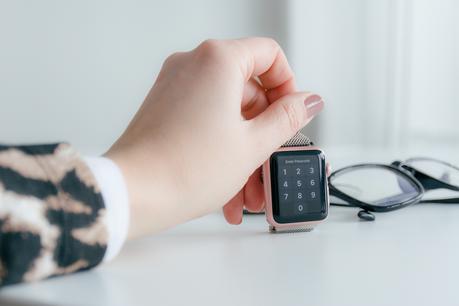
 Have you ever fantasized about being able to command your Mac with the flick of your wrist? If that's the case, you're in luck because your Apple Watch is able to do precisely that! This article will walk you through each step of the process, showing you how to set up and use your Apple Watch to take control of your Mac, which will ultimately make your life much simpler.
Read More. How can I unlock my iPhone using Face ID on my Apple Watch?
1. A brief introduction.
The Apple Watch is a capable device that can be used for a variety of purposes in addition to tracking fitness objectives. Because it can connect to your Mac, it has the potential to become a very helpful tool that will make it easier for you to handle your computer. It doesn't matter if you're presenting a presentation, listening to music, or just surfing the web; your Apple Watch can help you get more done in less time.
In this tutorial, we'll walk you through the steps required to set up and utilize your Apple Watch to manage your Mac, providing you with a way to use your computer that is both more handy and more effective.
2. Requirements.
There are a few conditions that must be met before you can begin utilizing your Apple Watch to operate your Mac. These needs are as follows:
- An Apple Watch that is running watchOS 3 or a later version.
- A Mac with macOS Sierra or a later version.
- Both devices must be logged in to the identical iCloud account.
- Bluetooth and Wi-Fi connectivity are both enabled on both devices.
3. Getting Started with Your Apple Watch.
Getting Your Apple Watch to Communicate with Your Mac
The first thing you'll need to do in order to use your Apple Watch to operate your Mac is to link the two devices together. To accomplish this, carry out these steps:
- Launch the Apple Watch application found on your iPhone.
- To pair your Apple Watch with your iPhone, you will first need to tap on "Start Pairing" and then follow the directions that appear on the screen.
- When your Apple Watch is successfully connected with your iPhone, it will also be automatically associated with your Mac as long as both devices are signed in to the same iCloud account.
- Making Handoff Available on Your Mac
- You can begin working on a task on one device and continue working on it on another using a feature called handoff. Follow these instructions on how to enable Handoff on your Mac:
- Launch the "System Preferences" application on your Mac.
- To access the general settings, select "General."
- Mark the checkbox that says "Allow Handoff between this Mac and your iCloud devices."
4. Being Able to Command Your Mac Using Your Apple Watch.
You are now able to begin using your Apple Watch to manage your computer once Handoff has been activated on your Mac and your watch has been linked with it. The following is a list of some of the ways in which you can utilize your Apple Watch to operate your Mac:
Opening Apps
It is possible to utilize your Apple Watch to launch applications on your Mac. To accomplish this, carry out these steps:
To get to the home screen on your Apple Watch, you'll need to press the Digital Crown.
Select the "Remote" app from the menu.
Employ the Digital Crown to move through the list of applications, and then tap the icon of the program you wish to launch.
Controlling Your Mac With Siri You may use Siri on your Apple Watch to take control of your Mac. To accomplish this, carry out these steps:
Using Siri.
To activate Siri on your Apple Watch, simply press and hold the Digital Crown button.
Use the command "Hey Siri, open [app name]" to launch an application on your Mac.
Simply saying "Hey Siri, pause" will cause the music playing on your Mac to stop.
Management of Musical Content.
The music that is playing on your Mac can be controlled by your Apple Watch. To accomplish this, carry out these steps:
- To get to the home screen on your Apple Watch, you'll need to press the Digital Crown.
- Select the "Remote" app from the menu.
- Select the "Music" icon with your finger.
- Make your way through your music library and pick out a tune with the help of the Digital Crown.
- To begin playing the song, you need to use the "Play" button.
- To fast forward or rewind through a song, use the "Forward" and "Back" buttons, respectively.
- You can put a pause in the song by using the "Pause" button.
Having Power Over Presentations.
It is possible to utilize your Apple Watch to manage your Mac so that you may give presentations. To accomplish this, carry out these steps:
- Launch the Keynote application on your Mac.
- To begin your presentation, click the "Play" button on your mouse.
- To get to the home screen on your Apple Watch, you'll need to press the Digital Crown.
- Select the "Remote" app from the menu.
- Select the "Keynote" icon by making a tap.
- Use the left or right arrow keys on your keyboard to navigate through your slides.
Taking Command of Notifications.
Controlling the alerts and notifications displayed on your Mac can be done with the help of your Apple Watch. To accomplish this, carry out these steps:
- To get to the home screen on your Apple Watch, you'll need to press the Digital Crown.
- Select the "Remote" app from the menu.
- Select the "Notifications" icon with a tap.
- You may navigate through your alerts by using the Digital Crown.
- If you want to open a notification on your Mac, tap on it.
5. Configuring Your Apple Watch to Act as a Remote for Your Mac.
You may program custom shortcuts on your Apple Watch for the applications you use the most often if you want to be able to handle your Mac in the most effective manner possible. To accomplish this, carry out these steps:
- Launch the "Watch" application found on your iPhone.
- Tap the "Remote" option after scrolling down.
- To create a new shortcut, tap the option that says "Add a new shortcut."
- Choose the program for which you wish to create a shortcut on your desktop.
- Personalize the shortcut by giving it a title and deciding which icon to use.
6. Finding and fixing problems.
If you're experiencing problems controlling your Mac with your Apple Watch, there are a few things you may try, including the following:
- Check to confirm that each of your devices are logged into the identical iCloud account.
- Check to see that both devices' instances of Bluetooth and Wi-Fi are turned on.
- Check to see that Handoff is turned on for your Mac.
- Both of these must be restarted.
7. The inference drawn.
The use of your Apple Watch to manage your Mac can be a game-changer, making the tasks you need to complete more convenient and efficient. You will have no trouble configuring your Apple Watch to function as a remote for your Mac if you just follow the instructions in our step-by-step guide.
Read More. "Meet the Steve Jobs of the Education Industry"
8. Conclusion.
In conclusion, the Apple Watch provides a method that is both effective and handy for controlling your Mac. Setting up your watch to manage a broad variety of tasks on your Mac may be accomplished in just a few easy steps. These functions can include playing music and controlling presentation slides, amongst other things. If you are able to follow the step-by-step guidance that is provided in this article, you will be able to take full advantage of this powerful feature and significantly improve the efficiency of your workflow. Why not give it a try today and discover how the Apple Watch may assist you in working smarter, rather than harder?9. FAQs.
01. Is it possible for me to operate my Mac with my Apple Watch even when they are not connected to the same Wi-Fi network?
Because of this, you cannot utilize Handoff unless both of your devices are linked to the same Wi-Fi network.
02. Is it possible to use my Apple Watch to adjust the volume on my Mac?
Unfortunately, you cannot adjust the volume on your Mac using your Apple Watch.
03. What should I do if I misplace my Apple Watch?
If you're having trouble finding your Apple Watch, open the "Find My" app on your iPhone.
04. Can I use my Apple Watch to control the mouse pointer on my Macintosh computer?
No, you cannot use your Apple Watch to control the mouse cursor on your Mac computer.
05. When my Mac is in sleep mode, will I still be able to use my Apple Watch to operate it?
Unfortunately, in order for Handoff to function, your Mac needs to be awake.






