


OBS Studio is the better Windows 10 screen recording program for long videos, tutorials, and streaming, while ShareX is faster for quick desktop captures, GIFs, and support clips. Both are free, and OBS Studio is open source [source: OBS Project]. ShareX feels lighter, but OBS gives more control over scenes, audio, bitrate, and recording quality.
TLDR: For a 30-minute software tutorial, OBS Studio is usually the safer pick because it handles audio sources, webcam overlays, and high-quality output with fewer limits. For a 45-second bug report, ShareX is faster because it can record a region, save the file, and copy it in a few clicks. A small team recording 20 support clips per week may save real time with ShareX, while a creator posting weekly YouTube lessons will likely prefer OBS. The split is simple: OBS for production, ShareX for speed.
OBS Studio vs ShareX on Windows 10
Windows 10 users often need more than a basic screen grabber. They may record training videos, product demos, game clips, webinars, or support issues. OBS Studio and ShareX both do the job, but they feel very different.
OBS Studio behaves like a small recording studio. It can capture the full display, a window, a browser, a game, a webcam, and several audio tracks. It also supports scenes, overlays, hotkeys, and streaming. That makes it powerful, but not exactly friendly on the first run.
ShareX feels more like a sharp utility. It is built for quick capture work. It can take screenshots, record short videos, make GIFs, upload files, run workflows, and copy links. It is not built for polished video production. That is fine. It does not pretend to be.
Where OBS Studio Wins
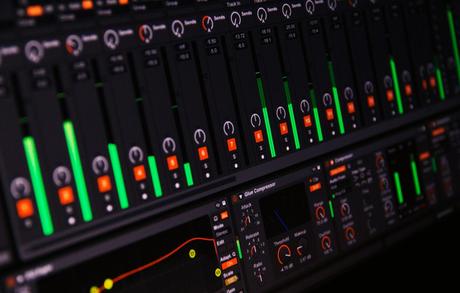
OBS Studio is the better choice when quality matters. It gives users control over resolution, frame rate, encoder, audio bitrate, and file format. A creator can record in 1080p at 60 frames per second, add a webcam in the corner, and mix microphone and system sound separately.
This is useful for:
- Software tutorials with voiceover and webcam video.
- Online courses where clean audio matters.
- Game recording with high frame rates.
- Live streams to platforms such as YouTube or Twitch.
- Webinar capture with multiple visual sources.
OBS also allows scene switching. For example, a trainer can switch from a full desktop view to a close-up browser window, then to a slide screen. This gives a more polished result without editing every cut later.
The catch is that setup can be annoying. A new user may spend 10 to 15 minutes fixing the right audio device, display source, and output folder. It drives many users crazy that a black screen can appear if the wrong capture source is chosen. Once configured, though, OBS is steady and dependable.
Where ShareX Wins
ShareX is better for speed. It starts fast, records small tasks, and works well for people who capture many short clips during the day. A tester can record a bug, trim nothing, and send it to a developer. A support agent can capture a customer issue and attach it to a ticket.
Image not found in postmetaShareX is also excellent for screenshots. That matters because desktop activity is not always best shown with video. Sometimes a marked-up image is faster. ShareX includes arrows, boxes, blur tools, text labels, scrolling capture, and upload options.
It is a strong fit for:
- Bug reports that need short clips.
- Quick GIFs for chat or documentation.
- Screenshot workflows with annotations.
- Support teams that need speed over polish.
- Developers who repeat capture tasks often.
Honestly, it feels like ShareX was made for people who are tired of opening heavy software just to record 20 seconds of desktop motion. Still, its video controls are not as friendly as OBS. Audio setup can be rough. Longer recordings are not its strongest area.
Performance and File Size
OBS Studio can be heavier, especially when recording at 1080p or 4K. It can use more CPU or GPU power, depending on encoder settings. On an older Windows 10 laptop, this can cause fan noise or dropped frames.
ShareX usually feels lighter for small captures. Short recordings and GIFs are quick. Yet GIF files can become huge if the recording area is large or the clip runs too long. A 10-second GIF may be larger than expected, while an MP4 from OBS may look better and take less space.
For long sessions, OBS has the edge. Its output settings are better suited for clean MP4 or MKV files. For quick explainers under one minute, ShareX is often enough.
Ease of Use
ShareX is faster after installation, but its menus can feel crowded. There are many options, and some are buried. Once shortcuts are set, it becomes very efficient.
OBS takes more effort at first. It asks users to think in terms of sources and scenes. That can feel strange. After the first setup, the workflow becomes simple: pick a scene, press record, stop, and save.
Best Choice for Different Users
- Teachers and course creators: OBS Studio.
- Gamers: OBS Studio.
- Support agents: ShareX.
- QA testers: ShareX.
- YouTube tutorial creators: OBS Studio.
- Office workers sharing quick steps: ShareX.
FAQ
Which is better for recording the Windows 10 desktop?
OBS Studio is better for long, high-quality desktop recordings. ShareX is better for fast clips, screenshots, and GIFs.
Is ShareX easier than OBS Studio?
ShareX is quicker for simple captures. OBS Studio is easier only after scenes, audio, and output settings are configured.
Can OBS Studio record system audio and microphone audio?
Yes. OBS can record desktop audio and microphone audio. It can also keep sources separate, which helps with editing.
Can ShareX record videos?
Yes. ShareX can record screen video and GIFs. It works best for short desktop activity, not long polished videos.
Which program should a beginner choose?
A beginner who needs a quick clip should choose ShareX. A beginner who wants tutorials, webcam overlays, or better audio control should choose OBS Studio.