


If you are a Microsoft Edge user, you may have heard of an upcoming feature called Sleeping Tabs. In a recent blog post, Microsoft detailed how the feature works and presented the results of the RAM and CPU usage tests with and without sleep tabs enabled.
As the name suggests, the Sleeping Tabs feature reduces the consumption of system resources by putting unused browser tabs to sleep, that is, by turning off what is happening in the background and resuming it when the user clicks on a tab in standby. The process frees up system resources that can be used elsewhere.
Microsoft claims that the Sleeping Tabs feature is built on the "freeze" technology present in Chromium which minimizes resource usage by pausing the tab's script timers. However, a standby tab is different from a skipped tab in which the user must reload the page.
Inactive tabs in Microsoft Edge are automatically put to sleep and disappear after 2 hours of inactivity. Users can change this sleep duration by visiting their browser settings.
While the idle tabs feature has its share of benefits, some websites may not function properly after tab resumption. Microsoft assured that it was working to resolve the problem; it will detect those websites and not put the respective tabs to sleep.
"We've built heuristics to detect these scenarios and keep these tabs from sleeping to keep you in your flow," he says.
Reduced CPU and RAM consumption
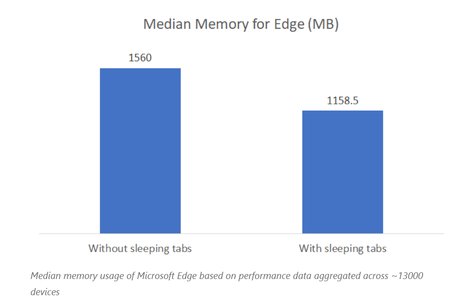
Speaking of performance improvements, Microsoft claims to have seen a 26% reduction in average RAM usage in internal testing which included more than 13,000 devices. Also, a single idle tab uses about 29% less CPU on average than a normal tab.
How do I use Sleeping Tabs in Microsoft Edge?
The Sleeping Tabs feature is currently available on Microsoft Edge Canary and Dev Channels (87.0.649.0). You can update your browser to take advantage of the new functionality. However, you will need to visit edge: // flags / and activate these three indicators.
After that you will find the Sleep Tabs option on edge: // parameters / system, where you can change the tab timer and also manually add websites that you don't want to sleep while being inactive.
Here, you should not enable the "Enable immediate timeout for sleep tabs" flag if you want to manually change the inactive timer in the browser. Otherwise, the option will disappear and the tabs will be immediately put to sleep.
Microsoft Edge's "Sleeping Tabs" message reduces RAM usage by 26%: Microsoft appeared first on Fossbytes.






