


In this tutorial, we will see the meta-characters and expansion technique that can improve file management efficiency.
File globbing
The bash shell can match apathnamebased on some meta-characters. This feature is known asfile globbing. The pathname matching capability was historically called globbing (alsoknownas pattern-matching or wildcard matching) for managing a large number of files. Itexpandsthe meta-characters used in filenames and pathnames.
When using file globbing for matching filenames or pathnames, the meta-characters are replaced by the list of matching pathnames prior to command execution. The following table lists the pattern and its corresponding result:
Pattern
Result
?
Matches any single character
*
Matches any string of characters (0 or more)
[set]
Matches any character in the set; for example, [akl]will match any single occurrence ofa,k,l
[!set]or[^set]
Matches any character not specified in the set of characters
~
Matches the current user’s home directory (known as tilde expansion)
~username
Matches username’s home directory
Wildcard expansion
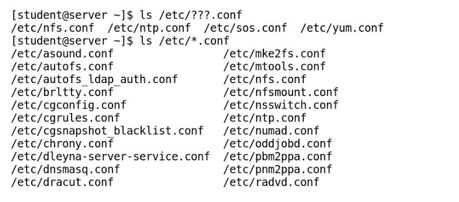
To search for a file using the ?wildcard, replace each unknown character with ?, as shown in this example:
$ ls /etc/???.confwill listtheconffiles with names that consist only of three characters
To search for files using the *wildcard, replace the unknown string with *, as shown in this example:
$ ls /etc/*.confwill list allconffiles inside the/etc/directory
The result of the preceding command will look as follows:
Tilde expansion
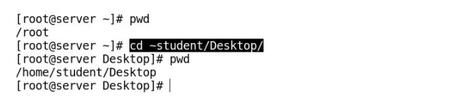
The tilde character, ~, if immediately followed by a forward slash,/, matches the current user’s home directory, as shown in the screenshot:

The tilde character, ~, if immediately followed by a string and then a forward slash, /, matches the username as specified in the string, as shown in the following screenshot:
Brace expansion
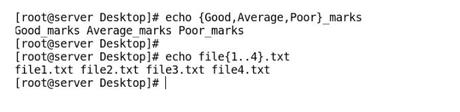
Brace expansion generates a set of strings of characters. Inside braces, we specify a comma-separated list of strings or a sequence expression, which is either preceded or followed by text to append in the string supplied between braces, as shownin the following screenshot:
Command substitution
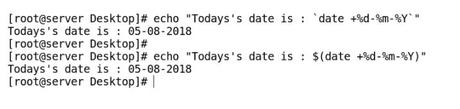
Command substitution allows the output of a command to be stored in a variable; the command can be replaced by itself. There are two methods for performing command substitution:
- Enclosing the command within backticks, as in
`command`. Use of backticks is an oldermethod, and has two disadvantages:
- Backticks are sometimes confusedwithsingle quotation marks
- Backticks cannot be nested inside other backticks, so nested command substitution is not possible
- Enclosing the command with an initial dollar sign and parentheses, as in
$(command). This overcomes the disadvantages of backticks when used in command substitution as shown in the following screenshot:
Quoting and escaping
There are certain characters in bash shell that have special meaning, they are also known as meta-characters. Bash meta-characters enhance the flexibility, power and usage of bash. Examples of meta-characters are asterisk (*), question mark (?), hyphen (-), exclamation (!), and so on.
- Escaping: The backslash (
\) is an escapecharacterthat protects the special interpretation of the character immediately followed - Quoting: To protect longercharacterstrings, enclose them inside single (
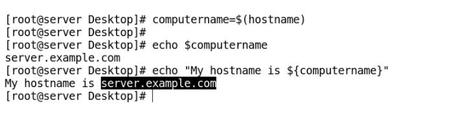
') or double (") quotes - Double quotes(“): Using double quotessuppressesglobbing and shell expansion; however, it allows command and variable substitution, as shown in the following screenshot:
-
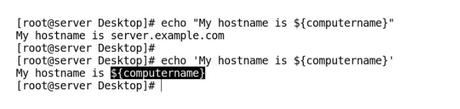
Single quotes (‘): Using single quotessuppressesall kinds of expansion, and everything within single quotes is treated as literal characters without any special meaning, as shown in the following screenshot:
File naming conventions
A file or folder name is a string used to identify a file. It canconsistof 255 characters, including alphabetical letters, numbers, and special characters, excluding (/), which is used as the directory separator. You can include special characters (meta-characters); however, use of certain characters in filenames is not advisable, including', ", $, #, !, and so on, because of their special interpretation by the shell.
Linux is case-sensitive as well as space-sensitive, so filenames are also case-sensitive. This means if we create files with the namedata.txtandData.txtin the same directory, then it results in two unique files.
Note:
The space is an acceptable character in Linux filenames; however, a space is also used as a delimiter by the command shell for command-line syntax interpretation, so it is generally not advised touse spaces in filenames in case this leads to ambiguity when executing commands.






