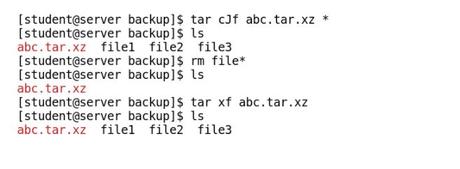
Archiving is the process of fetching multiple files from the same or different locations and putting them into a single file bundle. It is generally done together with compression, or immediately followed by compression. This helps in streamlining the backup process, as discussed in the following section.
Compression
File data is generally compressed to save the disk space and reduce traffic, as well as the time to transmit files over a network. Linux has multiple utilities for compression; some of them are listed in the table that follows:
Command
Description
gzip
Most popular Linux compression utility
gunzip
Utility to decompressgzipcompressed files
bzip2
Another compression utility, with better compression thangzip
bunzip2
Utility to decompress.bzip2compressed files
xz
The most space-efficient compression utility that exists in Linux
zip
Popular utility to decompress archives from other operating systems
These utilities have different algorithms for compression and thus different efficiency and resource consumption levels (generally, more efficient techniques take more time). Decompression time does not vary much across different methods.
gzip and gunzip compression
Thegziputility compresses files faster than any other utility.
The followingtablelists the gzipcompression commandandits description with some examples:
Command
Description
gzip *
Compresses all files in the current directory and each compressed file is renamed with the.gzextension
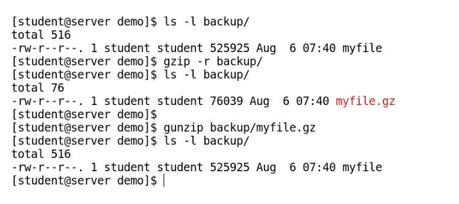
gzip -r backup/
Compresses all files in thebackup/directory and subdirectories
gunzip myfile.gzor
gzip -d myfile.gz
Decompressesmyfile.gztomyfile
The examples of the gzip and gunzip commands are shown in the following screenshot:
bzip2 and bunzip2 compression
The syntax of the bzip2 command is similar togzip, but it uses a differentcompressionalgorithm and creates a smaller-sized compressed file, at the price of more time taken for compression.
The followingtable lists the bzip2compression command and its description with some examples:
Command
Description
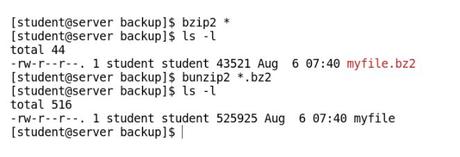
bzip2 *
Compresses all files in the current directory and each compressed file is renamed with the .bz2extension
bunzip2 *.bz2or
bzip2 -d *.bz2
Decompresses all the files with the .bz2extension in the current directory
The examples of the bzip2 and bunzip2 commands are shown in the following screenshot:
xz compression
This is the most space-efficientcompressionutility used in Linux. The trade-off for compression is a slower speed of compression for a higher compression ratio.
The following table lists the xzcompression command and its description with some examples:
Command
Description
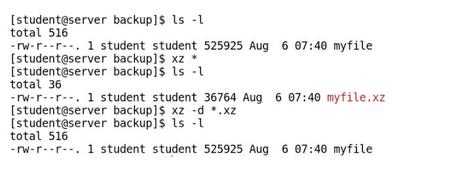
xz *
Compresses all files in the current directory and each compressed file is renamed with the .xzextension
xz myfile
Compresses themyfile file tomyfile.xzwith the default compression level (6); deletes the originalmyfileafter compression
xz -dk
Decompressesmyfile.xztomyfileand preservesmyfile.xzafter decompression
xz -d *.xz
orunxz
Decompresses all files with the extension.xzin the current working directory
The examples of xz command usage are shown in the following screenshot:
zip
This program is notgenerallyused to compress files in Linux, but it is quite often required to decompress archives from a Windows OS.
The following table lists the zipcommand and its description with some examples:
Command
Description
zip backup *
Compresses all files in the present working directory and puts them insidebackup.zip
zip -r backup.zip /home/student/abc
Archives the files and directories stored in/home/student/abcin the backup.zip file
unzip backup.zip
Extracts all the files from thebackup.zipin the current directory
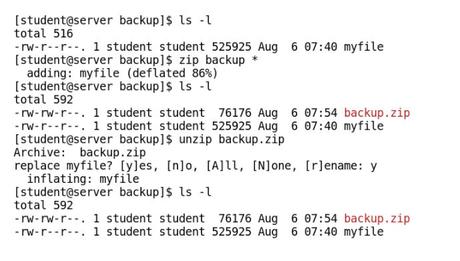
The examples of the zip and unzip commands are shown in the following screenshot:
Archiving
In addition to compression, thetar(tape archive) utility is very often used to group files into an archive known as atarballand then compress thewholearchive together. Creating a single file bundle by putting multiple files together is known as archiving.
The various options used with thetarcommand are given, withtheirdescriptions, in the following table:
tar command option
Description
c
Creates an new archive
v
Verbosity, used to see which files are being added and extracted
f
Filename of the archive to operate on
x
Extracts an archive
t
Lists the contents of an archive
z
Uses .gzipcompression (.tar.gz)
j
Uses .bzip2compression (.tar.bz2), better than.gzip
J
Uses .xzcompression (.tar.xz), better than.bzip2
The tarball archives can be compressed using.gzip,.bzip2, or.xzcompression withtarcommand itself.
The following table lists the usage of the tarcommand with compression utility:
Command
Description
Tar cvf abc.tar file1 file2 file3
Archives thefile1,file2, andfile2 files and puts them into one single file, abc.tar
Tar xvf abc.tar
Extracts all the files in the abc.tararchive in the current directory
Tar tvf abc.tar
Lists all the files available inside the abc.tar archive
Tar cvzf abc.tar.gz *
Creates anabc.tar.gz archive of all the files in the current directory and compresses it with.gzip
Tar cvjf abc.tar.bz2 *
Creates anabc.tar.bz2 archive of all the files in the current directory and compresses it with.bzip2
Tar cvJf abc.tar.xz *
Creates anabc.tar.xz archive of all the files in the current directory and compresses it with.xz
Tar xvf abc.tar.gz abc.tar.bz2 abc.tar.xz
Extracts all the files inabc.tar.gz,abc.tar.bz2, andabc.tar.xzin the current directory
Archiving with tar
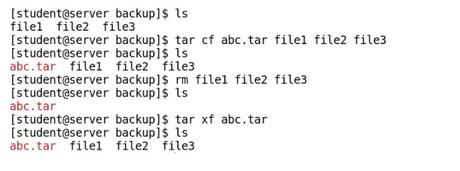
In the following example, we cover creating and extracting archives:
Archiving and compression (.gzip) using tar
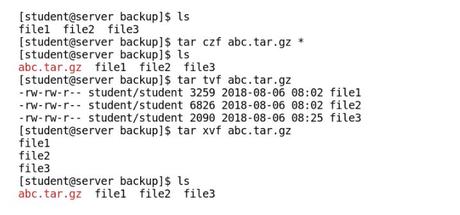
In the following example, we cover creating and extracting gunzip compressed archives:
Archiving, compression (.bzip2), and listing contents using tar
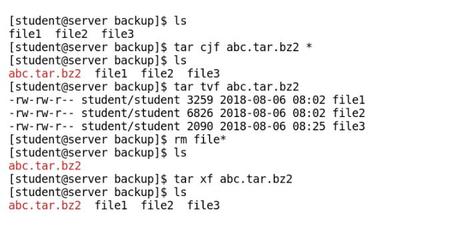
In the following example, we cover creating and extracting .bzip2 compressed archives:
Archiving and compression (.xz) using tar
In the following example, we cover creating and extracting .xz compressed archives: