


In this tutorial will learn how to install and configure Git on Red Hat Enterprise Linux (RHEL) 7.
Nowadays, Git is a very famous version control system used by most of the open-source and commercial projects. It allows us to track code changes, revert into the previous stage of a project, and work with multiple branches and easy to collaborate with your fellow developers.
Git is designed and developed by Linus Torvalds, who has created Linux kernel.
At the time of writing this article, the Red Hat 7 repository has Git 1.8.3 version, which is outdated today.
If you want to install the most recent version of Git (v2.22.0) with yum package manager, you need to use Wandisco repositories.
One of another option to install the latest version of Git is to install with source, where you need to use Source file of git to build and install, but the drawback is you will not be able to maintain your Git installation through the yum package manager.
Prerequisites
To install Git into RHEL, make sure you have a RHEL running system with a user login who has sudo privileges.
Installing Git
Follow below-mentioned steps to install Git into RHEL:
Step 1 – Enable Wandisco repository
To install Latest Git through yum package manager first need to enable Wandisco Git Repository. To allow wandisco to the repository, you need to create a new repository under the /etc/yum.repos.d/ directory, as we have created a new repository file with the name “wandisco-git.repo” with below content:
[wandisco-git]
name=Wandisco GIT Repository
baseurl=http://opensource.wandisco.com/rhel/7/git/$basearch/
enabled=1
gpgcheck=1
gpgkey=http://opensource.wandisco.com/RPM-GPG-KEY-WANdisco
Now, import the repository GPG keys with:
$ sudo rpm --import http://opensource.wandisco.com/RPM-GPG-Key-WANdiscoStep 2 – Install Git into RHEL
Now you can install Git into RHEL by using the following command
$ sudo yum install git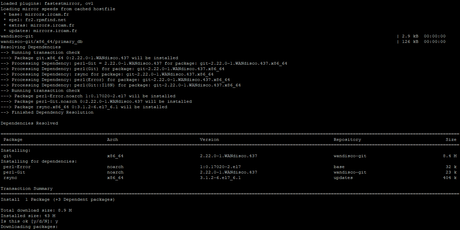
Step 3 – Check Git Version or Verify Installation
To verify any package on Linux, you can check the install version of that package or tools; you can verify installed Git by using the following command:
$ git --version
The above output is shown us we have successfully installed Git version 2.22.0 on RHEL system.
Step 4 – The basic configuration of Git
Now you need to configure username and email ID for Git commit process, which you can configure as shown below:
$ git config --global user.name “Your Username”
$ git config --global user.email “Your Email ID”
After configuring the username and email, you can verify the setting configured properly or not using the following command:
$ git config --list
The above configuration saved into ~/.gitconfig file, which you can change manually also in future.

Conclusion
Now you have learned how to install Git version control system into Red Hat Enterprise Linux 7. To learn more about Git, you can check the Pro Git book where all details are available about Git Version Control.
If you get any problem while installing Git into your system or have any feedback about this article, leave a comment below.
If You Like What We Do Here On LinuxConcept, You Should Consider:
Stay Connected to: Twitter | Facebook
Subscribe to our email updates: Sign Up Now
We are thankful for your support.






