Video calls are one of the most used communication resources these days due to the COVID-19 pandemic, which has people confined to their homes.
Making a video call requires that both the sender and the receiver have a camera, but sometimes the computers or the screens to which they are connected do not have one. We are going to tell you how you can easily turn an Android cell phone into a fully operational webcam, through an application and a Wi-Fi connection.
The first thing you should do is make sure that both the cell phone and the computer are connected to the same Wi-Fi network. Next, download and install the DroidCam Wireless Webcam app on your phone from Google Play. The next step is to do the same with the Windows client service on your computer. Wait for the download to finish and when the installer opens click Next. Accept all the steps until a window like the one shown in the following image appears.
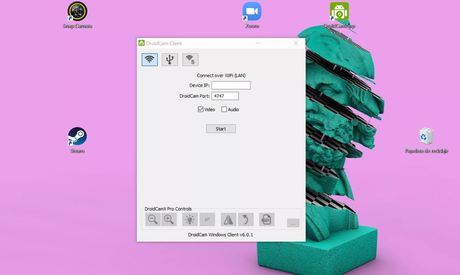
Check the two audio and video boxes and open the app on your cell phone where you will see an IP code (this must be a 9-digit number separated by dots (something like “xxx.xxx.x.xx”). Write this code in the “Device IP” box of the Windows application and press “Start”. You will automatically see what the rear camera of the phone focuses on your computer screen. You can use your phone whenever you want as a camera in video call services like Skype or Zoom, but remember to select DroidCam as a camera in the settings of each service.
In addition to making video calls with yours during confinement, from CNET in Spanish we also recommend that you take a look at our list of free services to quarantine and also some free resources for physical activity while you are at home.