Windows 8 is the latest and the most modern operating system from Microsoft, till date. Almost every laptops and desktops today, comes preloaded with Windows 8 operating system. And Windows 8 is achieving popularity, but at a low pace.
If you are using the Windows XP operating system on your computer, then it’s the time to upgrade your operating system, as Microsoft will be cutting off all technical support for Windows XP operating system by mid-2014.
Even if you’re using Windows 7, it’s better to upgrade Windows 8, as its latest operating system.
However, the only con of the Windows 8 operating system is that it has a “Touch-Optimized” user interface. And users having Windows 8 operating system on non-touch devices like Desktops, won’t feel the Metro UI and similar settings useful.
But, there is a way for Windows 7 users to install Windows 8 on their computer, without actually deleting Windows 7 operating system from their computer.
So, you will be able to switch between Windows 7 and Windows 8 operating system’s on your computer but that can slow the startup process in windows 7. For solving that, you should speed up the startup process in Windows 7.
And today, we will be guiding you through the complete process on how to Upgrade Windows 7 Computer To Windows 8 Using Dual-Boot Method. Please make sure that your computer running Windows 7, has all technical requirements to install Windows 8.
How To Upgrade Windows 7 Computer To Windows 8 Using Dual-Boot Method?
Below is the complete detailed tutorial on how to upgrade Upgrade Windows 7 to Win 8 Using Dual-Boot Method:
- First of all, make sure you have the .ISO installer of Windows 8.
- Now, burn the .ISO installer of Windows 8 to a DVD.
- Now, we need to create a separate partition of your Hard Disk, to install the Windows 8 operating system without deleting the Windows 7 operating system.
- For this, navigate to the “My Computer” on your computer.
- From My Computer, Right Click on an empty space.
- From the popup box that appears, click on “Manage”.
- Now click on “Storage” and then click “Disk Management”.
- Now, you will be displayed with a box, with displays all available storage drives on your computer.
- Now, from all the disks available on your computer, choose a disk to install the Windows 8 operating system to it. Make sure that your disk has at least 20 GB of free available storage space.
- Now, right click on the disk that you chose to install Windows 8 on, and click on “Shrink”.
- Decide the amount that you would like the Windows 8 to use, and confirm.
- Now a black bar will appear on top, titled “Unallocated”.
- Click on that bar, and keep proceeding by clicking “Next” until you see the “Format Partition” part. Complete the “Format Partition” process using the default stuffs.
- Give it a name. Name something different, so that you can identify it later. For the sake of our tutorial, let’s name it “Windows 8”.
- Now, reboot your computer with the DVD disk entered.
- While booting, you’ll be asked to “Press Any Key” to boot from CD/DVD. Press any key from your keyboard.
- Choose your language, and install the Windows 8 operating system.
- After installation, enter your Product Key to activate your copy of Windows 8.
- Now, From the setup screen choose “Custom”.
- Now a listed of your available drives will appear, select the drive that you named “Windows 8”.
- Now, wait patiently until the Windows 8 operating system installation completes.
- Phew! Now you have successfully installed Windows 8 on your Windows 7 computer.
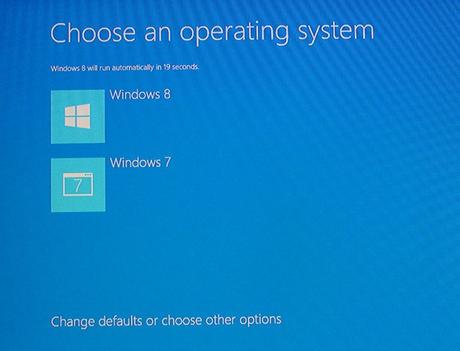
Now, whenever you start your computer, you’ll be asked on the startup screen whether to boot as Windows 7 or Windows 8. And enjoy!