


Sometimes we can use computers for days, weeks, or even years before doing what seems like a simple task, only to find that we have no idea how to do it. You might be familiar with this feeling if you recently found out that there are programs on your Mac that you want to remove, for example.
While MacOS has a lot of benefits, it's not always easy to get rid of apps that you no longer need, and the operating system doesn't come with an instruction manual to tell you what to do. . Here's how to uninstall apps on a Mac, and what to do with apps you can't remove.
Uninstall apps downloaded from the App Store
This method applies to almost any app that you downloaded from the Mac App Store. If you want to uninstall any of these apps from your system, here is the fastest and most efficient way to do it.
Step 1: Go to the Dock and look for an option that says Launchpad - the icon shows a silver rocket. You can also find it via the dedicated Launchpad key ( F4, or the button with the rows of icons on the Touch Bar) or by making a four-finger pinch on the Apple trackpad.
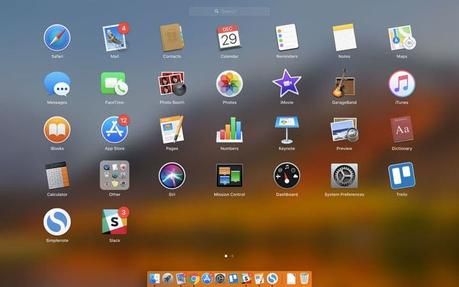
2nd step: Once opened, Launchpad will replace all current windows with a grid of applications. You can view, open, and rearrange apps here if you want to, but right now you're mostly using Launchpad as a tool to remove unwanted software.
Step 3: Click on the app you want to remove and hold down until the icon starts to shake. If you've used iOS before, you know what it's all about - the shaking motion indicates that an app is ready to be moved or deleted.
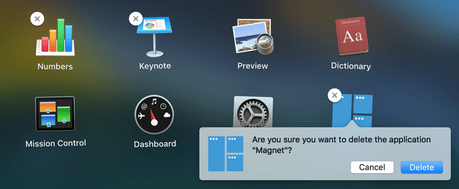
Step 4: When the icon starts to shake, you should see an "X" appear in the upper left corner of each icon. Now just click on this button and confirm your decision with the Wipe off to rid your machine of the application in question.
That's it! Plus, don't worry about accidentally deleting an app that you want to keep. You can reinstall any of the apps you deleted - without having to pay for them again - by going to the App Store and downloading them as you normally would.
How to uninstall apps that are not in Launchpad
If you don't see the app you want to get rid of in the Launchpad, don't worry! There is probably still a way to uninstall it. However, you will have to work a little harder this time around. This is what you do.
Step 1: First, click on Searcher in the Dock - the icon looks like a smiling computer screen. Then find the app you want to get rid of or go to the Applications folder and scroll down until you find the app in question.
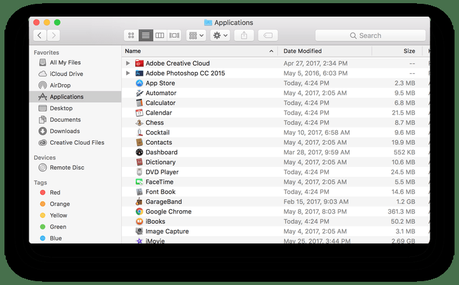
2nd step: Check if the application has its own folder. If so, select that folder to look inside. Many larger or older apps usually come with an uninstaller, which will get rid of the app for you. If the application folder contains one of these uninstallation programs, click it. This will automatically launch the uninstaller, which will give you a unique set of instructions for removing the software.
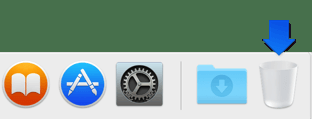 Step 3: If the application does not have its own folder or an uninstaller, you still have options. Click and hold the app's icon in Finder, and drag it to your Dock. Towards one end of your Dock, you should see a trash can icon, which means Trash can. Drag the app icon here, and it should transport the app to the trash.
You can schedule your recycle bin to automatically delete it after a certain time, or you can Ctrl + click on the recycle bin and select Empty trash can to immediately delete the content.
Apps you can't delete
Keep in mind that there are a number of apps that you won't be able to uninstall. These are apps that are part of MacOS, play a vital role in Apple services, and generally represent the Apple brand to such an extent that Apple won't let you get rid of them.
These include Safari, Mail, and many other apps that appear naturally in your Dock.
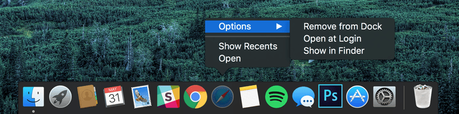
While it's impossible to get rid of these apps, that doesn't necessarily mean you have to keep watching them. If you want to pretend you're not there, Ctrl + Click those apps in the Dock, then select Options in the resulting menu and click Remove from Dock. It's a cool little way to free up some space in your Dock, although you can't permanently remove this software.
In Launchpad, you can also put the icons in folders to eliminate them. Just like on your iPhone, click and hold an icon, then drag it onto another icon. This will automatically create a folder that you can then drag other icons into. You can also just drag the icon to another app page to clean things up a bit.
Editor's recommendations
https://www.digitaltrends.com/computing/how-to-uninstall-programs-on-a-mac/






