


Got a Facebook portal, but worried you couldn't use it because you're not as tech savvy as you would like? Do not worry. Setting up your Facebook portal is a very simple process that will only take you a few minutes. Here's how to get started with your portal, step by step, whether you have a Portal, Portal + or Portal Mini.
Start your portal
Step 1: First of all, you need to power up your portal. Plug the power cord that came with it into the back of the display, then plug the cord into the wall.
2nd step: You will see the screen light up, then it will ask you for your preferred language - tap the screen to make your selection.
Step 3: Next, it's time to connect the device to your Wi-Fi. Select your Wi-Fi network from the options on the screen, enter your password and press Join> following > Continue. If your portal needs to download a software update, it will notify you on the screen. When finished, it may ask you to restart the portal.
Step 4: Restart your portal as requested. Now you can follow the onscreen instructions to give your portal a name. You can choose a predefined option in the menu or press the button Use name option to give your portal a more unique name. When you are finished, press following.
Step 5: Next, you need to log into your Facebook and / or WhatsApp account, then tap following and follow the instructions on the screen. If you don't have one of these types of accounts, we've got a guide to help you get started with a new Facebook account and a guide to getting started with WhatsApp. The portal will work as a photo frame if you link your Facebook or Instagram accounts, although the calling feature will still work if you only sign in to WhatsApp.
Step 6: Portal will now encourage you to manage your contacts. It takes a little longer, but it's worth it. You can view all your Messenger or WhatsApp contacts and select some to set as favorites. Choose the contacts you want to make video calls with. You can then select some contacts to hide, which can be a nice feature if there are some contacts that you don't want to call even by accident.
Step 7: Portal will try to walk you through a guide on how the moving camera works at this point. You don't have to, but if you've never used a smart screen before, it might be helpful to see how it works.
Step 8: Connect music accounts from platforms such as Spotify and Pandora if you want. Again, it's completely optional, but it's fine to do it all at once if you plan on listening to music.
Step 9: Now you can manage your photos to help Portal act as a slideshow photo frame (a bit more on that below). Portal will teach you how to view Facebook photos, how to add photos from your phone, and other basic steps.
Step 10: Finally, Portal will ask you if you want to associate an Alexa account. Alexa is, in general, a much better voice assistant than Portal's own assistant, so we recommend that you do this. Portal will then follow this with some privacy options as to whether or not you want to store the portal voice recordings (this does not affect Alexa recordings, although we can help you as well).
Customizing the portal home screen
The Facebook portal home screen displays a number of apps that you can use to access your features. You can add new apps at any time by simply selecting Portal applications and display the list of available application options. This is useful for adding other music services, setting up your portal for Zoom meetings (both are compatible), etc.
If you want to get rid of an app, long press any app and hold it until the X symbol appears in the corner of the app. Select the X to delete the application and select Finished once you have finished.
Using your portal as a photo frame
You are now ready to use your portal. One of the biggest uses of the portal is as a photo frame. To configure this feature, go to the Home screen and press Settings, then tap Superframe and Pictures. Then your Facebook photo albums will appear on the screen. Tap the toggle switch next to the albums you want to see on your portal when used as a photo frame.
You can also upload photos to your portal using the Portal app. Just tap your portal on the home screen and tap Create an album > Add photos> Add. Choose the photos you want to upload (you can add 20 at a time) and activate the slider next to the option View in Superframe.
You also have the option to make your Instagram photos appear by adding your account. You can do this by pressing Settings, then tap Superframe and Instagram. From there, all you need to do is enter your Instagram account and password.
How to make calls on a portal
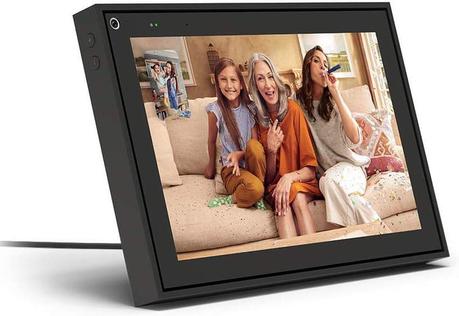
You can call your contacts on Facebook Messenger and WhatsApp. To make a call on Portal, say, "Hey Portal, call [contact name]. To answer a call, say "Hey Portal, answer" and to hang up say "Hey Portal, hang up". You can also use the screen to start a call. Go to the Home screen and press the Contacts app. Tap the person you want to call, and then tap Video. To end the call, tap the screen, then tap the red button X icon that appears.
By touching the screen during a call, you will see more options appear. An option will allow you to add more members to the call. You can add up to seven Messenger contacts or up to three WhatsApp contacts to a call. The add option looks like a blue circle with a person icon. Just tap it, then tap the contacts you want to add to the call.
Augmented reality and story time
Once you tap the screen, augmented reality (AR) and story time selections also appear. AR effects put on masks and different filters when talking to someone on a call. The Story Time option allows you to use cool effects and graphics to tell a story on screen. All you need to do to open the AR and Storytime settings is tap the icon with mask and musical notes. From there you will need to select or from the list.
How to play music on a portal
You have access to Spotify, Pandora and iHeartRadio apps preinstalled with the portal. All you need to do is swipe left on the home screen, select the app of your choice, and sign in to your account using the app specific instructions.
You can share songs with friends during a call if they also have a portal. To do this, simply go to your home screen and press the button. symbol with a mask and musical notes on it). Then indicated which application you want to use. Choose the song or station you want to share. This will send a notification to your friend. All they have to do is knock to start listening to the song or station that you have shared with them.
How to download more apps
The portal only allows a defined number of applications. Tap applications on your home screen to browse through the different apps you can choose from. To download an app, all you have to do is tap on it.
Editor's recommendations
https://www.digitaltrends.com/home/how-to-set-up-a-facebook-portal/






