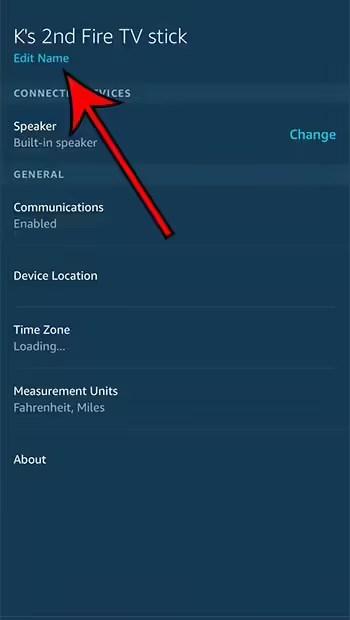
The steps in this article will show you how to change the name of your Amazon Fire TV Stick using the Alexa app on your iPhone.
- Open the Alexa app on your iPhone.
- Select the Devices tab at the bottom of the screen.
- Select the All Devices button.
- Tap the Fire TV Stick you want to rename.
- Tap the Change Name button at the top of the screen.
- Delete the existing name, then enter a new name.
SolveYourTech.com is a member of the Amazon Services LLC Affiliate Program, an affiliate advertising program designed to provide sites with the means to earn advertising fees through ads and links to Amazon.com.
The Amazon Fire TV Stick is a great and affordable way to stream content to your TV. Similar to other streaming devices such as Roku product line (see on Amazon), The Fire TV Stick connects to the TV through the HDMI port on the TV. This allows you to view HD content and, depending on the Fire Stick model, even 4K content. Not only can you watch Amazon Prime Video movies and movies purchased from Amazon, but you can also install other apps like Netflix, Hulu, YouTube, and more.
But many people have more than one TV at home, and the Fire Stick's low price and ease of use can mean you have more than one. If you download the Amazon Alexa app or the Fire TV remote control app on your iPhone, you'll notice that naming these Fire Sticks isn't very helpful.
Luckily, you can edit your Fire Stick's name using the Amazon Alexa iPhone app to make it easier to identify them when using these other apps.
You can also uninstall apps on the device. Our guide to uninstalling apps on Firestick will guide you through the process.
How to Rename Amazon Fire TV Stick
The steps in this article were performed on an Apple iPhone 11 running iOS 13.3.1. I am using the latest version of the Amazon Alexa app that was available at the time of this writing. If you don't already have the Alexa app, you can download it from App Store here. You will then need to open the app and sign into your Amazon account, which will automatically list all the devices in the account.
Step 1: Open the Amazon Alexa app on your iPhone.
Step 2: Tap the "Devices" tab at the bottom right corner of the screen.

Step 3: Click the "All Devices" button on the top right corner of the screen.

Step 4: Select Fire TV Stick from the list of devices.

Step 5: Click the "Change Name" button at the top of the screen.

Step 6: Delete the current device name, then enter the new device name you want to use to identify your Fire Stick.
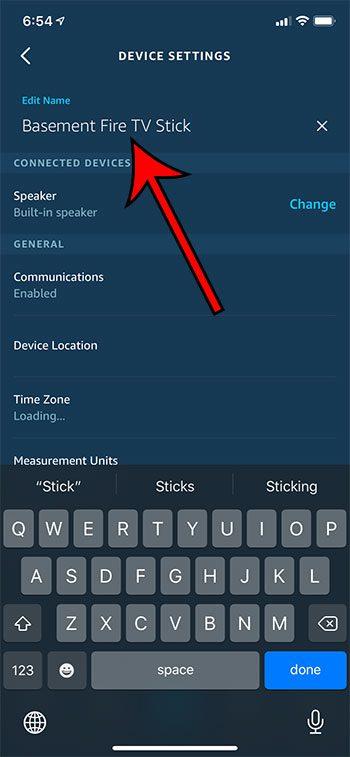
You can find the current name of your Amazon Fire Stick by selecting the "Settings" option at the top of the screen from the Fire Stick's main menu, and then selecting the My Fire TV menu item. The name of the Fire TV Stick can then be found under the About tab.
Learn more about renaming your Amazon Fire TV Stick
- The Alexa app also lists other Amazon devices you own, such as Echo Dots or Amazon cloud cameras. You can even add other compatible smart home devices such as Ring doorbells.
- You can also get the Alexa app for Android devices like Samsung and Google. The Alexa app can be downloaded in the same way as other Android apps.
- If you've been thinking about getting another Amazon Fire Stick, consider getting Fire TV Stick 4K на Amazon. It's also very inexpensive and allows you to watch 4K content. Even if you don't have a 4K TV, it will still be the right choice for many as it will be compatible with a 4K TV purchased in the future, but will still work with any TV with an HDMI port.
Learn how to disable interest-based ads on your Amazon Fire Stick by changing the setting in the device's menu.
You may also like
Руководства
#Rename #Amazon #Fire #Stick #iPhone