


[ad_1]
Recording calls isn't something most people have to do, and it's not even legal everywhere or under all circumstances. So it makes sense that Apple didn't install it as a core component of iOS. However, there are situations when it is perfectly normal to record a call, such as if you are interviewing over the phone or have legal permission to record.
If you want to record both incoming and outgoing calls, your best bet is a call recording app. There aren't a lot of good free call recording apps out there, but there are plenty of options if you're willing to pay a fairly small amount. We have tried some call recorders, while others are getting high marks from users. Also note that the GetHuman website is a potential workaround to specifically record customer service calls or find resources to troubleshoot consumer issues.
iPhone apps
If you have the consent and it is legal, there are several useful apps that allow you to record a call on your iPhone. Here are a few good ones.
Rev Call Recorder (free)
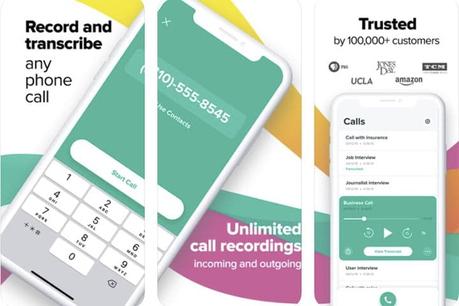
You can record incoming and outgoing calls on your iPhone with this free app, as long as you have a US phone number to register. There's no subscription, no hidden charges, no limit on how long or how many conversations you can record, and the quality is generally good. The app offers a new outgoing call flow that makes recording easier. Enter the phone number you want to call and that's it - you can download the audio file afterwards and do whatever you want with it. It also added a call recording notification for outgoing calls. For added specificity, Rev offers a transcription service run by human translators for superior accuracy. If you want a free call recording app then look no further - this is the best available.
App Store
TapeACall Pro ($ 11)
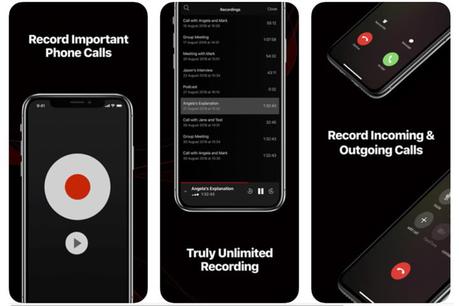
If you don't mind paying for a decent app, consider TapeACall Pro. For just $ 11, you get unlimited call recording for a year no matter who or where you are calling. They list the price of unlimited calls at $ 20 per year. TapeACall creates a three-way call between you, the caller you want to record, and the company's department. When you're on a call that you want to record, just launch TapeACall and hit Record. The application dials the TapeACall access number and begins recording. Then merge the calls into a three-way conference call and the conversation is recorded. When you are finished speaking, the recordings are available in the app. You then get a link to access your recordings privately on the web or to share them via email, text or social media. Or you can just download your recording to your computer or upload it to Dropbox, Google Drive, or other cloud storage.
App Store
Related content
Call Recorder Pro ($ 10)
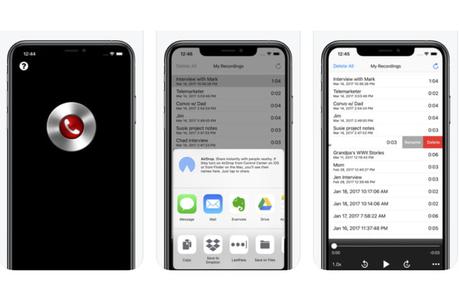
You can record incoming or outgoing calls with this app, but first you need to set up a three-way call by putting your call on hold, dialing the recorder through the app, and then merging the calls. But it does mean that you can start recording calls that are already in progress, which is a plus. Call Recorder Pro is a reliable service that makes managing your recordings easy, you can download and share them via SMS, email, Dropbox, and other apps. The $ 10 fee will get you 300 minutes, but you can also buy 150 minutes for $ 5 or 30 minutes for $ 1.
App Store
IntCall call recorder (free)
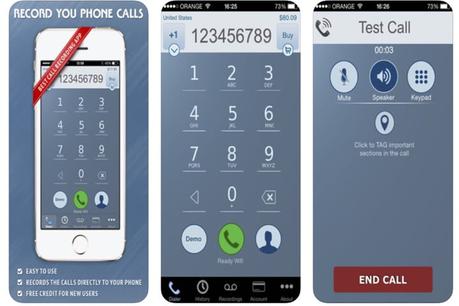
IntCall Call Recorder allows you to dial and record national or international calls and save these recordings to your phone. You must use a GSM operator and support calls on hold and in conference. With per-minute rates, IntCall can be a great choice depending on the country you're calling. The application works by prepaid or pay-as-you-go credit and makes calls via VoIP. They calculate the price of each call per destination per minute. You can also get a weekly subscription by calling through normal channels, but in this case you need to make a conference call for recording. You can buy additional minutes for $ 5, $ 10, or $ 20, but the call cost per minute varies, so check the price list first - you can reach most countries for 10-20 cents per minute . Updated features include support for iOS 14, the ability to display the phone number and name of outgoing calls in records and history screens if they are derived from your address book , and the ability to automatically email the recording to you.
App Store
Phone call recorder - ACR (free)
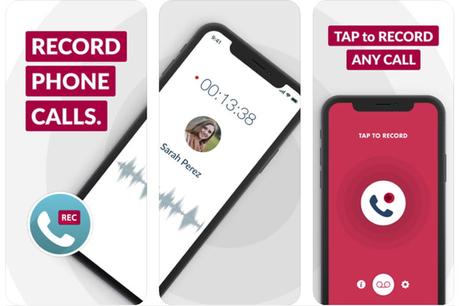
This highly rated app is a full featured and high quality automatic phone call recorder which helps you to record unlimited number of outgoing or incoming calls. Once completed, recording is available to listen, delete, save to Dropbox, iCloud and Google Drive; or share via email, iMessage or social networks. ACR Call Recorder uses your operator's conference calling feature to record conversations. The app offers unlimited recording of incoming, outgoing and photo calls, access to recordings directly after the conversation, the ability to share recordings in multiple ways or export recordings to third party apps.
App Store
How to record an incoming call using Google Voice
If you are looking for a good free option and only need to record incoming calls, Google Voice may be the perfect choice, and it can also help you filter unwanted calls. You need to transfer your phone number to Google to access the recording feature, and it cannot record outgoing calls. This makes it quite inconvenient if you are hoping to record the conversations you need to initiate or if you like your current carrier. Read our guide on setting up Google Voice if you're new to the app.
To record incoming calls with Google Voice on iOS 13 and 14, you need to create an account first. Just go to voice.google.com and follow the instructions. Once your account is up and running, the next step is to enable call recording so that you can automatically record and save your conversation as an MP3 file.
Step 1: Go to the main Google Voice home page.
2nd step: Click on Settings (gear icon) in the upper left corner of the window.
Step 3: Scroll down Calls section and make sure Incoming call options is authorized.
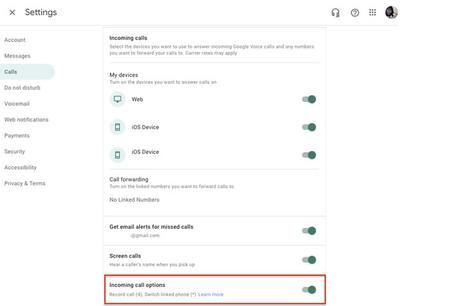
If you want to listen to the phone calls recorded on your iPhone, you need to download the Google Voice app. With this app, you can record incoming calls in Google Voice by pressing number 4 on your phone keypad during the call. Make sure you answer the phone in the Google Voice app using your Google Voice phone number, not the native iPhone app associated with your phone number. This triggers an automated voice informing both parties that the call is being recorded. To stop recording, press 4 again or end the call as you normally would. After you stop recording, Google will automatically record the conversation for you to listen to later.
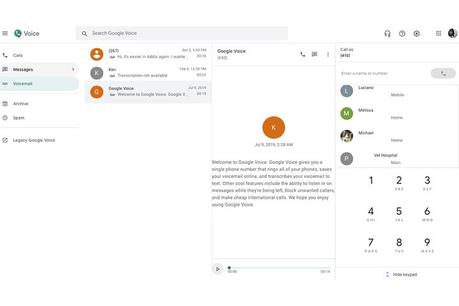
If everything is set up correctly and you've answered and recorded your call on your phone, you will see your recorded conversation listed under the Calls and Voicemail tabs. To listen to the conversation, press the arrow and increase the volume. You will also receive an email directing you to your conversation in the browser.
Record using an external voice recorder
Another option is to use a dedicated voice recorder designed to plug directly into your smartphone's 3.5-millimeter jack (if you have a phone that still has one) or to connect via Bluetooth. Products like the Olympus TP-8 Phone Jack Microphone, a portable earpiece that records both you and the caller, will get the job done. If you have a newer iPhone, you might need to use a Lightning to headset adapter. You can also consider the RecorderGear PR200 Bluetooth cell phone call recording device if you want to connect wirelessly. Or, if you want something higher quality that plugs in through the headphone port, check out Techerific's DeciVibe digital voice recorder.
Editor's recommendations
[ad_2]






