Newer generations of iPads can last quite a while on a single battery charge, but that might not last all day.
Our tutorial will show you how to change iPad settings to make iPad go to sleep faster.
One of the fastest ways to drain your iPad battery is to leave the screen on.
So if you're worried about keeping your iPad's battery going all day long, it's a good idea to keep the screen off or in sleep mode when you're not actively using the device.
While iPad doesn't have a dedicated mode called sleep mode, there are a number of different ways you can adjust iPad settings and interact with the device to make sure the screen either stays off for an extended period of time or you're getting the most out of your battery. batteries.
How to Change the Auto-Lock Setting on iPad
All steps in this guide were completed on a 6th generation iPad running iOS 12.2.
The quickest way to put your iPad to sleep and turn off the screen is to press the Sleep/Wake button in the upper right corner of your iPad.
Some other ways to put your iPad to sleep include using Airplane Mode or Do Not Disturb Mode, which can be found in Control Center by swiping down from the top right corner of the screen.
The first section of this article is a quick guide to setting up the Auto-Lock setting for your device.
You can either continue scrolling or Click here for a complete guide with images, as well as some additional tips on how to put your iPad to sleep or adjust its battery life.
Active time 2 minutes
Total time 2 minutes
Difficulty Easy
instructions
- Tap the Settings icon.
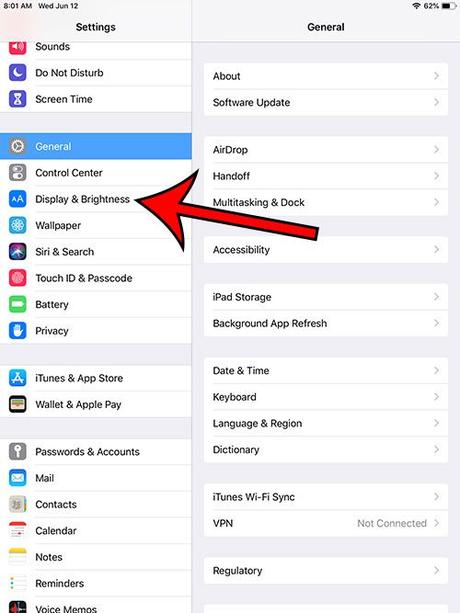
- Select Display & Brightness on the left side of the screen.
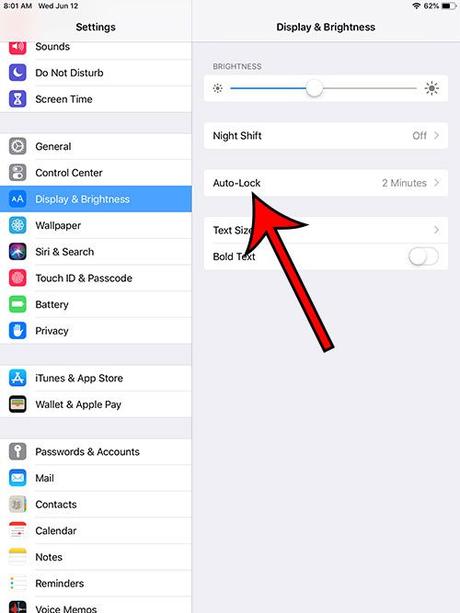
- Touch the auto lock button.
- Choose how long iPad waits before turning off the screen.
Notes
You can force your iPad's screen to turn off at any time by pressing the Sleep/Wake button in the upper right corner of the device.
If iPad doesn't turn on again when you press the Sleep/Wake button, the device might be turned off. You can turn it back on by pressing and holding the Sleep/Wake button for five seconds until the white Apple logo appears in the center of the screen. If that doesn't work, your device may not have battery power. Try plugging it into a charger for 30 minutes, then try holding the Sleep/Wake button again for 5 seconds.
You can turn off your iPad by pressing and holding the Sleep/Wake button and then moving the slider on the screen to the right.
The next section has images for each of these steps if you'd like to see more information as you make this change to your iPad's settings.
Complete Guide with Pictures - iPad Auto Lock
These steps were completed on the 6th generation iPad in iOS 12, but they remain the same on newer versions of iOS and newer iPad models. This means that you can use this method for almost any iPad model, from iPad mini to iPad Pro.
Step 1: Open the settings menu.
If you can't tap Settings because you can't see the icon, you can always swipe down the screen and use the search feature to open the app.

Step 2: Select "Screen & Brightness" from the column on the left side of the screen.
Step 3: Select the "Auto-Lock" option on the right side of the screen.
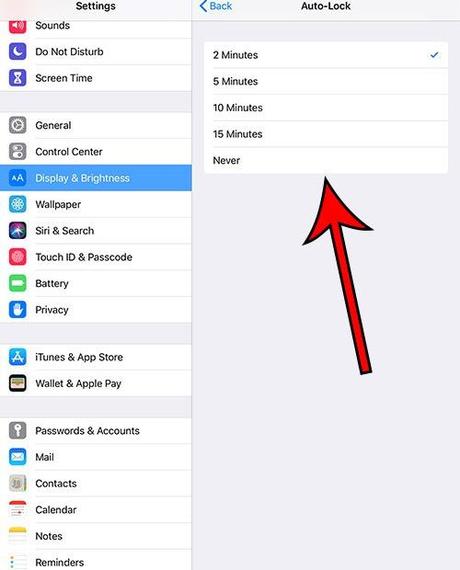
Step 4: Tap the period of inactivity after which you want iPad to turn off the screen.

Now that you know how to put your iPad to sleep by setting the auto-lock option, you'll have better control over how long your screen stays on when you're not touching the screen.
Additional Notes
- You can turn off iPad by pressing and holding the Sleep/Wake button and then sliding the slider to the right.
- You can turn your iPad back on by pressing and holding the Sleep/Wake button for 5 seconds until the white Apple logo appears on the screen.
- Pressing the Sleep/Wake button in the upper right corner of iPad will turn off the screen at any time.
- You can put your iPad into airplane mode by swiping down from the top right corner of the screen and then tapping the airplane icon.
- Note that there is also a crescent moon icon below the aircraft icon. Tapping it will put the iPad into Do Not Disturb mode. You can customize Do Not Disturb settings by going to Settings > Do Not Disturb.
Frequently Asked Questions on How to Put iPad to Sleep
If I set the auto-lock time to Never, does the iPad screen just stay on?
Yes, this auto-lock feature option means your iPad will simply stay on whether you're using the app or just sitting on the home screen.
Please note that if you have set your iPad to use this option, you will need to manually lock the device by pressing the power button.
What are the available options I can use while waiting for the iPad to go to sleep?
After you tap Auto-Lock to set how long your iPad screen will wait before shutting down, the following options will be available to you:
- 2 minutes
- 5 minutes
- 10 minutes
- 15 minutes
- Never
Why does my battery feel worse after I changed my iPad auto-lock setting?
When an electronic device enters sleep mode, it does not need to use power to illuminate the screen.
On most devices, such as the iPad and iPhone, display power consumes a lot of battery power.
If you choose to leave the screen on longer, the battery will drain faster.
How to turn off iPad?
You can turn off your iPad completely by pressing and holding the Power button and then dragging the Slide to Power Off slider to the right side of the screen.
You can turn your iPad back on by pressing and holding the power button until you see the white Apple logo.
If you also own an iPhone, then this setting can be even more useful. Learn how to change the auto-lock setting on iPhone and turn off the screen of this device as much as possible when you're not using it.