


EThe xtensions for Google Chrome are a great tool as it improves your productivity by helping you with daily tasks while using the browser. But if you don't know how to deal with Chrome extensions, it can clutter up your browser and slow it down.
So let's take a look at the settings for Chrome extensions. Here we will see how to manage, disable or remove extensions from Chrome browser.
How to manage Chrome extensions?
When Google Chrome launches, you can see many extensions besides the address bar (top right of the screen). Any Chrome add-ons you may have installed will appear here as icons, but they're not the only ones.
There could be a lot more than what you see here. To see a list of all the Chrome extensions you have installed:
Alternatively, there is a shortcut to manage Chrome extensions. Fair right click any extension icon and select Manage extensions from the drop-down menu. Here you will see all your installed Chrome extensions and apps.
The third method is to simply visit the following URL by pasting it into the URL bar: chrome: // extensions /
It takes you straight to the page where you can view and manage all of your Chrome extensions.
How to enable / disable Chrome extensions?
Once you reach the Extensions section through the method mentioned above, you will see a list of all the addons you have installed on the Chrome browser.
Here you will find a toggle button next to each extension. To activate or deactivate a Chrome extension, simply activate or deactivate it.
To configure the extensions, click Details and a list of options will open. Here you can customize the settings to better meet your needs.
How to check the settings of the Chrome extension?
You can check the permissions granted to any Chrome extension on the chrome: // extensions page by clicking the Details button under any extension name (as shown in the image in the previous section). Here you can review the settings and permissions granted to any Chrome add-on and remove any that you find intrusive.
An important parameter of the Chrome extension to look for in this section is "Site access".
You can choose whether you want to allow an extension to read and modify all of your data on specific websites or on all the websites you visit. There are a total of three options here that you can select: On Click, Specific Sites, All Sites.
However, the most important Chrome extension setting is "Allow in incognito mode".
Make sure this option is always turned off, as turning it on will allow your Chrome extensions to save your browsing history in incognito mode as well.
How to remove a Chrome extension?
Sometimes installing a Chrome extension may not be as successful as you would like and would rather get rid of it. In such cases, removing a Chrome extension is a better idea than just disabling it. To uninstall a Chrome extension:
- Right click on the extension icon in the toolbar and select Remove chrome
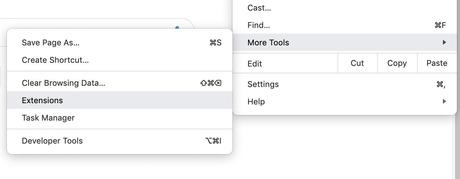
If you can't find the extension icon in the toolbar, head to Chrome's options menu.
- Click on More tools
- To select Extensions
- Click it Remove option on the extension you want to remove
- To select Remove again on the confirmation window to permanently remove the Chrome extension
How to add a Chrome extension?
The Chrome Web Store hosts all of the browser extensions. You can browse these extensions by categories or just search for a specific one. Once you've selected a Chrome extension to install, simply click the Add to Chrome button placed on the extension page.
The button will then go into "Verification" mode and you will see a pop-up window to grant permissions. To use the extension, you will need to grant these permissions by pressing " Add extension. This will install the extension on your browser.
Hide Chrome extensions in the menu bar
While it's convenient to place Chrome extension icons on the toolbar for quick accessibility, it can clutter up the toolbar.
To hide Chrome extensions from the menu, right click on the icon and select Hide in Chrome menu.
This option will remove the extension from the toolbar without disabling it. To access hidden extensions in Chrome, simply visit the Extensions page (chrome: // extensions /).
How do I configure keyboard shortcuts for Chrome extensions?
Productivity extensions for Chrome can save your life and you might end up using them multiple times a day. To save yourself a click every time, you can set up keyboard shortcuts for Chrome extensions by doing the following:
- Select the Menu option>More tools>Extensions
- Click on the hamburger button at the top left of the screen
- To select Keyboard shortcuts
Here you will see a window like this:
You can see above that I entered shortcut keys for each extension. When you open the keyboard shortcuts, the " Activate the extension "Is empty by default.
You can select the keyboard shortcut as per your convenience and it activates automatically.
PS: Keyboard shortcuts for Chrome extensions will replace all other keyboard shortcuts, so be sure to use unique combinations.
Also Read: Best Chrome Extensions For Reading News
The message How to manage Google Chrome extensions: add, remove, deactivate add-ons appeared first on Fossbytes.






