


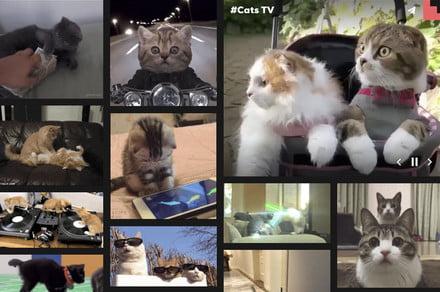
The World Wide Web may have turned into technical wizardry in the past 30 years, but the popularity of relatively low-tech animated GIFs in the age of social media has held up better than many observers expected. While you used to need a computerized graphics program to breathe life into a series of static images, today the process is automated and for most non-professional uses - all you need is your smartphone. There are several different ways to create a GIF on your iPhone, from using Apple's Live Photos to using third-party apps. We show you how it works.
Use a live photo
With Live Photos on iPhone, you can easily create GIF animation. Apple introduced Live Photos on the iPhone 6S in 2015. One of the many charms of the function is that it can be easily converted into GIFs. A live photo is technically a three-second video. The phone records the video 1.5 seconds before you tap the shutter button to 1.5 seconds after you tap it. The result is a three-second video with sound. Here's how to make a GIF out of it.
- Take a live photo by launching the camera app and tapping the porthole icon at the top of the screen so it turns yellow.
- To turn the photo into a GIF, open the live photo and swipe up from the bottom.
- You will see a selection of loop, Bounce, and Long exposure - use one or the other loop or Bounce for your animation.
- Loop plays the three-second live photo silently in a loop and successfully converts the live photo into a GIF.
- Bounce, another type of animation, plays the live photo in an endless loop forwards and backwards.
Choose a GIF in Messages
If you're not obsessed with creating your own original GIF from scratch, try the GIF finder in Apple Messages. Add a GIF from the #images feature in Messages on the iPhone app to find and share GIFs.
- Open Messages and enter a contact or tap an existing conversation.
- Tap Find pictures to search for a specific GIF or enter a keyword.
- Tap the GIF to add it to your message.
- Tap Submit.
Use the shortcut app
You probably did this by accident - hold down the iPhone's shutter button for too long while the camera app takes multiple full-resolution stills. One after the other, they resemble a flipbook animation. These burst shots are used to record actions or to create special effects when you don't want to record videos. They are especially useful when creating animated GIFs on your iPhone.
- Start the Shortcuts app. It's preinstalled on your phone with iOS 12 and above.
- Search for and download that Convert burst to GIF Abbreviation. Also, download those while you're at it Convert video to GIF Abbreviation. If either of them doesn't come up in a search, you can find them via Gallery> Photography> Convert Burst to GIF or Gallery> All GIFs.
- You may be asked to give the app access to your photos or videos. So allow it.
- Run the shortcut by tapping the arrow at the bottom right. A list of all of your burst photos will be displayed.
- Pick one and it will be quickly converted to a GIF.
- Tap Done and you will be prompted for either the GIF or to share Save to photos.
Just use Giphy
The free Giphy app, by far the most popular GIF generator, is a study of the community madness. Giphy was recently bought by Facebook, but the app is still available on the App Store as in the past. Giphy lets you choose from a wide variety of free GIFs for every purpose imaginable. You can also use your own pictures from your camera roll or take a new picture or video and embellish it with animated stickers, text, filters and AR effects. Giphy guides you every step of the way, allowing as much experimentation as possible before you save your GIF.
- Download Giphy from the App Store.
- Follow the prompt to create a new GIF.
- Allow Giphy to access your camera.
- Add all kinds of animated elements to your own picture.
- Or use Giphy's pre-made GIFs in any category.
- Save, upload to Giphy or share with your friends.
Editor's recommendations






