Debian 11, codenamed Bullseye, is the latest LTS version of Debian released on August 21, 2021.
As an LTS release, Debian 11 will receive support and updates until 2025. This release includes 11,294 new packages for a total of 59,551 packages. In addition, there was a significant reduction in over 9,519 packages that were marked as obsolete and removed.
Debian 11 contains many improvements and new features, including:
- Updated kernel (5.10).
- Support for multiple architectures such as amd64, i386, PowerPC, aarch64 and more.
- Newer software versions such as Samba 4.13, Apache 2.4, LibreOffice 7.0, MariaDB 10.5, Perl 5.32, PostgreSQL 13 and many more.
- Print and scan without drivers.
In addition, Debian 11 ships with other desktop environments including:
More details about Debian 11 Bullseye can be found in our article:
What's New in Debian 11 Bullseye?
Requirements
To install Debian 11 KDE Plasma Edition, here's what you need:
- 8 GB USB flash drive to use as installation media.
- High speed internet connection.
Also, make sure your system meets the following minimum recommended requirements.
- 2 GB RAM minimum (4 GB recommended).
- Dual-core processor with a clock speed of at least 1 GHz.
- 20 GB of free hard disk space.
- HD video card and monitor.
Let's now proceed with installing the Debian 11 KDE Plasma desktop.
Step 1: Download the Debian 11 DVD ISO
The first step is to burn the Debian 11 ISO image file. So go to the official Debian download page and download the DVD ISO file. Once downloaded, use any of the tools to create a bootable USB drive.
Then plug the bootable USB drive into your computer and restart your computer. Be sure to set the installation media as the first priority in the boot order in the BIOS settings. Save your changes and continue downloading.
Step 2: Installing Debian 11 KDE Edition
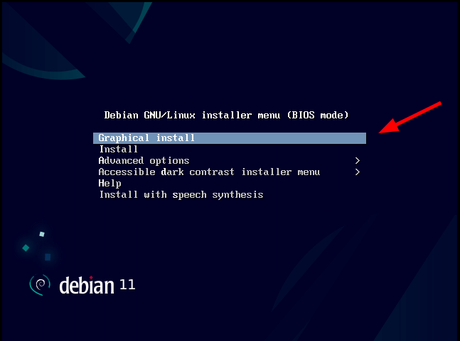
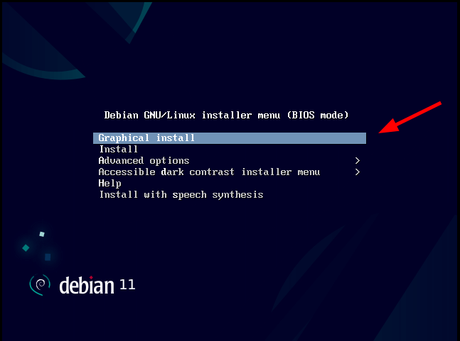
Once enabled, the following screen will appear with a list of installation options. Since our goal is to install Debian, we will choose the first option, which provides a graphical installation method.
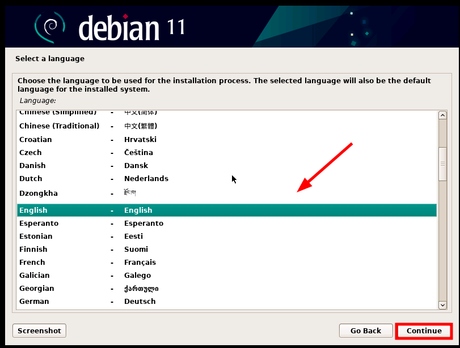
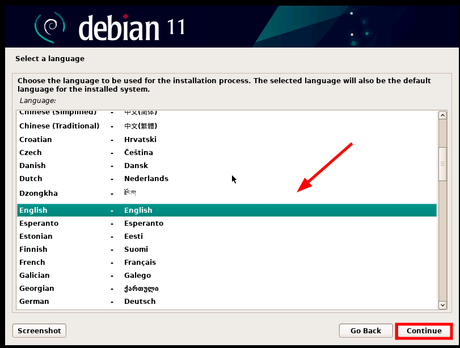
In the next step, select your preferred installation language and click Continue.
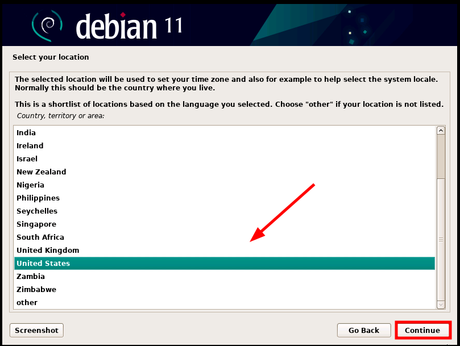
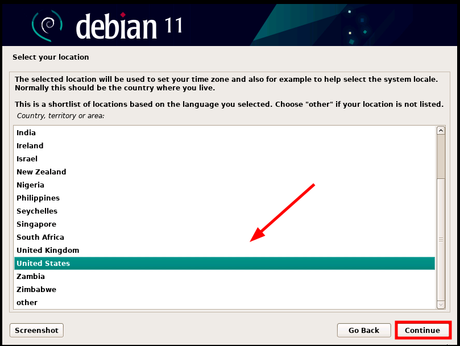
Then select your preferred geographic location. The selected location will be used to determine your time zone. Ideally, this should be your country of residence.
When you're done, click Continue.
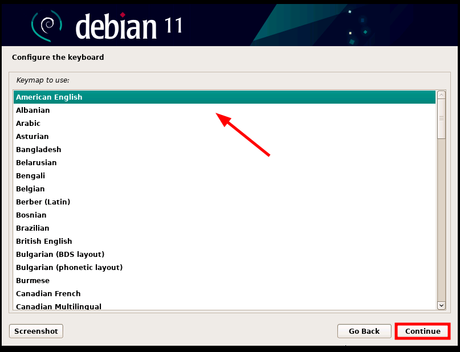
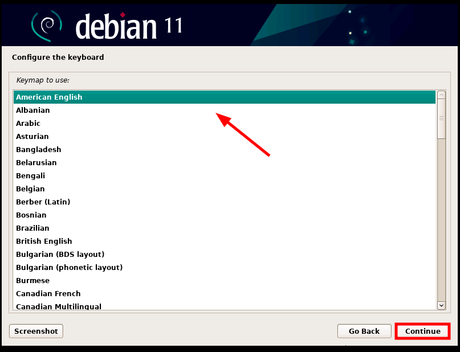
Then select your preferred keyboard layout and click Continue.
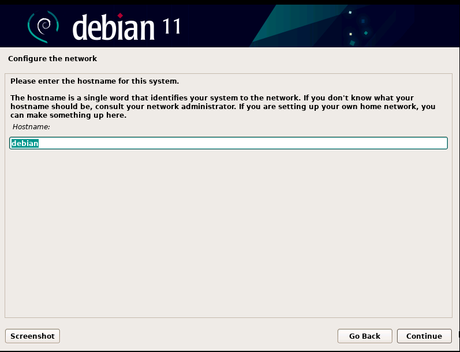
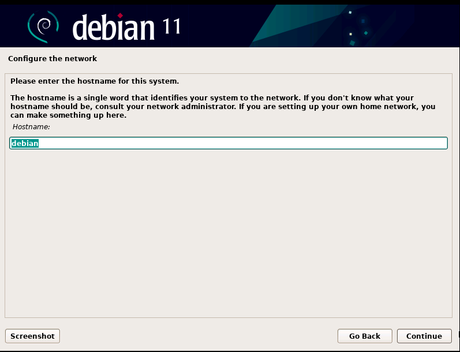
Then provide a system hostname that will identify it on the network and click Continue.
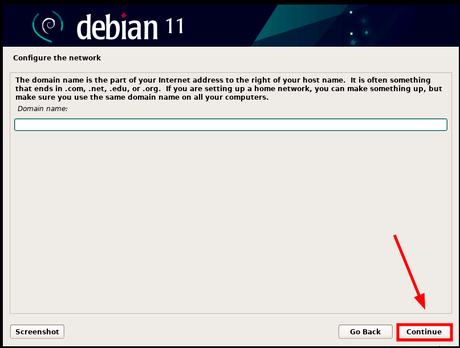
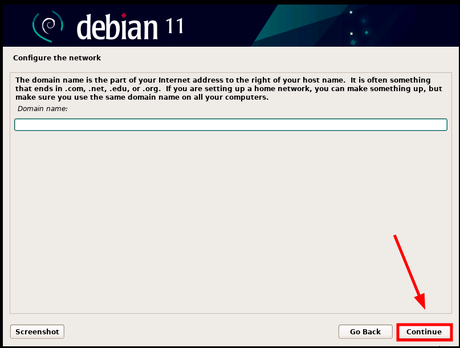
Next, enter the domain name. This is optional and you can leave it out if you don't want your system to be part of a domain. Then click "Continue" to proceed to the next step.
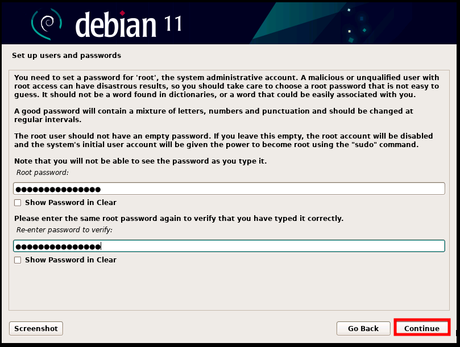
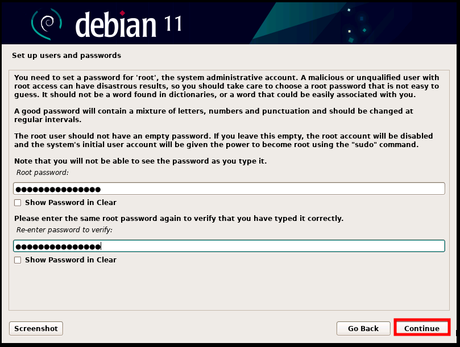
At this point, you will need to set a root password for the root user or account. Be sure to enter a strong password that consists of letters, numbers, and special characters. Also, be careful not to enter a password that easily identifies you or is in a dictionary.
Then click "Continue" to proceed to the next step.
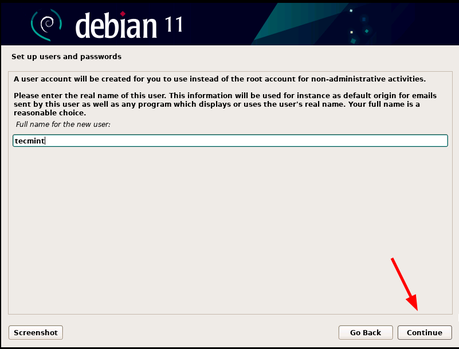
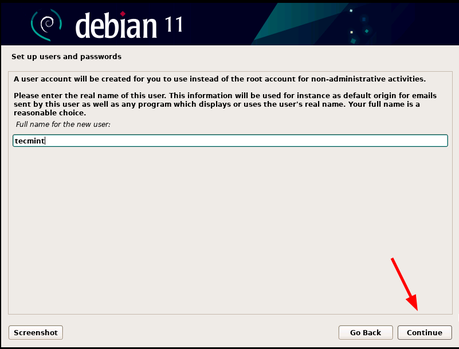
After defining a password for the root user, you will need to create a login user. So, first enter your full username and click Continue.
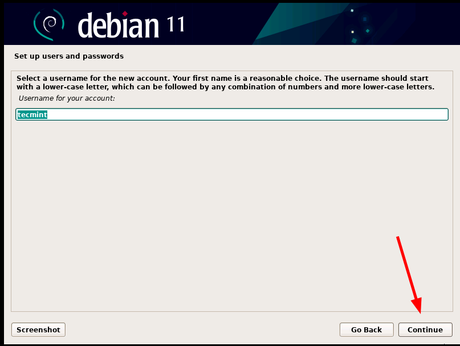
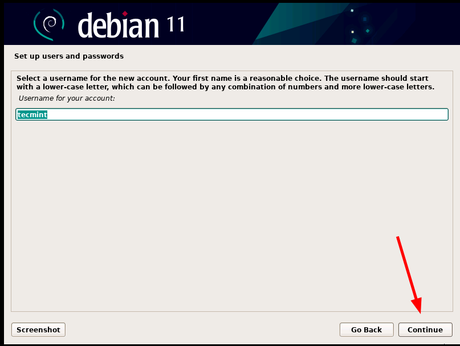
Then provide a username for your account and click Continue.
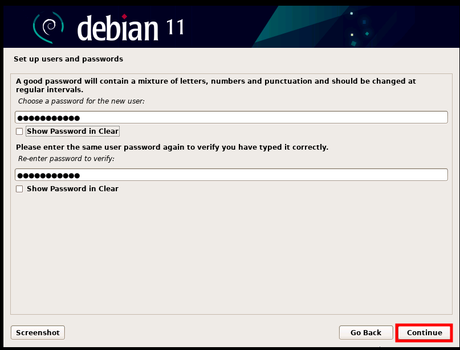
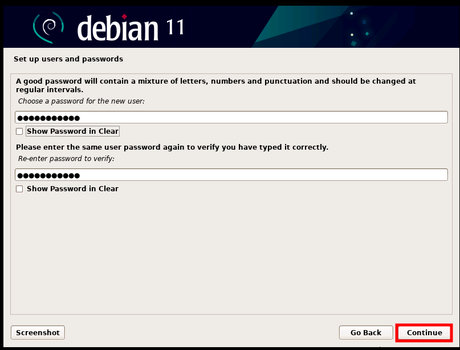
As with the root account, provide a strong login password. Then click Continue.
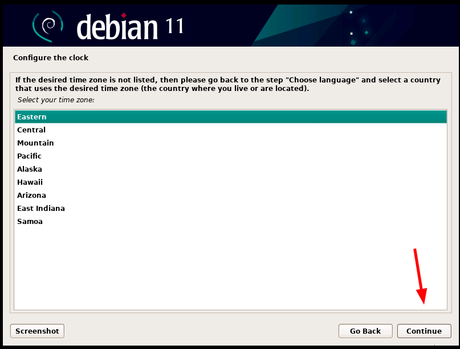
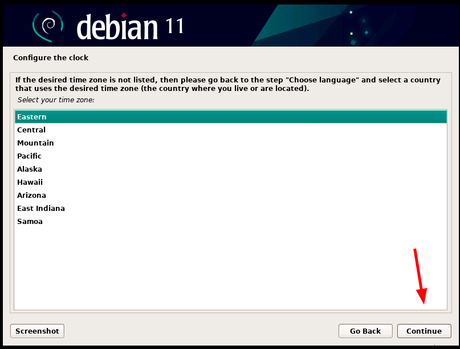
Then set your desired time zone based on the location selected in the Select Location step.
Step 3: Partitioning the Debian Installation Disk
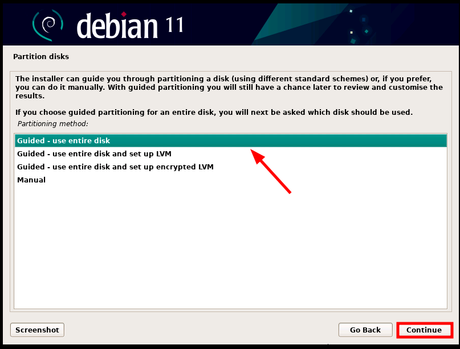
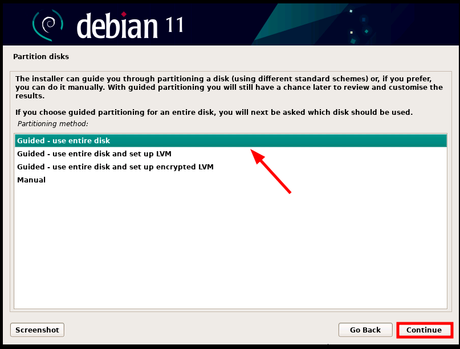
The installer provides four installation options for partitioning a disk:
- Managed - use the entire drive (uses the entire drive and automatically creates one primary partition and swap space on the entire drive).
- Managed - use the entire drive and set up LVM (automatically creates an LVM-based partition on the entire drive).
- Managed - use the entire disk and set up encrypted LVM (in addition to creating LVM-based partitions, this option encrypts data).
- Manual - This option gives you the right to create your own custom partitions yourself.
In this guide, we will choose the first option, which will simplify the task by automatically creating the main disk partitions.
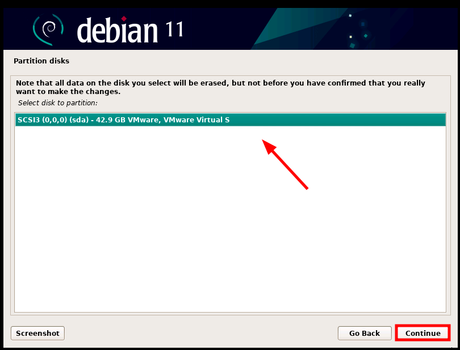
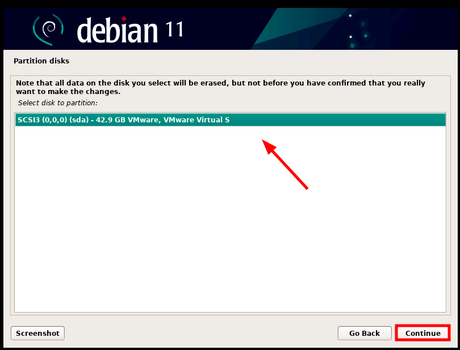
In the next step, select the drive you want to partition and click Continue. If you have one hard drive, then only one will be listed, as shown below.
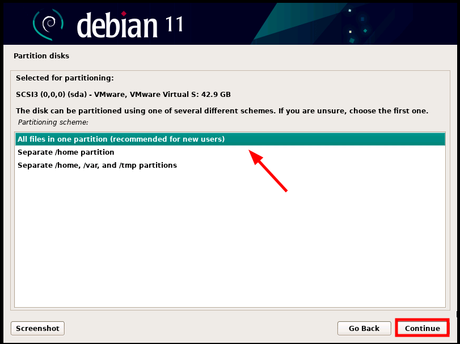
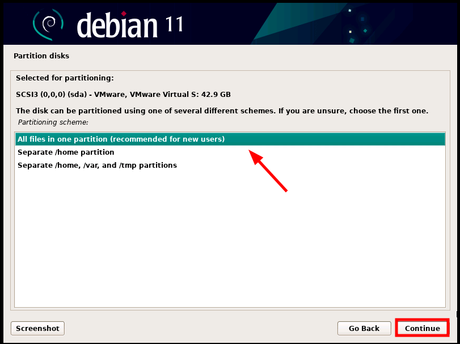
In the next step, select your preferred partition scheme and click Continue.
A summary of disk partitions will be displayed as shown in the figure. If you're happy with the changes, select Finish Partitioning and Write Changes to Disk and click Continue. Otherwise, you can click Revert Partition Changes and repartition the hard drive.
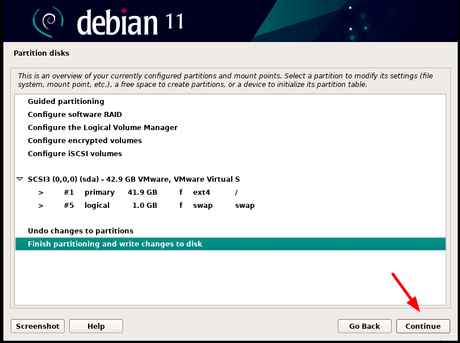
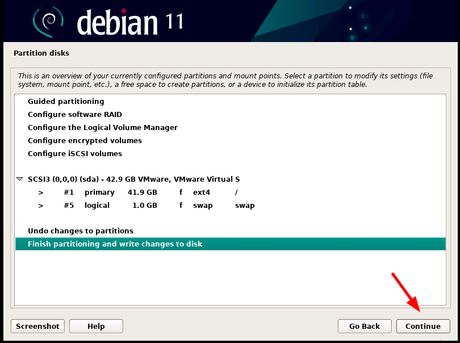
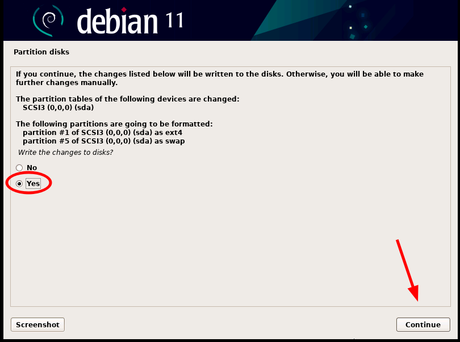
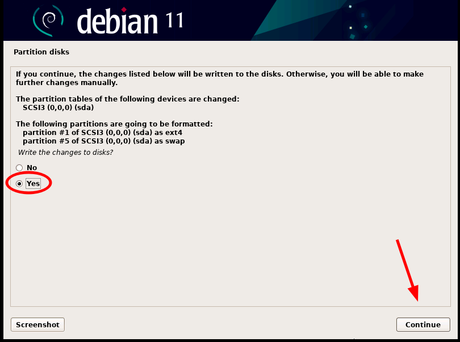
Next, select "Write changes to disk" and click "Continue."
Step 4: Installing Debian 11
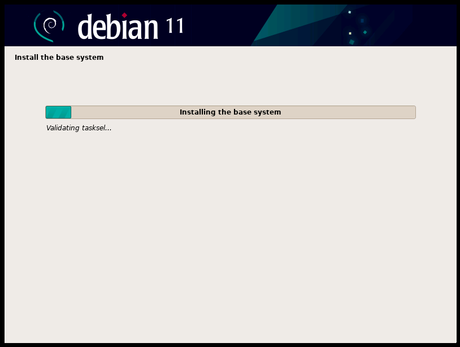
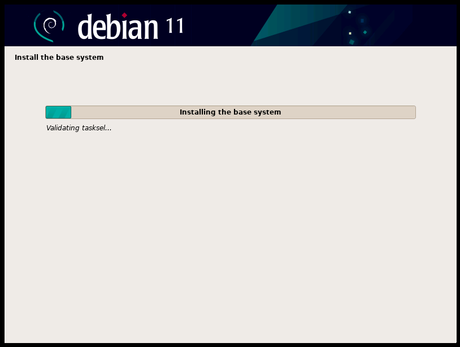
After the disk partitioning is complete, the installer will continue to install the base system. This is the minimum set of packages that provides a basic and working system, also known as the kernel.
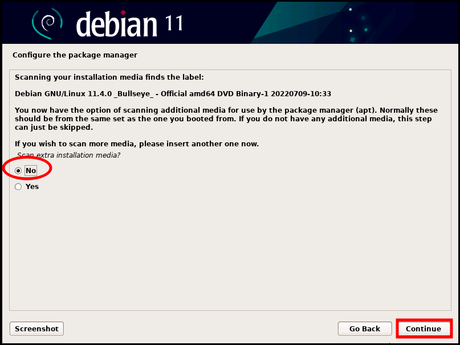
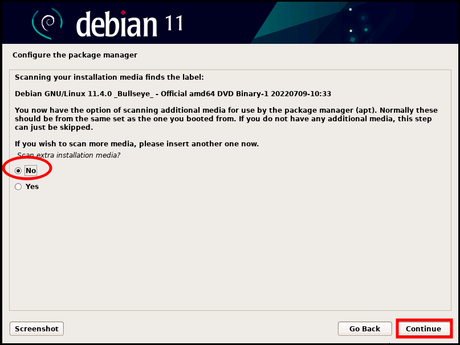
Next, you will be asked if you want to scan another installation media. You can safely refuse and select "No" and click "Continue".
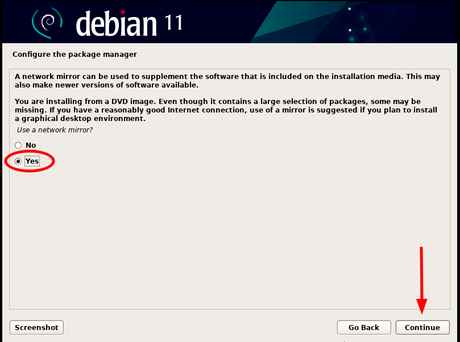
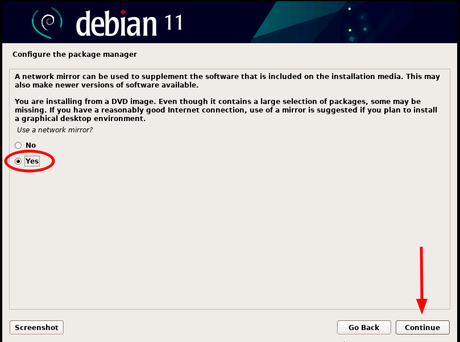
In the next step, select "Yes" to use the online mirror, which will provide additional software packages and desktop environments.
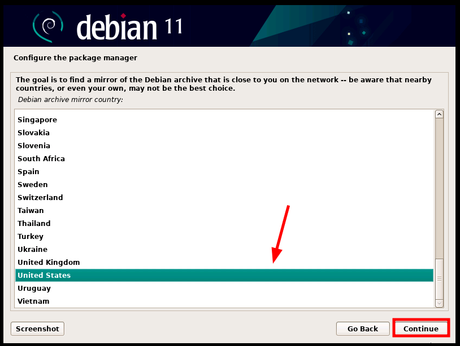
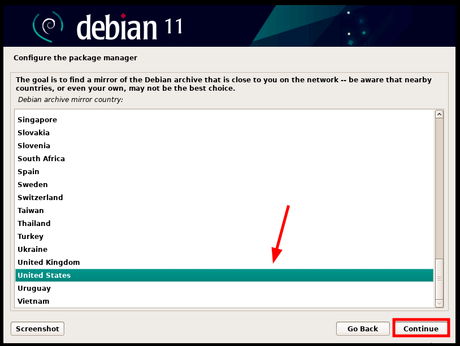
Next, select the country closest to you from which you will receive the mirror and click Continue.
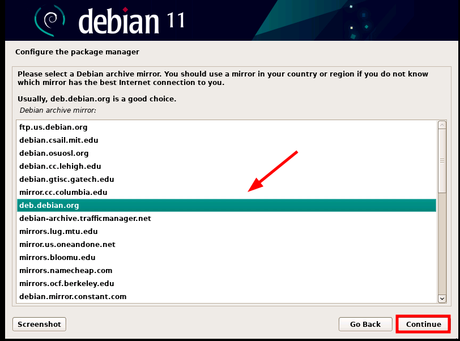
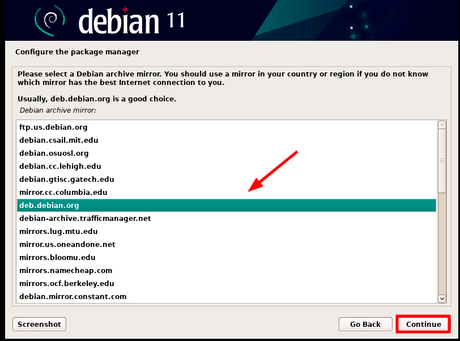
Then select your preferred Debian archive mirror and click Continue.
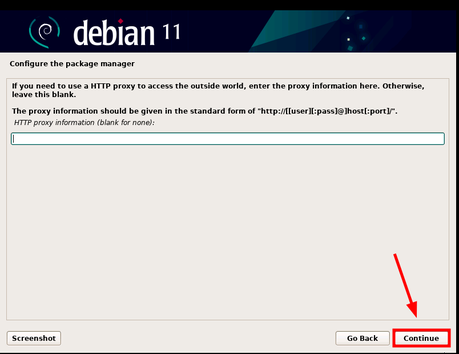
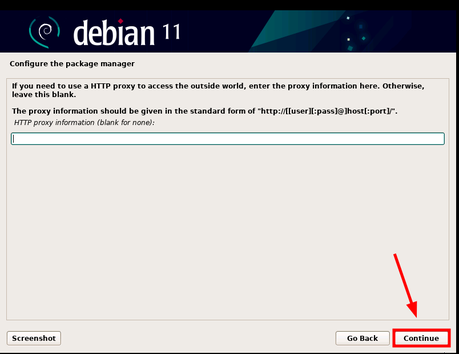
If you are using an HTTP proxy, enter the proxy server address, otherwise just click Continue.
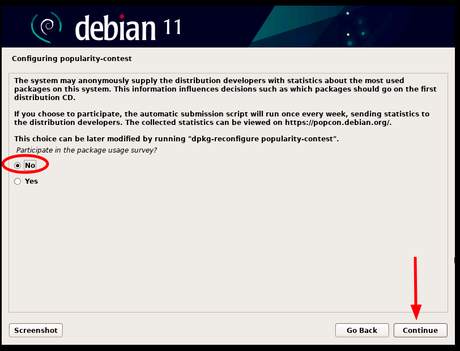
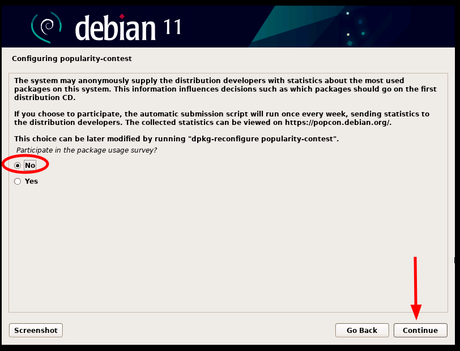
Next, you will be asked to take part in the package survey, select "No" and then click "Continue".
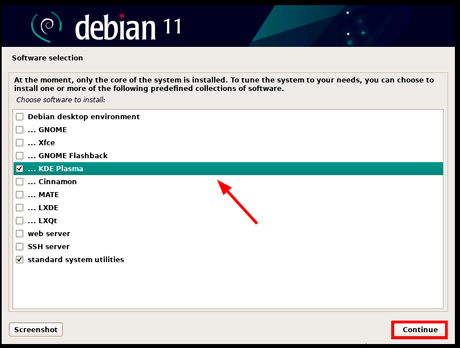
In the next step, the installer will give you a list of desktop environments to choose from. Since our goal is to install KDE Plasma Edition, select KDE Plasma and click Continue.
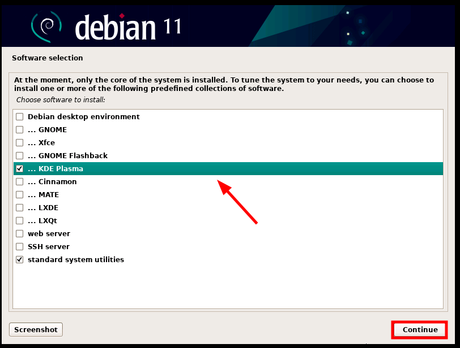
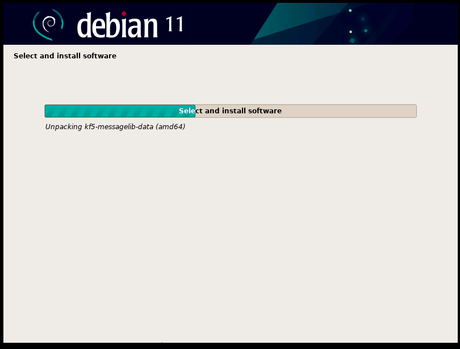
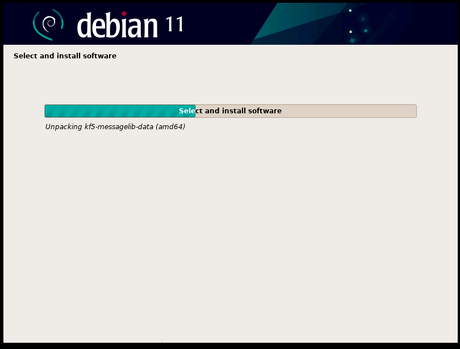
From now on, the installation of Debian 11 will continue as the installer will copy all the remaining files of the desktop environment you selected. This takes quite a long time (about 20 minutes).
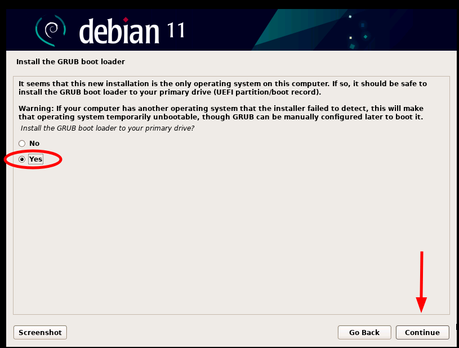
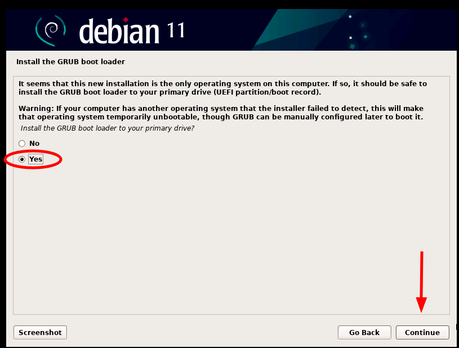
Then select "Yes" when prompted to install the GRUB bootloader on the main drive.
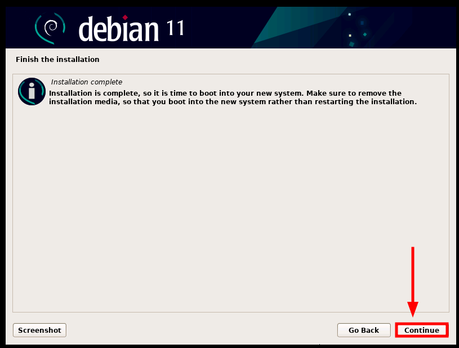
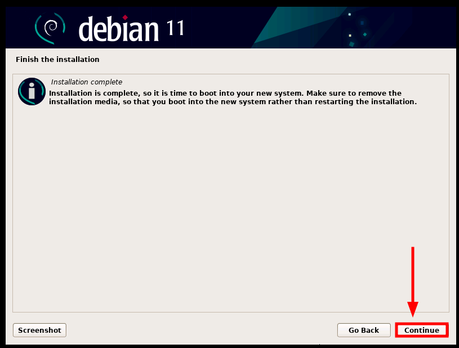
When the installation is complete, click "Continue" to reboot your system to download the new version of Debian KDE Plasma. Also, don't forget to remove the installation media.
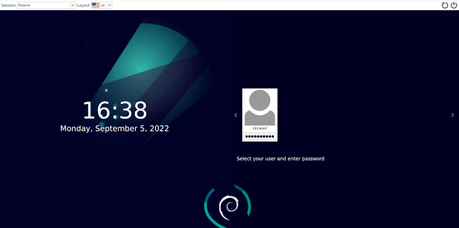
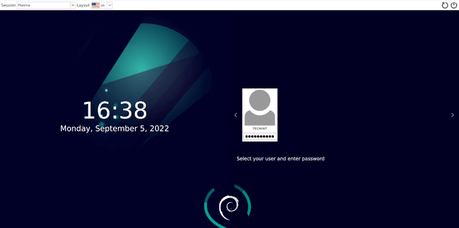
After the system reboots, enter your password and press "ENTER" to log in.
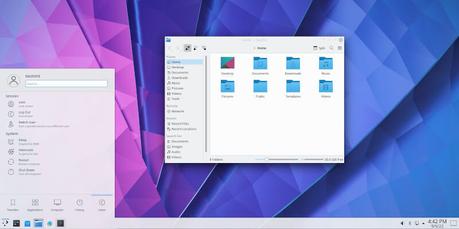
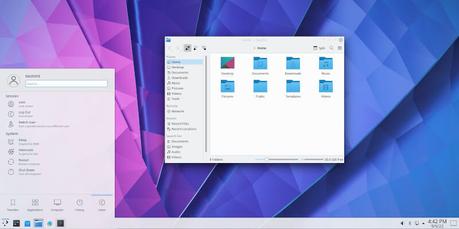
This will take you to the KDE Plasma desktop as shown in the picture.