


Last Updated on 21 May, 2025
The newly launched RoadCraft is available on console and PC, and there are various options if you play on PC.There have been problems on PC that players everywhere have been running into.
One of the reasons why the game has been receiving its ‘Mixed’ early Steam reviews is already placing the issues in the limelight, but there are some straightforward workarounds that are worth attempting.
They will reduce the frequency of lag and stutter, and make it such that the only things slowing you down will be the environmental obstacles.
Best tips and tricks to Reduce lag in RoadCraft
Here are some steps to take if you’re experiencing plenty of lag on your end (unexpectedly).
- Update your graphics driver to the latest version available. This becomes even more important if you’re using an Nvidia card, as we have seen such issues in the past with recent launches like Doom: The Dark Ages. Updating your drivers is pretty easy, and both AMD and Nvidia offer automated installs to make it easy for you.
- Turn off V-Sync: Vertical Sync smoothens the gameplay experience, but it also increases the load on your dedicated GPU. An increased load will increase the chances of your hardware heating up and causing stutters in the process. It’s better to turn it off as the relative decline in quality won’t be significant.
- Using an Upscaler is also recommended. I have already noticed significant differences in overall smoothness when it comes to the general gameplay. Both AMD and Nvidia offer their patented upscaling methods.
- Putting a cap of 60 FPS is also going to prevent your hardware from targeting a higher value and prevent stutters in the process.
Best Video Settings for RoadCraft
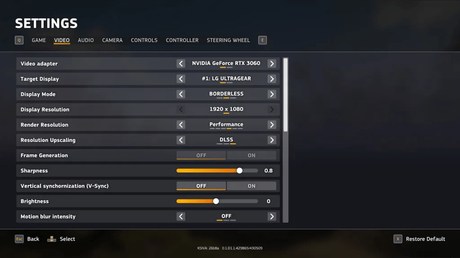
I am playing the game on the following hardware specs: Ryzen 5600G, RTX 3060 12 GB, and 16 GB of DDR4 RAM. Here’s a set of video settings that I have been using to smooth my gameplay experience.
- Display Resolution: 1920×1080 (Can be 1440P if your monitor supports that).
- Render Resolution: Performance
- Resolution Upscaling: DLSS/FSR
- Frame Generation: Off
- Sharpness: 0.8
- V-Sync: Off
- Motion Blur Intensity: Off
- FPS Limit: 60
- Quality Preset: High
- Aniso-texture Filtering: 4X
- Texture Resolution: High
- Shadows: Medium
- Screen-space Ambient Occlusion: Default
- Screen-space Reflections: Default
- Mirrors: Off
- Effects: Medium
- Details: High
- Volumetric Clouds: Medium
- Volumetric Fog: Medium






