The fastest fix is to repeat the force restart sequence with exact timing: press and release Volume Up, press and release Volume Down, then hold the Side button until the Apple logo appears. This applies to iPhone 13, iPhone 14, iPhone 15, iPhone 16, and newer Face ID models, as shown in Apple’s restart guidance [source: Apple].
TLDR: Most iPhone force restart problems come from timing, a stuck button, low battery, overheating, or iOS crashing during startup. For example, if an iPhone 14 owner holds both volume buttons too long, the emergency screen may appear instead of a restart, wasting 20 to 30 seconds and causing more confusion. In many repair cases, the fix is simple: repeat the three-button sequence, remove the case, charge for 30 minutes, then update iOS if the phone boots. If the device keeps restarting every 2 to 5 minutes, software repair or hardware service may be needed.
Why Force Restart Fails on Newer iPhones
On iPhone 13, iPhone 14, and newer models, force restart is not a single button hold. It is a quick three-step action. The timing matters more than most users expect. Honestly, it feels like the phone punishes anyone who presses the buttons half a second too slowly.
The most common reasons include:
- Wrong button timing: The volume buttons must be pressed and released quickly.
- A tight case: Some cases press the Side button or volume buttons slightly.
- Low battery: A deeply drained iPhone may not respond right away.
- Overheating: The device may refuse normal input until it cools.
- iOS crash loop: The phone may restart again before fully loading.
- Hardware damage: A swollen battery, bad logic board, or damaged button can break the process.
The Correct Force Restart Method
For iPhone 13, iPhone 14, iPhone 15, iPhone 16, and newer models, the user should follow this exact order:
- Press and quickly release Volume Up.
- Press and quickly release Volume Down.
- Press and hold the Side button.
- Keep holding until the Apple logo appears.
- Release the Side button only after the logo shows.
The user should not hold Volume Up and the Side button together. That opens the power-off and emergency options. That mistake is common, and it drives people mad because the phone looks frozen while it is actually waiting for another command.
If the iPhone Does Not Respond
If nothing happens, the user should remove the case first. A stiff case can block the quick press needed for the volume buttons. The same applies to rugged cases with thick rubber button covers.
Next, the iPhone should be charged for at least 30 minutes with a known working cable and power adapter. If the battery is fully drained, the screen may stay black for several minutes. A MagSafe charger can also help test whether the Lightning or USB C port is faulty.
If the phone becomes hot, it should be left alone for 15 to 20 minutes. Charging, gaming, camera use, and direct sunlight can push the device into a state where it ignores input or reacts slowly.
If the iPhone Restarts Over and Over
A force restart problem can also mean the iPhone keeps rebooting by itself. This is different from a frozen screen. The Apple logo may appear, vanish, then return again. This loop can happen after an iOS update, a failed restore, bad storage, or battery trouble.
The user should check these signs:
- Restart every few minutes: Often linked to battery, storage, or iOS faults.
- Apple logo loop: Often linked to a failed update or system corruption.
- Restart during charging: Possible cable, port, or battery issue.
- Restart when using camera: Could point to heat, battery load, or hardware failure.
If the iPhone starts long enough to open Settings, the user should check available storage. Less than 5 GB free space can cause poor performance and failed updates. The user can remove large videos, unused apps, and old message attachments.
Update iOS Before Deeper Repairs
If the device boots, an iOS update should be tried next. The user can go to Settings > General > Software Update. A current iOS version can fix restart bugs, app crashes, and battery reporting issues.
If Wi Fi updates fail, a computer update may work better. On a Mac, Finder can update the iPhone. On Windows, the Apple Devices app or iTunes can be used, depending on the setup. The user should choose Update first, not Restore. Update tries to keep data. Restore erases the device.
Use Recovery Mode When the Phone Will Not Boot
Recovery Mode can help when the iPhone is stuck on the Apple logo or will not finish starting. The user needs a computer and a cable.
- Connect the iPhone to the computer.
- Open Finder, Apple Devices, or iTunes.
- Press and release Volume Up.
- Press and release Volume Down.
- Hold the Side button past the Apple logo.
- Release only when the recovery screen appears.
- Select Update first.
If Update fails, Restore may be the only software option. That will erase the iPhone. A recent iCloud or computer backup becomes critical here. Expect to waste time on this step if the cable is weak, since a bad cable can interrupt the process near the end.
Check for Button and Hardware Problems
If force restart never works, the buttons themselves may be the issue. The user should test each button during normal use. Volume should change cleanly. The Side button should lock the screen every time. Sticky response, double clicks, or no click at all point to physical damage.
Other hardware warning signs include:
- The iPhone restarts when lightly tapped.
- The battery drains from 40% to 5% in minutes.
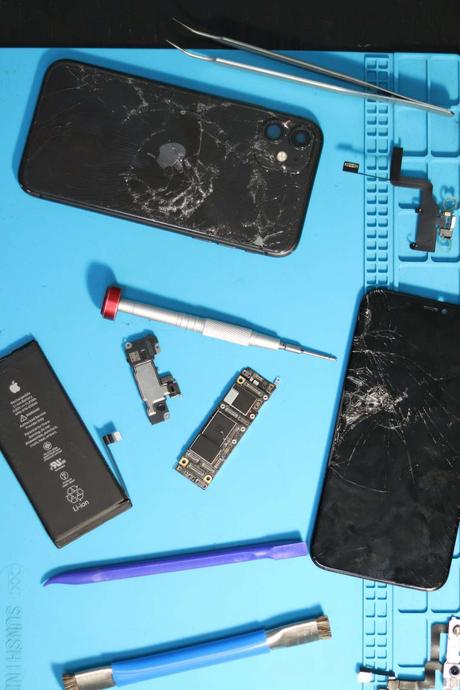
- The screen lifts from the frame.
- The device was recently dropped or exposed to liquid.
- The phone becomes hot while idle.
A swollen battery needs service right away. The user should stop charging the iPhone and avoid pressing the screen or back glass. A battery or board issue will not be fixed by repeated force restarts.
Prevent Future Force Restart Problems
Prevention is simple but often ignored. The user should keep iOS updated, leave at least 10% of storage free, avoid cheap damaged chargers, and restart the phone normally once a week. Apps that crash often should be updated or removed.
Battery health also matters. If Settings > Battery > Battery Health shows service warnings or weak peak performance, random restarts may continue. A battery replacement can fix restart loops that software steps cannot touch.
Users who rely on their phone for work should enable iCloud Backup. A force restart problem is annoying. Losing photos, messages, and work files is worse.
FAQ
Does force restarting an iPhone delete data?
No. A force restart only cuts and restarts the current power cycle. It does not erase photos, apps, messages, or settings.
Why does the emergency screen appear instead?
The user is likely holding the Side button and a volume button together. For force restart, the volume buttons must be pressed and released quickly, one at a time.
How long should the Side button be held?
It should be held until the Apple logo appears. This can take around 10 to 20 seconds, depending on the device state.
What if the iPhone 14 or newer stays black?
The user should charge it for 30 minutes, try another cable, remove the case, and repeat the force restart. If there is still no response, service may be needed.
When should Apple or a repair shop check it?
Service is likely needed if the iPhone restarts constantly, gets hot while idle, has swollen battery signs, was dropped, or cannot enter Recovery Mode.