


Facebook is a well-known social media and is still considered as the best platform, even after the emergence of various such platforms. It has acquired most such platforms and has become one big name in the industry.
While it is very popular and used quite commonly, in the recent past people have commented on it having several glitches that annoy the users a lot. The most common one has been about Facebook images not loading.
This issue has been experienced by users across the world and also on almost all devices, be it android, iPhone, or web browsers. While there has been no clarification on the same from Facebook, we were able to find the issues that caused it.
Why are the images not loading on Facebook?
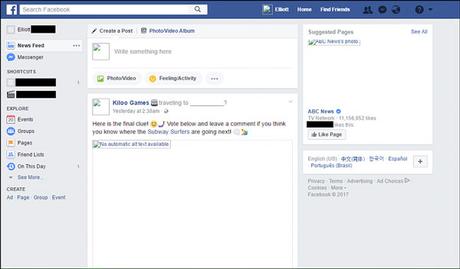
Our research shows that the most common cause of this issue is related to network issues. Here are some of the network related issues that might be stopping the images from being loaded:
- Bad DNS
DNS servers are important for resolving the hostnames. So, in case it is not working, neither will the images load nor will Facebook work properly.
Read – How to Lock Your Facebook Profile? (Easy way)
- Bad internet connection
If the internet is bad, it’s obvious things won’t work well. Forget images, even the app won’t load for you.
- Network cache
Network cache is another important module that needs to be checked for bad or corrupt data. In case that’s the issue, images won’t load.
- Hosts file
These files manage the hosts locally in your system. In case the entries for Facebook aren’t proper, images won’t load.
- Free Facebook
Some networks allow Facebook to run freely, with no data consumption. However, the disadvantage is that the images won’t load if you are using this version.
- Disabled images
Few web browsers block images sometimes. So, if you are using Facebook on a web browser, always ensure that mode isn’t enabled.
- Flash player
Having a flash player ensures that the images always load. So, you can install them in case it is needed.
- Ad-blockers
Those annoying ads that pop up to interrupt your browsing are blocked by these ad-blockers. However, sometimes they also block the images, so it’s best to check in case that is the issue.
- Server outage
It is best to keep a check on server status to ensure there are issues there. Sometimes facebook server itself is slow or disrupted that creates problems in loading the images.
Now that we have looked at the most common issues that lead to failure of loading images on Facebook, listed below are solutions to these problems:
Check the internet connection
Ensuring that you have a working internet connection is the first step towards resolving this issue of images not loading on Facebook. In case the network connection is good and still, you are facing the same issues, then here’s what you can do:
- Check Facebook on another device by connecting it to the same network. If there is no problem, chances are your device is causing issues.
- You can also check the speed of your internet by running a speed test. If the speed isn’t up to the mark, that might be the reason.
- Make sure that you are using a private network instead of a public one. Sometimes, public networks don’t have access to all the websites and images.
If you have tried and tested all of this and are still facing the issue of images not loading, you can reset your router. But before doing that, you need to have configurations as every router has different configurations that are saved by the user’s internet service provider for accessing the network. You will have to navigate to your router’s IP address which is present at the backside of the device. Alternatively, it can also be obtained by googling the router’s model.
To reset your router, press the button that’s present on the back of the router for 6 seconds. Once the router is off and blinks light, you will know it has been reset.
- Search for a button at the back of your router and press it for around 6 seconds until the router turns off and blinks its light to show it has been reset.
- Next, connect your system to the router again and configure it accordingly. Check your Facebook to see if the problem is solved or it persists.
If it does, there are other things you can do:
1. Check Server Status
If the server is down, you will face issues with the Facebook app/site. So, the first thing you need to do is to check the server status. To check the server status you can visit this site. If the issue is from them, then all you need to do is sit back and wait for it to be up again. It is a huge social media network, so sometimes the servers might get overloaded. It probably is a backend issue that will be resolved soon.
Read – 50+ Best Facebook Hacks & Tricks You Should Know
2. Check the Facebook version
Facebook allows its users to use the free version on certain network providers. While people can see what others post on Facebook, they won’t be able to see images. So, if you want to see the photos in this version, select the see photos option and they will be visible.
3. Check Disabled Images
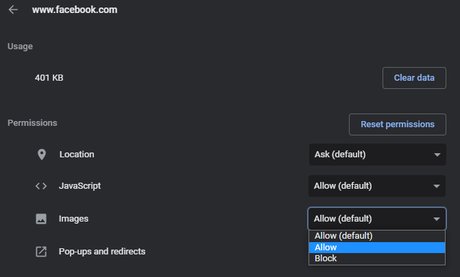
Web browsers sometimes block images while blocking an ad. So, make sure that you have disabled the Ad blocker. Also, check if images are allowed by default. To check this, follow the below steps.
Visit Facebook, click the secured icon (lock), and select site settings.
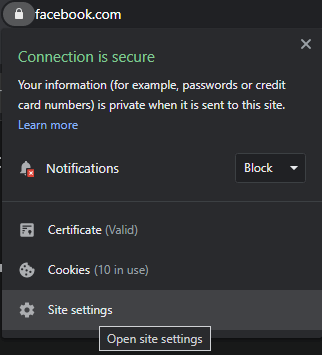
Under permissions, you will find images, make sure that they are allowed.
4. Change Your DNS Server
If you are still facing the issue, changing the DNS server might be a viable solution. DNS servers are used to translate domain names with IP addresses, however, if there is some issue with your local DNS Server, you might face multiple issues while browsing. We have already made a list of the best DNS servers for fast internet. To change the DNS server, all you need to do is:
- Open the Control panel on your computer.
- You will find ‘network and internet’ there, click on it.
- Then, select ‘network and sharing center’ from the next window.
- From the several networks listed there, select the one that you are currently using.
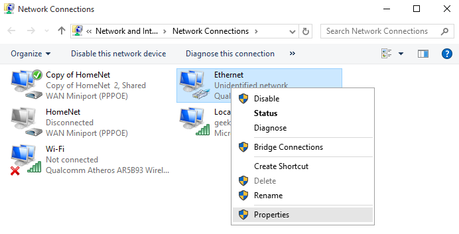
- Right-click on the current network and click on the ‘properties’ option.
- Select the “Internet protocol version 4 (TCP/IPv4) to change DNS server.
- Now, click on “Use the following DNS server addresses” This will allow you to edit the dialog boxes so that you can set the following values:
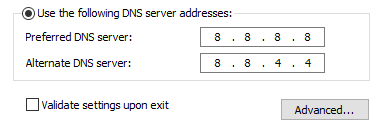
- Now set the Preferred DNS server: 8.8.8.8 and Alternate DNS server: 8.8.4.4
- Click Ok to save the changes and restart your computer. The issue will most probably be resolved.






