


Pins are a handy feature of Google Maps that lets you save a location. You can drop a Pin to save an address or mark a location if it has no address or the address is incorrect. Your Pins will help you navigate to those places again, and you can also share them with your friends to indicate a meeting place.
Cyber Monday related offers:
Google Maps has this efficient and fast method known as ditching the pin that you will find useful. Here we will show you how to use this method on your mobile device or your computer.
Further reading
Post pins in Google Maps on mobile
The most recent version of Google Maps has made it much easier to remove a pin from the search box - in fact, it drops a pin automatically whether you like it or not. This assumes that if you're looking for a particular address, you want a pin dropped there. So, when you use the search box to find an address, count on the automatic deposit of a pin. You should always press and hold if you are using the map interface instead of the search box to find a location.
Step 1: Open the Google Maps app on your iPhone or Android phone.
2nd step: Search for an address using the search bar at the top of the screen or scroll the map until you find the location where you want to drop a pin.
Step 3: Tap and hold the screen to drop a pin. A light touch is enough.
Step 4: Tap the pin to get directions to that location and share or save them.
Step 5: To remove a pin, just pinch and a box at the top that says Drop pin or specific location appears with an X on the right side. Type that X removes the pin.
Drop pins in Google Maps on a computer
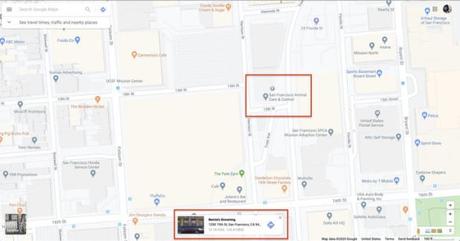
Step 1: Go to the Google Maps website.
2nd step: Search for an address using the search bar at the top left of the screen or scroll the map until you find the location where you want to drop a pin. The search bar automatically drops a pin at the location you searched for. You don't have to do anything else.
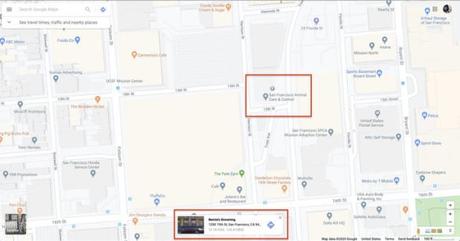
Step 3: Click with the left mouse button where you want to drop the pin. You may need to zoom in or lightly click either side of where you want to drop a pin if there is already a marker. A small gray pin will appear, along with an information box at the bottom right of the screen.
Step 4: You can tap the navigation icon in the information area to get directions to the dropped pin or click anywhere else in the area to view more information about the location you selected.
Step 5: From the additional information screen, you can click save to save the pin in Your favorites, Want to go, Favorites or New list. You can view pins saved under Your places in the main menu.
Drop multiple pins by creating a map on the desktop
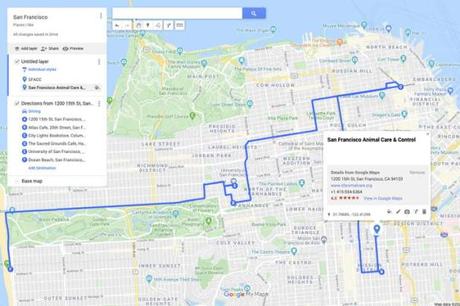
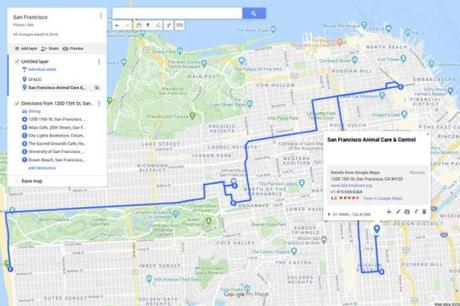
If you have different Pins on a map that you want to see all at once, you have the option to save each Pin together under the Your places file, but you can't see them all on one map because Google Maps only allows you to pin one location per map. If you want to display multiple Pins on a map, you will need to create your own map. Not only can creating your own map help you visualize multiple Pins more easily, it can also show you the geographic relationships between your favorite places and visually connect them. Here's how to create your own Google Map.
Step 1: Go to the Google Maps website.
2nd step: While you don't need to be signed in to drop unique Pins (unless you want to save them), you will need to sign in to create a map.
Step 3: In the upper left corner of your screen, click the menu icon.
Step 4: Click on Your places > Cards> Create a card.
Step 5: A new window opens with your personalized card. If you click Untitled Card, you can add a title and a description. Don't forget to click save.
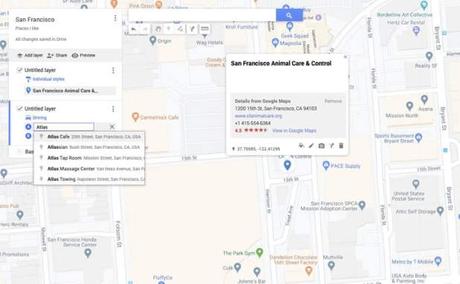
Step 6: Record an exact location by clicking on the marker icon, which is just below the search bar. You can click on a location to add a marker for that exact location or use the search bar to search for a location.
Step 7: Click the Add Directions icon in the icon bar below the description of your first destination or at the top next to the origin marker to bring up an A field and a B field at the bottom left of the screen. This makes it easier to find and place new destinations. You can use the side menu to add more destinations to your map. Your map will automatically link the different locations.
Step 8: For personal use, the previous step was the last. If you want to share your map, click on the icon in the upper left corner. This icon will also give you access to a preview option if you want to see what your map looks like.
Editor's recommendations






