


It might be a challenge, but you can download YouTube videos straight to your iPhone for viewing anytime, even when you're offline. From YouTube's own subscription options to third-party apps, there are a number of ways you can save your YouTube favorites on your iOS device. Never again will you go back to a favorite video and find it missing. In this guide, we are going to walk you through some of the easiest methods to download and convert YouTube media to MP4 videos.
Please note: Some of the methods below also require you to use a MacBook to download the video.Method one: subscribe to YouTube Premium
YouTube Premium is a subscription service that lets you download videos to your smartphone for $ 16 a month. The downloaded videos can be of relatively low resolution - up to 360 pixels - but at least you can watch them instead of losing sight of them forever. This allows you to view the video even if the poster goes offline. A one month free trial is available. You can find them via the previous link or simply via the iOS YouTube app.
YouTube Premium
Method 2: use a third-party app on a computer
There are several free and paid apps that you can use to download YouTube videos to a computer. After downloading it, you need to transfer the video to your iPhone. While it is not exclusively downloaded to your iPhone, it is still a great way to transfer a downloaded video to your iPhone. That's why we included it here. We took the free ClipGrab as an example, but any number of downloaders and video converters will download YouTube videos to your desktop, and the steps below work much the same way.
- After you've downloaded and launched ClipGrab, use the app's search tab to enter keywords that will help you find the videos you want to save.
- Select an item from the results and use the pull-down menu to convert it to MPEG4 format so you can view it on your iPhone or iPad.
- Make your selection and click Grab this clip.
The app places a video on your desktop. Now you have a few options on how you want to transfer your video to your iPhone. Apple has its own system resources on Mac that you can use to transfer YouTube videos to your iPhone.
AirDrop


- AirDrop is the easiest way to get a short clip on your iPhone. Just right click the video icon on the desktop and choose Share> AirDrop.
- Make sure Airdrop is activated on both the desktop and the iPhone's Control Center. You don't need a wired connection between your Mac and iPhone.
- Click the AirDrop icon or drag and drop the video icon onto the Mac AirDrop icon. The file is sent directly to your camera roll as a video and can be viewed at any time.
The Finder
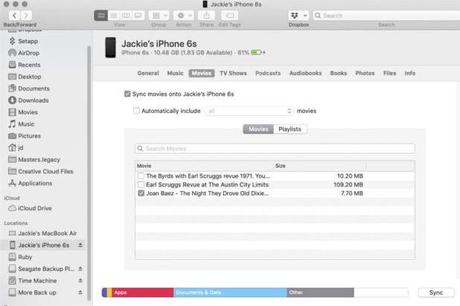
- Use the appropriate cable for your Mac; B. a USB to Lightning cable to connect your iPhone to your Mac.
- Select your device from the sidebar.
- Select the Movies Tab and check Synchronize.
- Check out all the movies you want to watch on your phone and tap Synchronize.
- Use the Apple TV app on your iPhone to find your video at Library> Home Videos.
Method three: record your screen
- Launch YouTube and find your favorite video.
- Change the orientation to landscape.
- Swipe up in the Control Center and tap recording Button (the circle inside the circle).
- Wait while the video plays, then tap to stop recording when you're done.
- The video is saved and saved in your camera roll.
Starting with iOS 11, which was released in 2017, you can record your iPhone or iPad screen and everything that's playing, including YouTube videos. This simple method is completely free.
Just because you can doesn't mean you should
At first glance, downloading a YouTube creation doesn't seem like a big deal. However, the ethics revolves around the intent of the original video post. Sometimes people (or companies) want to post videos to share content. Other brands focus on generating revenue: videographers often see a cut in advertising revenue. Sure, advertising is annoying, but YouTube (and content creators) pay their bills with that money. If you download videos to play offline, the transaction loses its value - the video does not earn income for ads. The platform is also losing several views from you, the audience.
In conclusion, for commercial reasons, a video should not be downloaded or distributed. In-person viewing is generally the only reason to download YouTube videos. This way you will avoid most ethical problems and copyright infringement. When in doubt, avoid downloading them all together or stick with YouTube's official premium service to skip ads.

Editor's recommendations






