


Microsoft released a brand new operating system, Windows 10 S, to address Google's Chrome OS. The lightweight and streamlined operating system was built to run on the Surface Laptop and is meant for educational institutions.
Microsoft had made improvements to its core functions, such as speed and security, while also focusing on battery life.
Microsoft released a new member of their Windows family recently and they've made it available to developers and IT professionals to download and test.
Now, there is an app that lets you install and test the latest offering on your mobile devices too! If you're interested in trying out Windows 10 S, here's how you can get started.
Things To Know Before Installation
Want to install Windows? Here are a few important things you should know before starting the download.
- Compared to Windows 10, Windows 10 S has some restrictions. It also allows you to download apps only from the Microsoft store.
- Microsoft Edge is the default internet browser, and Bing is the search engine.
- To activate your installation of Windows 10 in S mode, you need to download the installer for installation on your preferred version. The installers are available for Windows 10 versions as given below.
4. Unfortunately, the update has not been compatible with Windows 10 N edition and Windows 10 Home. Whether you're trying to play games or use the operating system for educational purposes, it's possible that you'll experience issues that result in slower performance.
5. Most older drivers and software won't work in Windows 10 S mode. These drivers and software can cause data, personal settings, and previously installed programs to be lost.
Windows 10 S is an alternative to Google's Chrome OS, which is focused on providing a familiar environment for users. While the UI looks similar to the Windows 10 experience, your options end up being limited to what Microsoft allows.
That means, for the time being, you can only install apps from the Microsoft store, and default browsers aren't available, but that may change later. If that's not enough, some plugins are blocked as well.
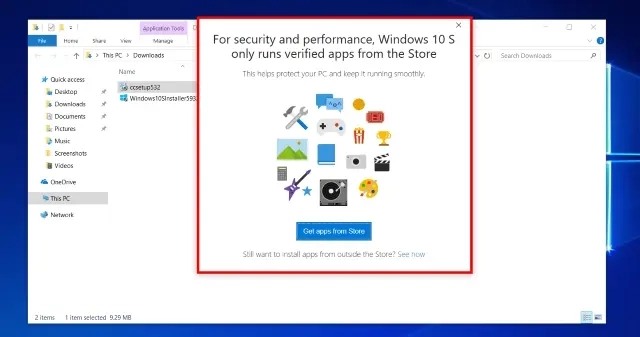
Unfortunately, third-party apps are not allowed for Windows 10 S. This means that some of your favorite drivers may be incompatible since they require third-party software to function properly.
For example, you can't even install NVIDIA's GeForce Experience or AMD's Control Center. Also, there is no way to preserve the data from any additional third-party apps on the system once you install Windows 10 S.
The Second notable difference is that you can only install apps from the Windows Store, which means Office 365 is the only available version of Microsoft Office for Windows 10 S users.
Additionally, users cannot install annual variants of Microsoft Office 2016. That's because there are security risks involved with pirating software, as well as reducing the amount of malware and viruses found on PCs using a lower-end OS version than Windows 10.
How to Get Windows 10 S On Your PC?
Windows 10 S is still about a few months away, but for now you can experience the operating system in its current state using our guide. If you've used Windows or any other version of Microsoft's OS, then you'll know how restricted the Windows 10 S feels.
At this point, even the Store has limited applications available for selection. That being said, Windows 10 does seem promising, especially given its aim at becoming a competitor to other operating systems such as Google ChromeOS and best suited for schools and institutes.
How to Install Windows 10 S Using Windows 10 S Installer Tool
Also, it's very important to have a backup of your computer and make sure you have your system connected to the internet before proceeding with this tutorial.
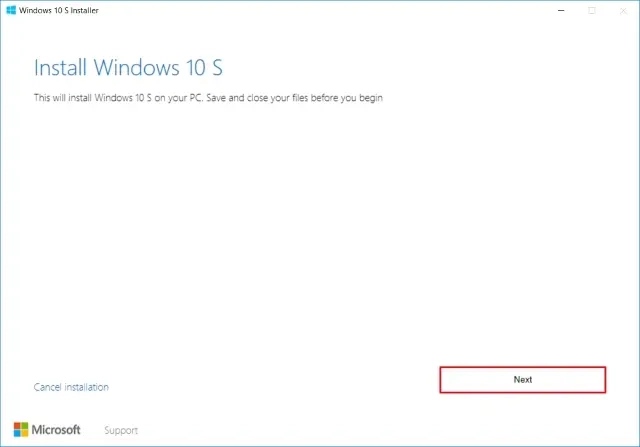
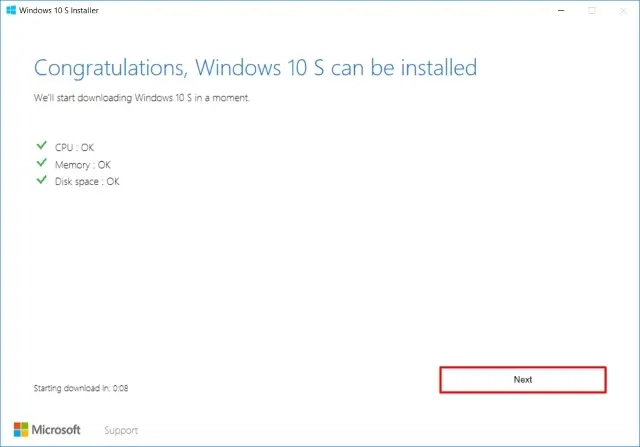
- Once done, the system will automatically start checking if your hardware is compatible and meets all the requirements.
- Click "Next", if your system meets all the requirements.
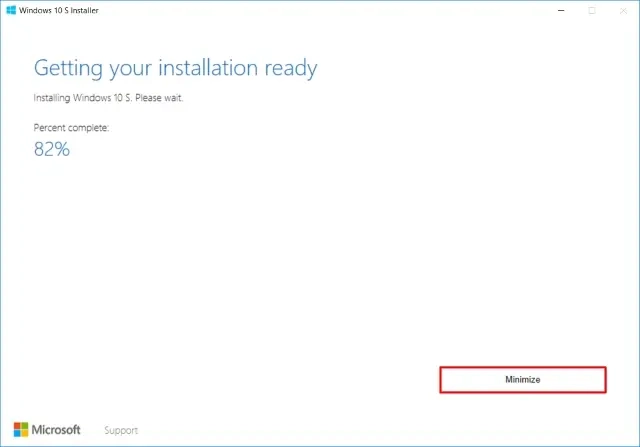
- Now that you have installed the Windows 10 S setup application on your system, it's time to start the installation process. When you're ready, simply click on "Minimize" and then go back to browsing the web or performing other tasks on your device.
- It will ask you to restart your device once the setup is done.
- Click on "Restart Now".
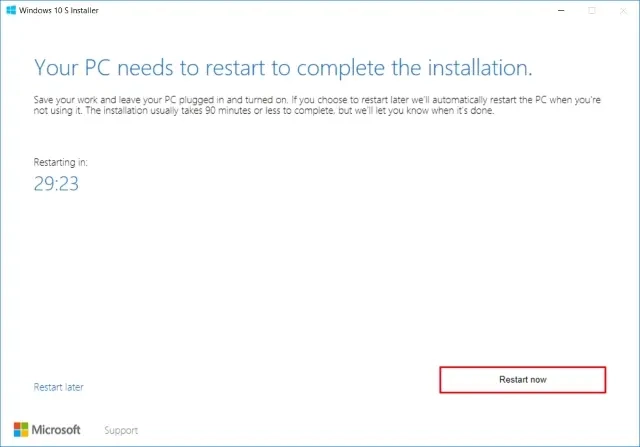
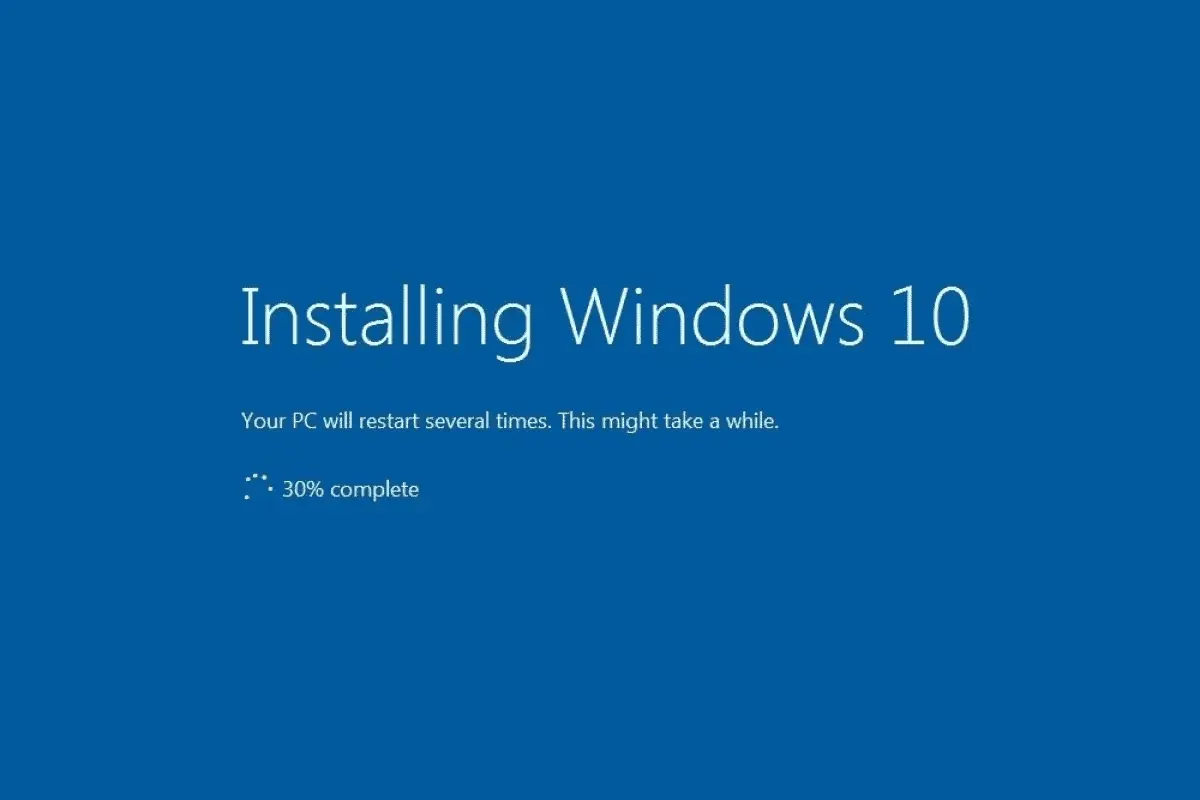
- The system will automatically restart for you and welcome you with a blue login screen. You'll see it restart multiple times during this process; if it does happen that the system boots up during installation, make sure you are connected to an outlet so that there are no issues.
- When the installation has finished, you'll be welcomed by the Setup page. The setup is similar to what you would see if you were installing Windows 10 - it will require you to log in with your account, connect to your WIFI and configure other settings. Click "Next" when you're done to finish up.
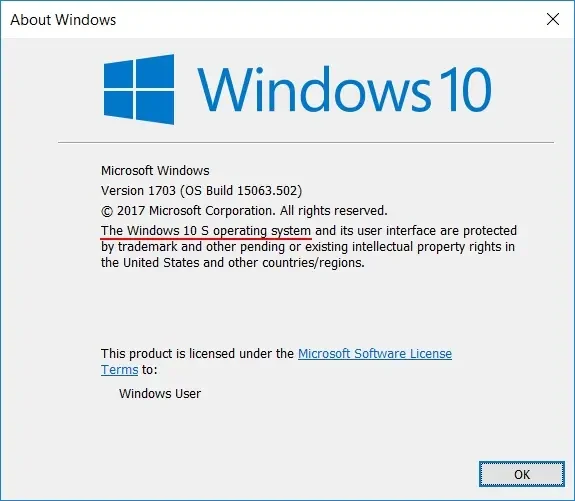
- And it's done, the system will boot up into Windows 10 S and you'll just need to log in to your account.
Clean Install Windows 10 S
This is the simplest method you can use to install Windows 10 S. It's not an official option from Microsoft, but it's still easy and reliable. To do this, you need to download the Windows 10 S's ISO file from and create a bootable USB.
The process only requires a Visual Studio Personal with MSDN or enterprise subscription, which can $45/month or $539/year. As of now, there are no retail images available for consumers; it can be expected to release over the next few months.
Once they're available, you can create a bootable USB disk and start installing Windows 10 S as soon as it's supported by your PC hardware.
Downgrade From Windows 10 S to Windows 10
Switching back to your previous Windows 10 operating system is easy with this conversion method. You'll only be able to do so for the first 10 days after the installation as you need $windows.~bt and Windows.old folders on your computer before you can switch back.
After an upgrade, make sure you delete any new user accounts that may have been added, or else you might risk losing your data or configuring anything incorrectly.
To rollback from Windows 10 S to Windows 10 follow the below steps:
★ If the folders are deleted Or it has been more than 10 days, then you can do the rollback on your previous Windows version.






