


WordPress paired with BuddyPress, WPMediaVerse, and the Reign theme gives you everything you need to launch a full-featured photography community, member profiles, photo uploads, albums, explore feeds, photo battles, and AI moderation, all on your own domain for under $300 a year. Here is the complete setup guide.
Why Build a Self-Hosted Photography Community
The centralized photography platforms are falling apart. 500px gutted its community features years ago and pivoted to licensing. Flickr has been on life support since Yahoo sold it. Instagram buries your work behind an algorithm designed to sell ads, not showcase photography, and anything you upload belongs to Meta under their terms of service.
Photographers who are serious about their craft and their community need a platform they actually control. A self-hosted WordPress photography community gives you that control, and it comes with real advantages over any third-party platform.
Full Content Ownership
Every photo uploaded to your site stays on your server. No platform can change its terms, compress your images, or claim licensing rights. Your members retain full copyright, and you control the infrastructure.
No Algorithm Suppression
On Instagram, your latest post reaches maybe 10% of your followers unless you pay to boost it. On your own platform, every upload shows up in the activity feed and explore page. The community sees what the community shares.
SEO Value
Every photographer profile, album, and tagged photo on your site is an indexed page on Google. A community with 500 active photographers could generate thousands of SEO-friendly pages, something Instagram will never do for you.
Monetization on Your Terms
Charge for premium memberships, sell prints, run paid workshops, gate exclusive content, all without a platform taking 30% or changing payout rules overnight.
A Community You Actually Own
Facebook Groups can be shut down without notice. Discord servers are rented space. When you build on WordPress, your member list, your content, and your community history belong to you.
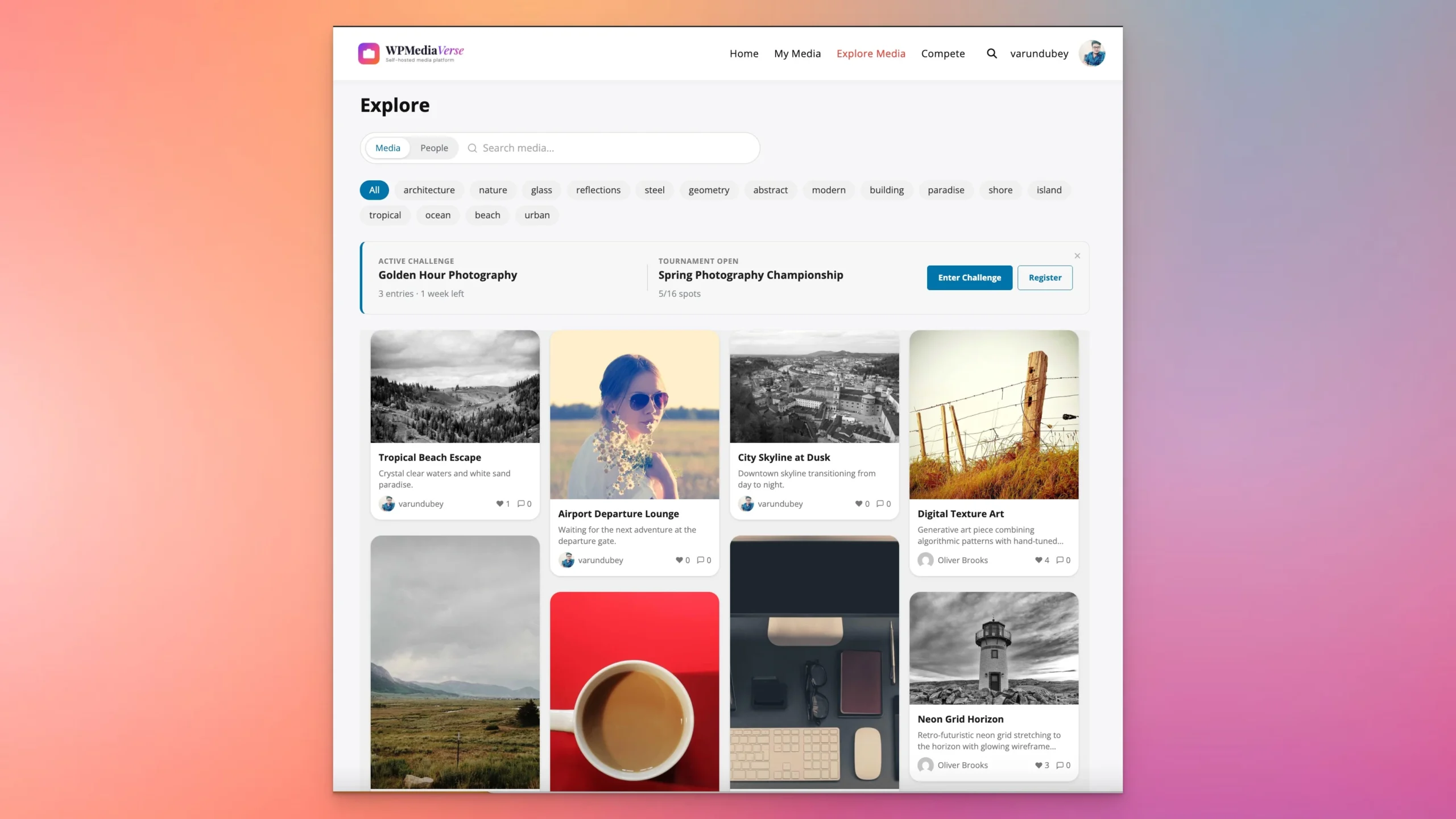 WPMediaVerse’s Explore feed, photographers discover content by tags like landscape, portrait, and macro
What Your Photography Community Needs: The Tech Stack
You do not need twenty plugins to build a photography community. Here is the full stack, with costs.
WordPressFreeCore CMS, pages, posts, users, media library
BuddyPressFreeMember profiles, groups, activity feeds, private messaging, friend connections
WPMediaVerse (Free)FreeMedia uploads, albums, explore feed, emoji reactions, follow system, AI moderation, 6 privacy levels
WPMediaVerse Pro$69/yearPhoto battles, tournaments, 5 gallery layouts (Instagram, Pinterest, Flickr, Dribbble, Grid), cloud storage, watermarking, storage quotas
Reign Theme or BuddyX Pro$69/yearCommunity-optimized theme with BuddyPress integration, responsive design, member directory layouts
Managed WordPress Hosting$100-150/yearSiteGround, Cloudways, or similar, fast hosting with staging environments
Membership Plugin (optional)Free-$99/yearPaid Plans for BuddyPress, Paid Memberships Pro, or MemberPress, gated content and subscription tiers
Total cost: under $300/year for the complete stack, including hosting. Compare that to building a custom photo-sharing platform from scratch, which would run $50,000+ in development costs.
Step-by-Step Setup Guide
Step 1: Choose Hosting and Install WordPress
Photography communities are media-heavy. Choose a host that handles large file uploads and delivers images fast. Good options include Cloudways (DigitalOcean or Vultr), SiteGround GoGeek, or any VPS with LiteSpeed and a CDN.
Key hosting requirements for a photo community:
- At least 10GB storage (more if you expect heavy uploads)
- PHP 8.1+ with a 256MB memory limit
- Max upload size set to 50MB or higher
- A CDN for image delivery (Cloudflare works well and is free)
- SSL certificate (mandatory for member login and uploads)
Install WordPress through your host’s one-click installer. Set your permalink structure to “Post name” under Settings > Permalinks.
Step 2: Install BuddyPress and the Reign Theme
Go to Plugins > Add New and install BuddyPress. Activate it. Then go to Settings > BuddyPress > Components and enable these:
- Extended Profiles, lets photographers add a bio, camera gear, location, and social links
- Activity Streams, the community timeline where new uploads and interactions appear
- Friend Connections, or use the follow system from WPMediaVerse instead
- Private Messaging, direct messages between members
- User Groups, for genres like “Street Photography,” “Wildlife,” “Astrophotography”
- Member Invitations, let existing members invite photographers they know
Install the Reign Theme or BuddyX Pro. Both are built specifically for BuddyPress communities. Reign gives you multiple header and sidebar layouts, member directory styles, and group page designs, all configured through the WordPress Customizer without writing code.
Step 3: Install WPMediaVerse
Install WPMediaVerse from the WordPress plugin directory or download it from wbcomdesigns.com. On activation, the plugin automatically creates three pages:
- Explore, the public feed where all community media appears, filterable by tags
- My Media, each member’s personal media dashboard and albums
- Upload, the drag-and-drop upload interface
Add these pages to your main navigation menu. The Explore page becomes the heart of your photography community, it is where members browse, discover, and interact with each other’s work.
Step 4: Configure Privacy Settings
WPMediaVerse offers six privacy levels for every upload, which is critical for a photography community where members have different comfort levels sharing their work.
- Public, visible to everyone, including non-logged-in visitors
- All Members, visible only to registered and logged-in members
- Friends Only, visible only to the uploader’s friend connections
- Only Me, private portfolio, visible only to the photographer
- Group Members, visible only to members of a specific group
- Custom, select specific members who can view
Set the default privacy level under WPMediaVerse > Settings. For most photography communities, “All Members” works well as the default, it encourages sign-ups while protecting your members’ content from scrapers.
Step 5: Set Up AI Moderation
WPMediaVerse includes built-in AI moderation powered by OpenAI Vision. When a member uploads an image, the system automatically scans it and flags content that violates your community guidelines, spam, explicit content, or off-topic uploads.
To enable it, add your OpenAI API key in WPMediaVerse > Settings > AI Moderation. You can configure:
- What content categories to flag (nudity, violence, spam, etc.)
- Whether flagged content is auto-rejected or held for manual review
- Custom moderation rules specific to your community’s focus
This is particularly valuable for photography communities that accept public sign-ups. It keeps the feed clean without requiring 24/7 manual moderation.
Step 6: Create Initial Content and Seed the Community
No one wants to be the first person posting in an empty community. Before you launch, seed the platform with content:
- Create 5-10 member accounts for your founding photographers
- Upload 50-100 photos across different genres and tags
- Create albums to demonstrate the organizational structure
- Set up groups for your primary genres (Landscape, Portrait, Street, Macro, Wildlife)
- Write a welcome post in the activity feed explaining how the community works
Tag everything properly. When new members arrive and browse the Explore page, they should immediately see a vibrant, organized community worth joining.
Step 7: Enable Photo Challenges and Battles (Pro)
Photo challenges are the single best engagement driver for photography communities. WPMediaVerse Pro includes two competition formats.
Themed Challenges: Set a theme (“Golden Hour,” “Street Photography,” “Minimalism,” “Motion Blur”), a deadline, and let members submit their best shots. The community votes on winners. Run these monthly for consistent engagement.
Photo Battles: Head-to-head matchups where two photos face off and the community votes for the winner. These are fast, addictive, and drive daily return visits. Members can challenge each other directly or enter open tournaments.
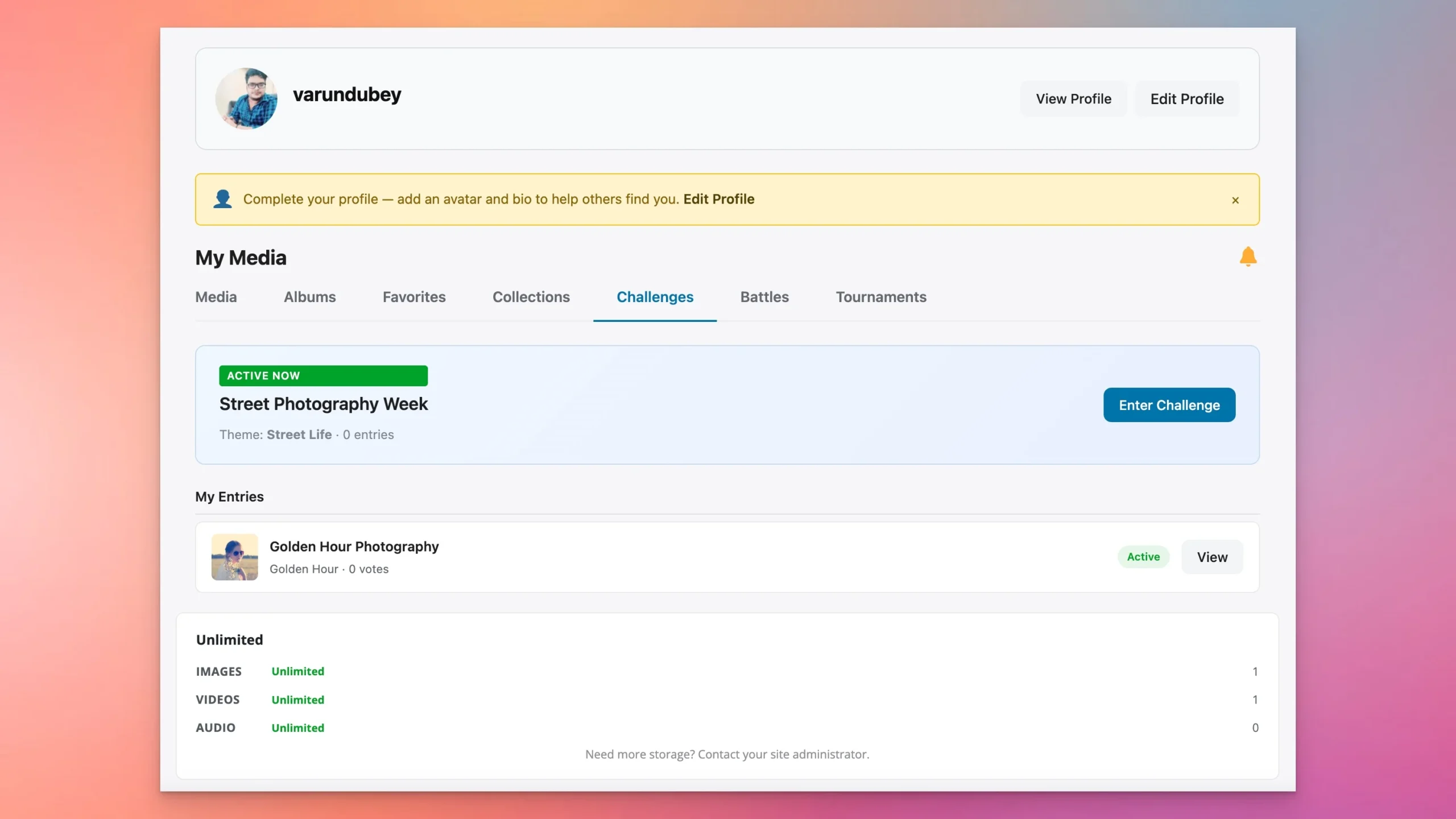 Monthly themed challenges, “Golden Hour Photography” with deadlines and entries
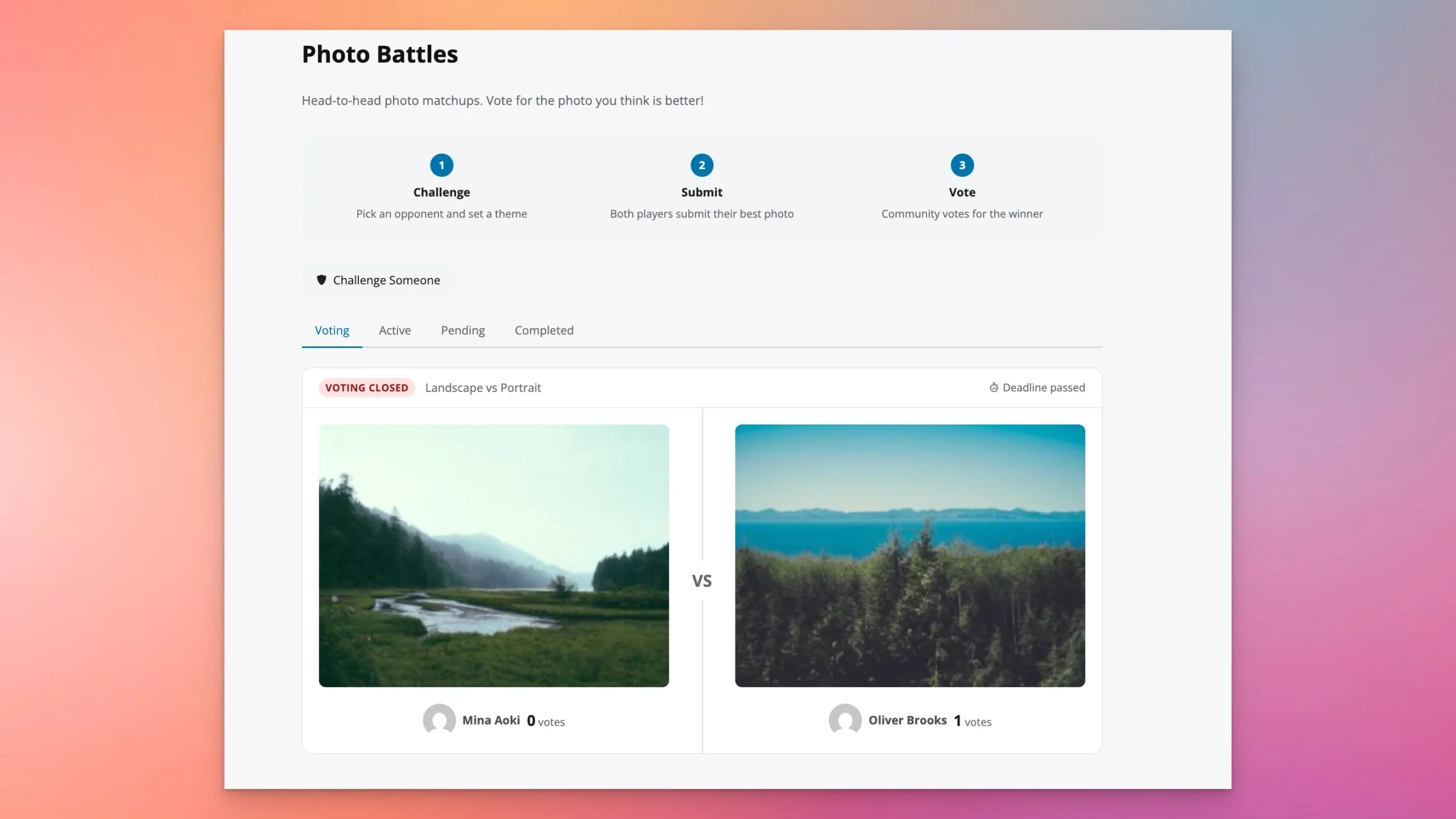 Photo Battles, head-to-head matchups where the community votes for the winner
Step 8: Set Up Monetization
Once the community has traction, introduce paid tiers. Use Paid Plans for BuddyPress or a membership plugin to create subscription levels. Here is a proven tier structure:
Free$0Public gallery, 500MB storage, watermarked downloads, browse and comment
Pro Photographer$15/monthUnlimited uploads, 50GB storage, private albums, no watermarks, priority in Explore feed
Challenge Pass$5/monthEnter monthly photo challenges and tournaments, exclusive challenge groups
Studio$25/monthEverything in Pro + client portals (private albums with password sharing), 200GB storage
WPMediaVerse Pro lets you set per-user storage quotas tied to membership tiers, free members get 500MB, paid members get 50GB or more. This gives people a concrete reason to upgrade.
The Media Experience: What Members See
The quality of the media experience is what separates a photography community from a WordPress site with an upload form. Here is what WPMediaVerse delivers for your members.
The Explore Feed
The Explore page is where members discover new work. Photos appear in a responsive grid, filterable by tags, landscape, portrait, macro, street, black and white, architecture, and any custom tags your community creates. Members can switch between trending, recent, and most-liked views.
The Upload Flow
Members upload through a clean drag-and-drop interface. For each upload, they add a title, description, tags, and choose a privacy level. Batch uploads are supported, a photographer can upload an entire shoot at once and organize it into an album.
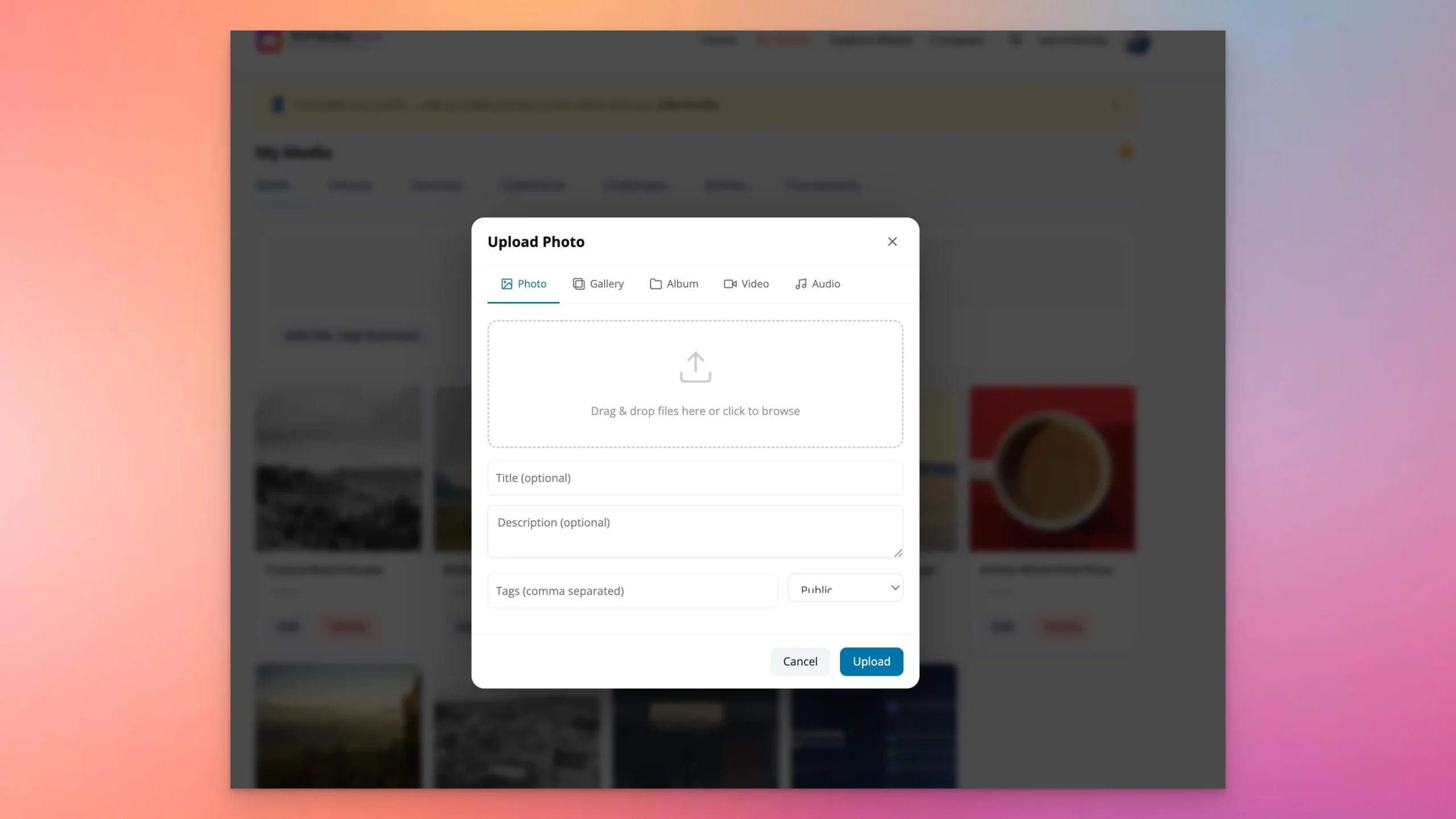 Drag-and-drop uploads with title, description, tags, and privacy settings
Lightbox View
Clicking on any photo opens a full-screen lightbox with the image displayed at maximum resolution. Below the image, members can leave emoji reactions (six types), write threaded comments, share to social media, or save to a personal collection. The lightbox also shows EXIF data if the photographer has chosen to display it.
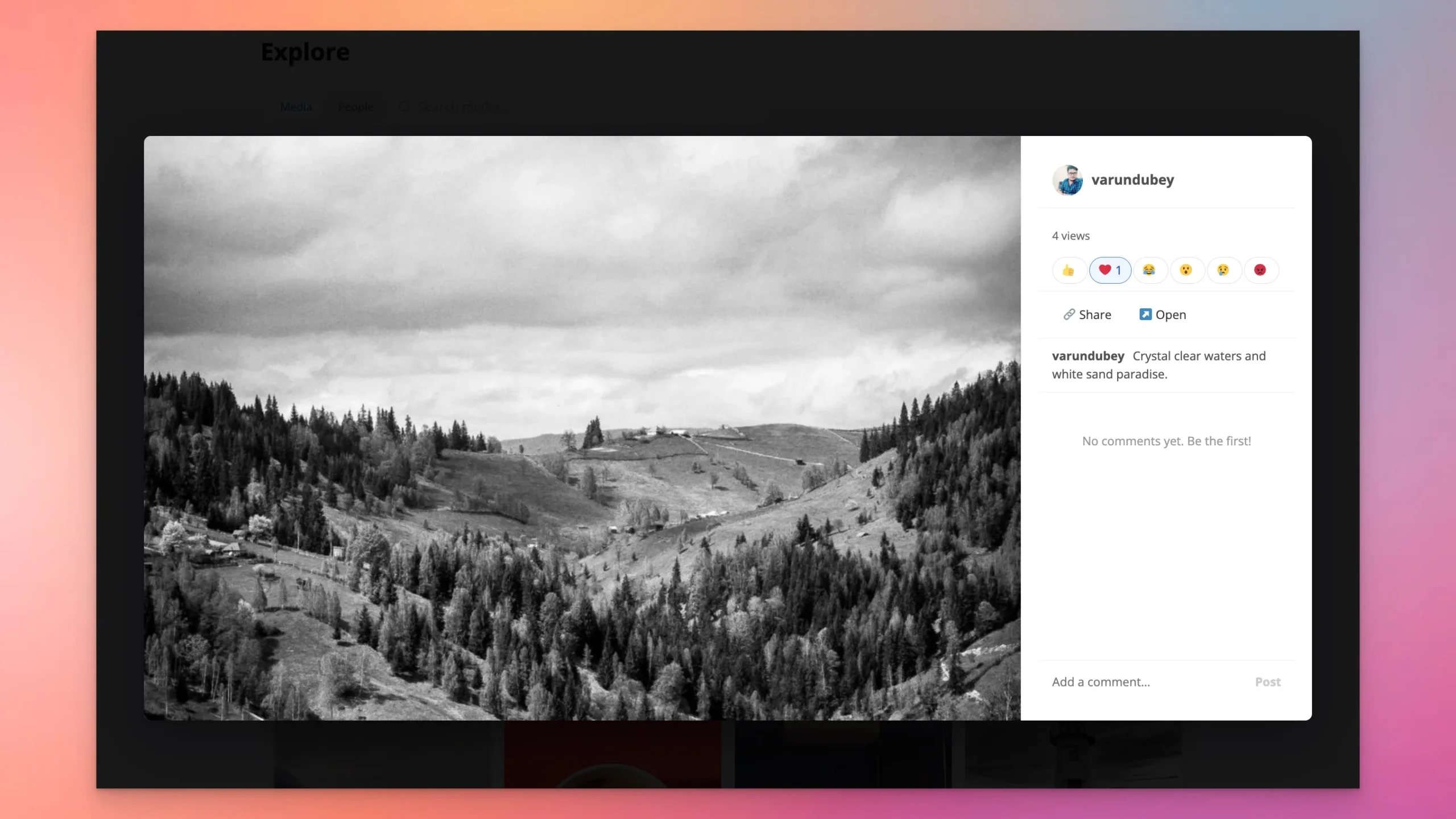 Members react to and discuss individual photos, six emoji reactions, threaded comments
Photographer Profiles
Every member gets a portfolio-style profile page. Their uploaded media appears in a grid layout. The profile shows follower count, following count, total uploads, and a bio section. Other members can follow them, send a direct message, or add them as a friend, all from the profile page.
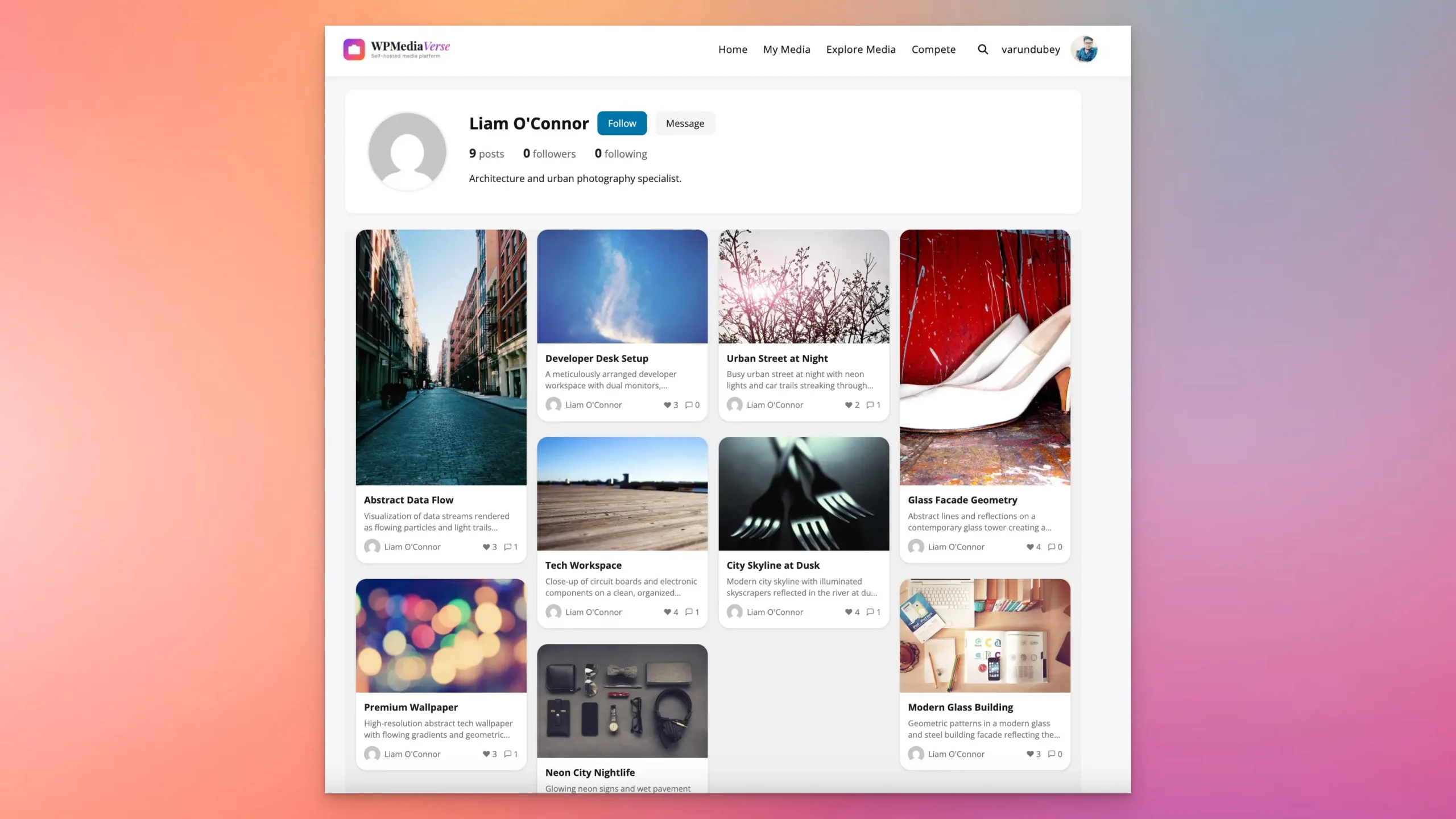 Every photographer gets a portfolio profile, media grid, followers, bio, Follow and Message buttons
Albums
Members organize their work into albums, by shoot, project, genre, or client. Each album has a cover image, description, and its own privacy setting. A wedding photographer might have a public “Portfolio Highlights” album and a private “Johnson Wedding, Client Delivery” album, all on the same profile.
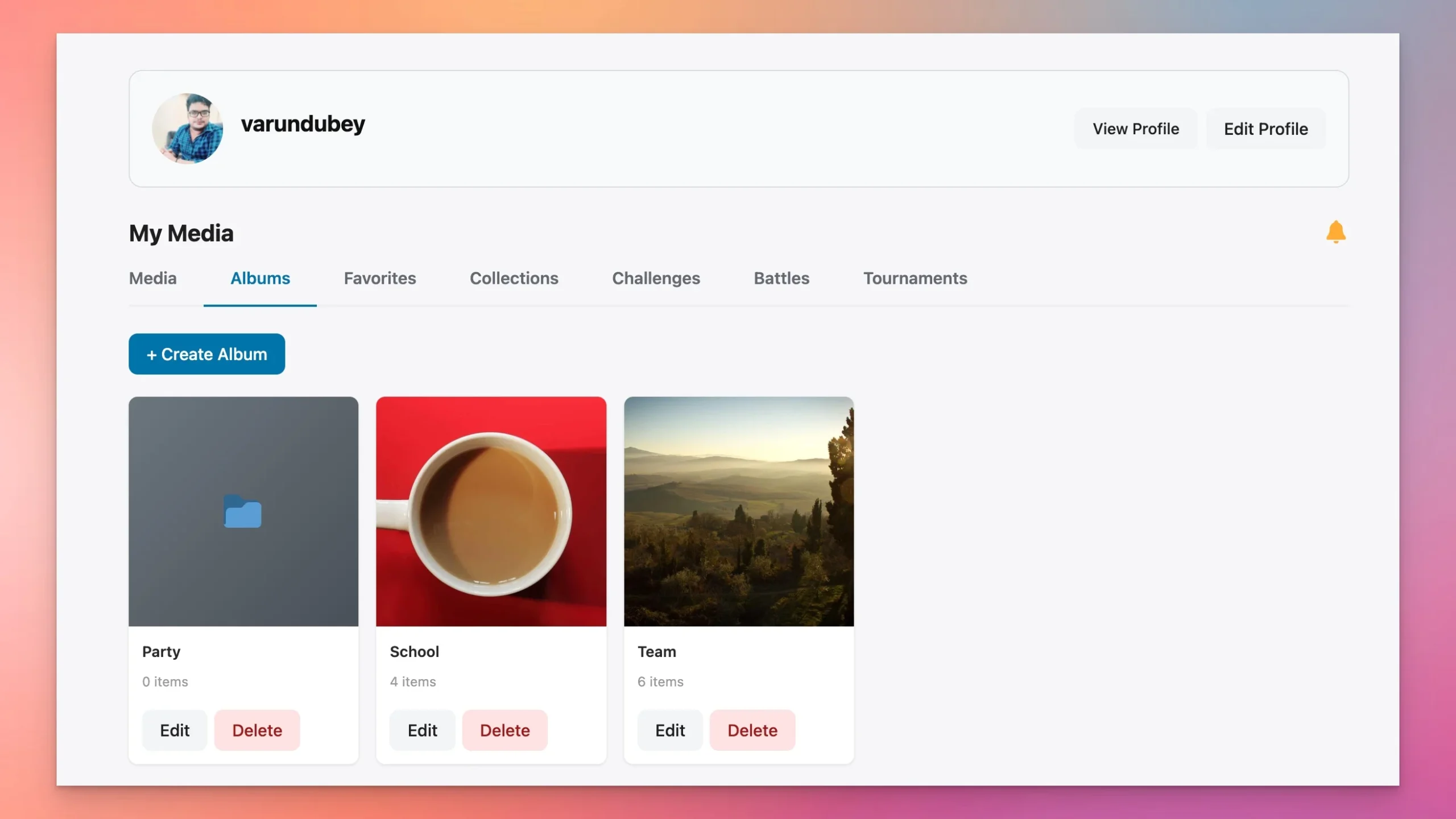 Albums, organize shoots by project, genre, or client with cover images and privacy controls
Photo Battles and Challenges
With WPMediaVerse Pro, members can enter themed challenges or directly challenge another photographer to a 1v1 battle. The community votes. Winners get featured on the Explore page and earn badges on their profile. This competitive element keeps members coming back daily and gives new photographers a reason to participate beyond just uploading.
Monetization Models for Photography Communities
A photography community has more monetization options than most online communities because the content itself, photographs, has inherent commercial value. Here are six proven models.
1. Tiered Memberships
The most straightforward model. Offer a free tier with limited uploads and storage, and paid tiers with unlimited uploads, private albums, no watermarks, and priority placement. Use WPMediaVerse Pro’s storage quota feature to enforce limits automatically.
2. Challenge and Competition Access
Charge a monthly fee ($5-10) for access to photo challenges and tournaments. This works because competitions are the highest-engagement feature, photographers will pay to compete. You can also charge entry fees for special tournaments with cash prizes.
3. Print Sales
Integrate WooCommerce to let members sell prints directly from their galleries. The community takes a percentage of each sale. This turns your platform into a marketplace and gives photographers a financial incentive to upload their best work.
4. Premium Galleries and Content Gating
Allow photographers to create premium albums that require a subscription or one-time payment to view. WPMediaVerse’s lock overlay feature shows a blurred preview with a paywall prompt, effective for fine art photographers and creators with a dedicated audience.
5. Workshops and Courses
Use LearnDash or a similar LMS plugin to sell photography courses. The community provides a built-in audience of people who want to improve. Course instructors can share results in the activity feed, and students can upload assignments to dedicated groups.
6. Sponsored Challenges
Partner with camera manufacturers, lens companies, or editing software brands to sponsor monthly challenges. The sponsor provides prizes and promotion, you provide the engaged audience. This model scales well once you reach 1,000+ active members.
Privacy and Content Protection
Photographers care deeply about who sees and uses their images. WPMediaVerse includes multiple layers of content protection that go beyond what any social platform offers.
6 Privacy LevelsPublic, All Members, Friends Only, Only Me, Group Members, Custom, set per upload or per albumFree
WatermarkingAutomatically overlays a watermark on images for non-owners; original stays clean for the photographerPro
Signed URLs with ExpirationImage URLs expire after a set time, preventing hotlinking and unauthorized embeddingPro
EXIF/GPS StrippingRemoves camera metadata and GPS coordinates from uploaded photos to protect location privacyFree
Lock OverlayShows a blurred preview with a paywall prompt for gated content, no image data leaksPro
AI ModerationScans uploads automatically and flags or rejects content that violates community guidelinesFree
These protections are not afterthoughts, they are built into the upload and display pipeline. When a photographer uploads a photo marked “Friends Only” with watermarking enabled, the privacy and watermark are enforced server-side. There is no way for a non-authorized viewer to access the clean, full-resolution original.
Real Use Cases
Local Photography Club Moving Off Facebook
A camera club with 200 members currently uses a Facebook Group. They lose posts in the feed, cannot organize photos by theme, and have zero control over who sees their work. Moving to a WordPress community gives them a proper gallery, organized groups for each photography genre, monthly challenges, and a member directory. The club charges $5/month to cover hosting, still cheaper than their annual dues.
Professional Photographer Building a Client Portal
A wedding and portrait photographer uses the platform as a client delivery system. Each client gets an account, and their photos go into a private album shared only with them. Clients can download full-resolution images, leave comments on individual shots, and order prints through WooCommerce. The photographer’s public portfolio serves as a marketing site at the same time.
Photography Educator Building a Student Community
A photography instructor runs online courses through LearnDash. Students upload assignments to the community, get feedback from peers and the instructor in threaded comments, and participate in weekly challenges that reinforce what they learned. The community becomes a selling point for the courses, students are not just watching videos, they are part of an active learning community.
Stock Photo Marketplace
An entrepreneur builds a niche stock photo marketplace, “authentic workplace photos” or “small-town America.” Photographers apply to contribute, upload to curated albums, and buyers purchase licenses through WooCommerce. The community’s Explore page doubles as the marketplace browse experience, and tag-based filtering makes discovery easy.
Annual Cost Breakdown
Here is what the full photography community stack costs per year, from a minimal setup to a fully loaded platform.
WordPress$0$0
BuddyPress$0$0
WPMediaVerse Free$0$0
WPMediaVerse Pro, $69
Reign Theme or BuddyX Pro$69$69
Managed Hosting (SiteGround/Cloudways)$100$150
Membership Plugin, $99
CDN (Cloudflare Free)$0$0
OpenAI API (AI Moderation), ~$10-20
Total$169/year$387-397/year
The minimal setup gives you a fully functional photography community with profiles, uploads, albums, explore feed, and privacy controls. The full setup adds competitions, watermarking, cloud storage, AI moderation, and paid memberships. Either way, you are spending less per year than a single month of custom development would cost.
Frequently Asked Questions
How many photos can the community handle before performance degrades?
WPMediaVerse is built for scale. With proper hosting (a VPS or managed WordPress host), a CDN for image delivery, and cloud storage enabled in Pro, communities with 100,000+ photos run without issues. The Explore feed uses lazy loading and pagination, so page load times stay fast regardless of total media count. The key bottleneck is usually hosting storage, which is why the Pro cloud storage integration (S3, DigitalOcean Spaces, etc.) exists.
Can I migrate an existing community from 500px or Flickr?
Yes. Both platforms allow bulk photo downloads. You can import photos into WordPress using WP All Import or a bulk upload script. Member accounts need to be created individually, but BuddyPress supports CSV user imports. The main work is re-tagging and organizing imported photos into albums, plan for a weekend of migration work for a community with a few hundred members.
Does WPMediaVerse support video uploads too?
Yes. WPMediaVerse handles photos, videos, and audio. The upload dialog lets members choose the media type, and video uploads get their own player in the lightbox view. For photography communities that also include videography (increasingly common with hybrid shooters), this means one platform covers everything.
What about mobile? Do members need a desktop to upload?
The upload interface and Explore feed are fully responsive. Members can upload photos directly from their phone’s camera roll through the mobile browser. The Reign theme and BuddyX are both mobile-first designs, so the entire community experience works on phones and tablets without a dedicated app.
Can I white-label the platform so it does not look like WordPress?
Absolutely. The Reign theme lets you customize every visual element, logo, colors, fonts, layouts. Remove the WordPress login branding with a simple plugin. Your members will see a polished photography platform, not a WordPress blog. Many Wbcom Designs customers run communities where members have no idea WordPress is under the hood.
Get Started
You can have a working photography community up and running this weekend. Here is where to start.
- Try the Live Sandbox, test WPMediaVerse with dummy data, no installation required
- Download WPMediaVerse Free, install it on your existing WordPress site in two minutes
- Get WPMediaVerse Pro, unlock photo battles, tournaments, watermarking, cloud storage, and 5 gallery layouts
- Get the Reign Theme, the community theme built for BuddyPress and WPMediaVerse
- Read the Documentation, step-by-step setup guides and configuration reference
- Contribute on GitHub, WPMediaVerse is open source and welcomes contributions
The tools exist. The cost is minimal. The only question is whether your photography community will live on a platform you own, or one that owns you.
Related Reading
- How to Make Money as a Photographer with WordPress
- Introducing WPMediaVerse: The Media Platform for WordPress
- Best BuddyPress Media Plugins Compared
- Best Photography WordPress Themes in 2026



Author's Latest Articles
-
bbPress Vs BuddyPress: Complete 2026 Guide (Which One Do You Actually Need?)
-
bbPress Shortcodes: The Complete Reference Guide (2026)
-
10 Best WordPress Media Sharing Plugins in 2026
-
WP Career Board Pro: Kanban Pipeline, Multi-Board, Credits, and Resume Search for WordPress
THE %(site_name)s COMMUNITY

-
 umkhaloodie
3864140 pt -
Ch
3396455 pt -
 jesusmsanchezl
2453003 pt -
weddingblog2011
2205852 pt