If you love your MacBook, it probably kills you when you run into problems with it. Is there anything wrong with your hardware, or is MacOS experiencing some problems? Which tools can help you find the source of the problem and fix it? Should you take your MacBook to a professional, or should you consider changing it as well?
Don't worry - we can help! Let's go over the most common problems for the MacBook, MacBook Air and MacBook Pro and what you can do about them. Back up your data if you can, and check the list to find the right solution.
Macbook keeps dying suddenly
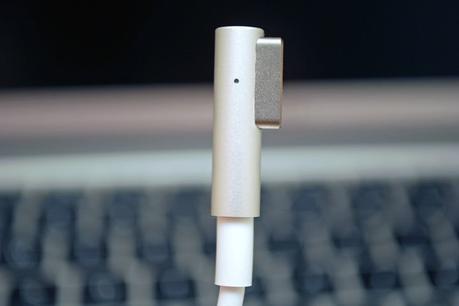
First, check to see if the battery is charging properly. If it is not, then talk about the MacBook below which cannot charge. But if your Mac is shutting down randomly even with a healthy battery percentage, it indicates a different type of problem.
If this shutdown occurs, restart your Mac with the power button and wait for the MacOS to return to load it. Once MacOS is loaded, choose to restart your Mac. Again. This allows your MacBook to perform a healthy, complete shutdown process. Now try to reset your System Management Controller (SMC). It controls many important hardware processes of your Mac, such as battery charging, sleep mode, and more. If something went wrong, resetting SMC is a quick way to fix it.
If the SMC step doesn't work and your Mac shuts down, it's probably time to take it to the Apple Store. Depending on your warranty, you may be able to get a replacement.
Startup only shows a blank screen
A failed MacBook startup may show somewhat different color screens, and each means some difference. If you see a black or blue screen that won't go away, this is a sign that your Mac is trying to load a problematic app or login function, possibly. Restart your Mac by pressing the power button for about 6 seconds (if it doesn't work, try booting in safe mode). Then try to remove any troublesome applications or login items that may not be compatible. While doing this, a program like CleanMyMac can help a lot.
A gray screen, meanwhile - which may be the Apple logo at the center - is a sign that critical software is failing to function correctly. If possible try to manually restart and open in safe mode. If there is any update that can be applied to MacOS, try the update and see if it fixes the problem. If not, stay in safe mode and try to use the Disk Utility tool to detect and fix any disk problems that are preventing your Mac from working.
FaceTime camera image is of very poor quality

This is a recent problem seen primarily among MacBook Air models. The FaceTime camera image shows a very poor, rash representation of your face, and sometimes its not so bad FaceTime is worth using.
This particular problem is probably not hardware-related, meaning that your MacBook camera is probably functioning normally and may perform other camera-related tasks. But it is worth testing. If you can get other video communication applications to work properly, then the problem is with FaceTime software. There is not much you can do here except to apply a waiting MacOS update to fix the problem.
If your video is not working on any app, the problem may be something else. Try taking your Mac to an Apple store when you have time and ask them to take a look.
External devices will not connect properly
First check to see if the device works properly on other computers so that you can mitigate the problem on your Mac. Next, check to make sure that the device on your Mac is plugged into the correct port, and that the port and cable are not damaged or blocked in any way. Finally, restart your MacBook and, if necessary, the device.
If these steps do not fix the problem, then look at your device and make sure it is compatible with your Mac, and plugged into the right version of the port. This can be an issue with older USB ports and newer devices. If everything seems fine, try resetting PRAM / NVRAM and SMC to see if the setting glitch is interfering with the device connection.
Still not working? You should also take the time to make sure to plug another compatible device into the same port to ensure that there is nothing intrinsically wrong with the port. If there is a hardware problem inside your Mac that is preventing the port from functioning completely, then it is time to take your Mac to the store.
The mac screen flickers

These flicker problems often stop intermittently, or even repeat a complete loss of resolution. There are a few different things that can cause this issue. First of all, check for any physical screen damage, which is always a good idea when this problem starts. If the screen appears OK, you can try these steps to see if the problem is resolved.
- PRAM / NVRAM reset. It is often effective in correcting minor agile problems.
- Check for any MacOS update that you have not yet implemented and update if you can.
- Are you using Chromium or Firefox? Both of these programs are known to have agile issues on Macs. If you have these programs trying to disable or remove them, and see if it fixes the problem.
- Enter safe mode and see if you can isolate any other apps that may cause problems
MacBook's sound suddenly cut off
First of all, make sure that it is not a special app that is causing the problem. Do you still get reliable sound from other sources like iTunes? If so, the app may need to update or debug to restore its sound.
If the problem occurs for all the sound on your MacBook, then you have a widespread issue. First, try resetting PRAM / NVRAM and SMC to see if this fixes the problem. A setting issue may prevent your audio from playing properly, and resetting these functions may clear it.
We go into a little more detail about fixing the Mac sound here, but if these solutions are not working, then it is a hardware problem. Have you bumped your Mac recently or spread something on it? It is time to take it to the Apple Store for a more in-depth inspection.
Macbook is running very slow
Many slowdowns occur due to too much work at the same time and deallocating your RAM, or completing your hard drive so that your MacBook is struggling to read and write data efficiently. If this is your problem, the best fix is a Mac upgrade, although clearing hard drive space and opening fewer tabs at once can also help. If your Mac is suspiciously slow and it really looks like something went wrong, there are a few things you can try:
- Restart your Mac. Sometimes it's so easy!
- Apply any update, especially if you have given some time after the update.
- Open Activity Monitor and see if an unexplained app is running and taking up a lot of resources. This may indicate malware or some other problem. Removing the offending program should help matters
- Clean your desktop of files. All those icons are really a huge drain on Mac resources!
- Run your virus scanner and Apple diagnostics, and see if they pose a problem.
- If the slowdown is accompanied by unusual noise, take your Mac to the Apple Store to see if it is a hardware or overheating issue.
Macbook cannot charge when plugged in
Start with the original. Is the outlet working? Is everything plug-in? Does your charger and cable indicate any damage, or are there interruptions that are preventing the charger from connecting properly? Keep in mind, the charger and mac can be hot and may need to cool before charging properly.
If checking in on these things doesn't help, apply any software updates, restart your Mac, and try to see if it helps.
If still no luck, press the Option key on your keyboard and at the same time click on the battery icon on your menu. From this you can choose the Advanced option in your battery menu, and check your battery. If the menu asks for your battery to be replaced or serviced, then it is time to take your Mac for a closer look at the store.
Macbook bluetooth will not turn on (or off)
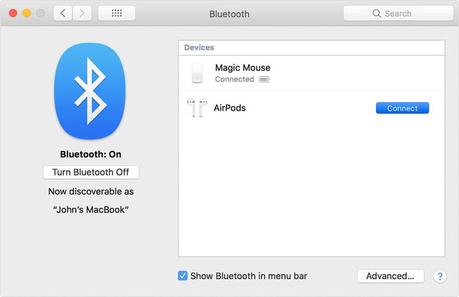
If you are having trouble turning on your Bluetooth, go to system Preferences Choose more Bluetooth To make sure all your settings are working, and you can keep an eye on the devices you have kept in the past. Sometimes it is as simple as selecting Turn on bluetooth In this menu.
If you can't fully connect a power Bluetooth device, make sure your Mac is updated, and restart the MacBook and Bluetooth device to see if it fixes the issue. If not, we suggest moving away from the devices to a more open area and trying again: sometimes poor interference can prevent the Bluetooth device from functioning properly.
Finally, you can try to open the terminal and manually force a reboot of your Bluetooth. Type the command
"Sudo rm -R /Library/Preferences/com.apple.Bluaxy.plist"And hit Enter. If necessary, enter your password and hit Enter Again. Now restart your MacBook, turn on your Bluetooth, and see if it works.
Some macbook keys stopped working
This is a problem with some MacBooks, especially the 2016 versions. The keys will stop working, start making strange noises, or simply feel (this may be particularly noticeable when the MacBook is hot).
This is a widely recognized problem, and we recommend that you take your MacBook to an Apple Store and see if they will replace it. However, if you really want to try to deal with the problem, you can catch a can of air. Carefully position your MacBook so that the keyboard is vertical, and blow air between the keys. This can dislodge dust and help fix some of your keyboard problems.
Mac won't shut down
Some MacBooks may freeze instead of closing properly. If it is clear how long your Mac will not shut down, try to make sure that all apps are closed, and leave apps when necessary. It may be necessary to shut down all of your Macs properly (if an app continues and causes these problems, make sure all your apps get updated to see if it helps is).
If shutdown problems continue, try resetting NVRAM and SMC to see if it helps. If it's still not good, then run Apple Diagnostics to see if it can detect any problems. If the shutdown problem persists, try booting into safe mode and restarting your Mac from this mode.
Finally, try to top system PreferencesGo for security and privacy, And head to Filevault. Make sure the file vault is closed. Sometimes, file vault in shutdown problems can be caused unintentionally.
Editors recommendations