The above-mentioned message has been a reason for the inconvenience for many gamers who have got their Windows updated. Players playing games such as Fortnite, PUBG, CS Go, have been a victim of this kind of error very often.

Cause of the error:
If you are wondering why this error actually pops up, then the reason lies in the mechanics and modules involved in running the respective games which get modified in some internal way after the update as these are powered by the Windows itself.
The whole message which pops up is “bad_module_info has stopped working”. To be specific in terms of update, the Windows 10 Creators Update (1709) is the main reason behind the error.
So when you are in the fresh mood to play your game. This kind of error is definitely going to irritate you to a great extent. But worry not, because there are multiple solutions to this problem that you can apply in such a case so as to start with your game.
Disable Full Screen Optimization:
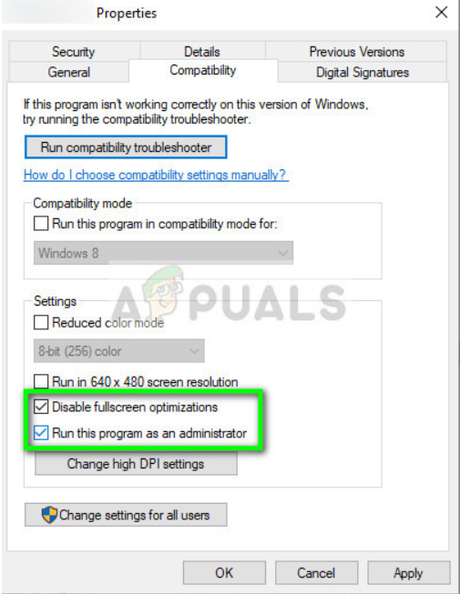
For playing a game, like PUBG, users tend to use the full screen in order to have a better gaming experience. But in this scenario disabling such a feature might help in reducing the probability of this error occurring. Full screen optimization option improves the running experience of a game while it is being played in the full screen mode. The detailing of the environment is much better in view because of this. We can disable this option and see if the error is fixed. To disable:
- Right click on the desktop short cut for your respective game and then select its properties.
- Next go to the compatibility tab.
- Against the option “Disable Full Screen Optimization”, there is a box which has to be tick marked in order to turn off this particular functionality.
Press the Windows Logo Key:
This solution may sound silly but this should actually be the first option when such an error is encountered. Press the windows key on the keyboard while you have the gaming window ON along with the error popup window. The Start menu comes up. Now try going back to the game. This many times helps to fix the issue at the very beginning without having to explore other options.
Disabling Game bar:
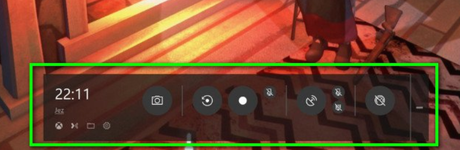
This bar has been recently included in the updates of Windows. Although, it is a useful add on for any gaming application, it is known to be the reason behind certain bugs which can hamper the operation of the game. While the game is on, the center bottom of the screen presents this bar which gives you the option to take pictures, make a recording, etc. We can also try disabling this option and see if it works:
- Press Win + s, type Xbox in the dialog box and open the application.
- Select the settings icon, and then click on “Game DVR” tab.
- From then uncheck the option “Record game and clips and screenshots using Game DVR”.
- After doing these steps, restart the computer so that the settings changed, set in.
Update the Drivers:
This might be the reason behind the mishap. When all of your drivers are not synchronized with the same updates there might be a problem in running an application that requires the support of multiple drivers. Thus in order to make sure all that, you can run any application including the gaming ones smoothly you should update all such drivers regularly.
Downgrade!
The option might seem absurd but if any of the above-mentioned methods do not work, you can always go back to your old Windows version in order to get back the glitch-free gaming experience. For this:
- Go to Start menu.
- Click on Settings.
- Select Update & Security option.
- Then go to Recovery and under the recovery tab select the option “Go back to my previous version of Windows 10”.
All these options can help in fixing the issue. In addition to them, you can also do power cycling on your computer, make sure no other game is running in the background, and also be sure that you are logged in as the administrator.