Last updated: December 27, 2016
Moving from a Windows computer to a Mac environment requires a bit of relearning as you get to know the programs on the Mac and the features and ways to access everything. If you've decided to fully embrace the Apple product line and use any combination of iPhone, iPad, or Mac computers, then you've no doubt seen or used the reminder and note features that are available on all of these devices.
Both of these apps seamlessly integrate between your devices via an iCloud service tied to your Apple ID, making it very easy to update your notes or reminders from any device and then apply your changes to all devices that sync to your iCloud account. But if you're at work or on a Windows computer, you might be wondering how to access this information. This is possible through any web browser, making it much easier to write a reminder or create a new note, even if you're not using an Apple device.
Access iCloud via web browser
With this option, you should get the settings right on all of your devices, so we'll just take a quick look at how to properly set up notes and reminders to sync to iCloud on your iPhone. The process is the same on a Mac or iPad; you just need to make sure your notes and reminders are set to sync across all the devices you want to use these features on. The screenshots shown below were taken on an iPhone with an older version of iOS, but the steps are the same for iPhones with newer versions of iOS.
Set up iCloud on iPhone to sync notes and reminders
Step 1: Tap the "Settings" icon on your device.
Open the settings menu
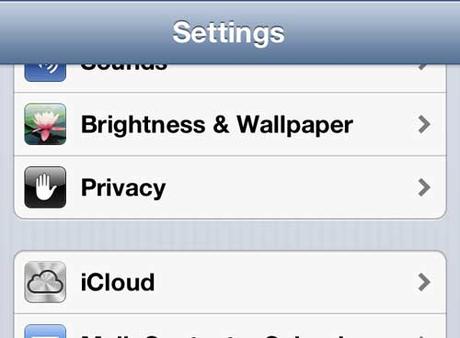
Step 2: Scroll down and select the iCloud option.
Step 3: Press the button to the right of "Reminders & Notes" so it says "On".
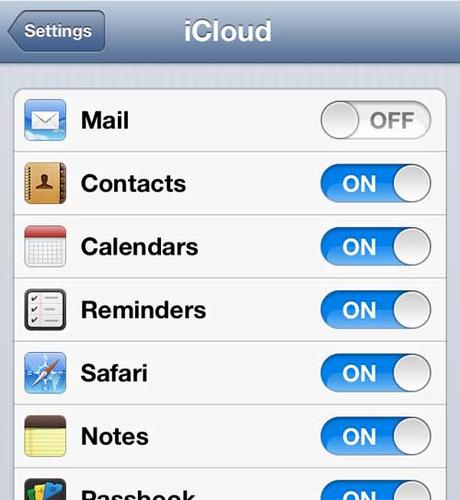
Again, you will need to make sure that all of your Apple devices are set up so that everything syncs at the same time when you make changes on any device or use the Windows browser option that we are going to explain below.
How to Access Notes from iPhone on Windows PC
I'll be doing this through the Google Chrome browser, but you can use whichever browser you prefer. The iCloud browser interface is essentially a website where most of your synced iCloud data can be accessed.
Step 1: Open a new web browser window.
Step 2: Go to www.iCloud.com.

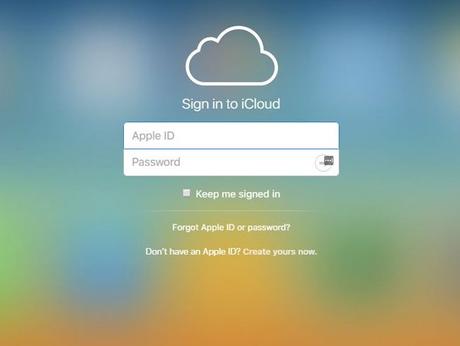
Step 3: Enter your Apple ID and password in the appropriate fields, then click the arrow button. Note that you can also check the "Stay signed in" box if you don't want to re-enter your credentials every time you visit this site.
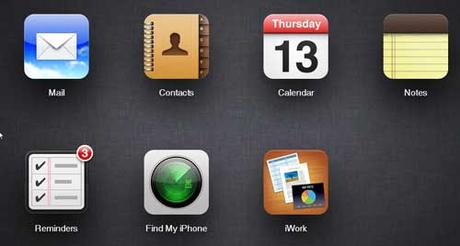
Step 4: Click the Notes or Reminders icon to view items synced to your iCloud account.
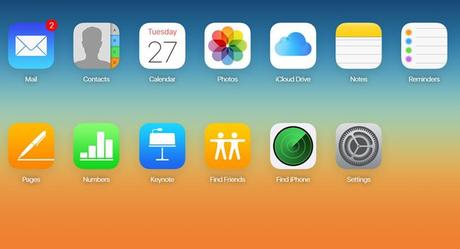
You can then view, edit, or create new items in each of these apps, and the changes will sync across all other devices that are signed in to your iCloud account.
The browser will only display notes stored in the iCloud folder on your device. You may have several different folders in the Notes app, such as folders associated with your email account, or even folders that are only stored on your device.
Summary - How to access your Apple Notes on Windows
- Open a browser tab and navigate to www.icloud.com.
- Enter your Apple ID and password for your iCloud account.
- Click the Notes icon (or whatever app you want to access).
There is also an iCloud Control Panel app that you can install on your Windows computer that allows you to interact with your iCloud storage in other ways. Read this article to learn more about installing and configuring this app.
You may also like
Руководства
#Access #iOS #notes #reminders #Windows