


Apple's iOS 14 quickly became the talk of the town, thanks to the many features and improvements the update brought. In just five days after its launch, iOS 14 has been adopted by over 27% of iPhone users, while iOS 13, its predecessor, has only reached 20% in the same time frame.
If you've downloaded the iOS 14 update, features like the new app library, compact call UI, and all the new home screen widgets are hard to miss. However, there are many hidden features of iOS 14 that you may not have discovered yet.
Here is a list of seven features hidden in iOS 14.
1. Double tap on the back to activate "Ok Google"
Siri is a long way from what the Google Assistant can do, and that's gospel truth. From understanding the intricacies of human language to getting the most relevant results, Google Assistant tops the best assistant criteria. What if you could somehow trigger the Google Assistant on your iPhone like Android users?
iOS 14 makes this possible thanks to one of the best features of iOS 14 called "Back Tap". Once activated, you can trigger the Google Assistant or any other system feature just by tapping two or three times on the back of your iPhone.
Back Tap is available in iPhone settings> Accessibility> Touch> Back Tap. From there, select whether you want it to be a double or a triple tap. Select a system action such as opening the camera, an app, or a shortcut. Select the Ok Google shortcut, which you can create by installing the Google Assistant app and adding the Siri "Ok Google" shortcut.
2. Hide the "hidden album" which hides the photos
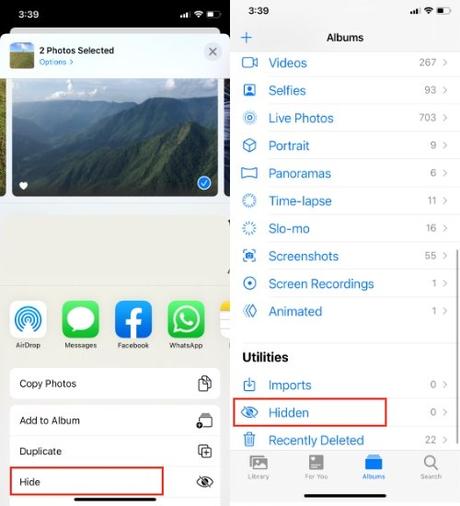
IPhones have the option to hide photos, but this has been non-existent for several Apple users. Besides being a lesser-known feature, it also has a big problem - hidden photos go straight to an album named "Hidden Album", and it's so prominent that anyone can stumble upon it.
Apple fixed the issue in iOS 14. Not only can you hide photos, but you can also hide album which stores hidden photos.
Hiding photos is pretty straightforward: go to Apple Photos> Tap the Share button> Scroll down and tap Hide. You will see a hidden album in the Albums section.
To hide "Hidden Album" in iOS 14, go to iPhone settings> Find Photos app and tap on it> Turn off "Hidden Album".
It's not entirely sure, but it's better than just leaving Hidden Album out in the open. This is a hidden feature of iOS 14 that I recommend not telling your friends and family.
3. Improve audio recordings in Voice Memo app
People generally don't need a voice recorder app. But if the situation calls for it, Apple has made sure that iPhone users rely on the stock Voice Memo app and nothing else.
On iOS 14, Apple added a new one-touch audio enhancement feature to its Voice Memo app. When using the feature, you will instantly notice a huge difference between the original recording and the recording with audio enhancement applied.
To improve your voice memos in iOS 14 here is a quick guide - Record audio or use an existing one> Tap the three-dot icon> Tap Edit recording> Tap the magic wand icon > Press Done.
4. Change the default email or web browser
Speaking of apps, Apple has finally stopped behaving like a controlling parent. For the first time ever, it lets users decide which app is best suited for sending emails and browsing the web.
In the latest iOS 14 update, you can set third-party apps as your default email and browser apps. Currently, you can set multiple email apps like Gmail, Outlook, Hey, Spark, and multiple browser apps like Google Chrome, Mozilla as default apps.
Suppose you want to set Google Chrome as the default iPhone browser. To do this, go to iPhone settings> Scroll down and tap Chrome> Tap on Default Browser app and select "Chrome".
5. Hide application pages on the iOS 14 home screen
All of the new home screen changes are by far one of the greatest features of iOS 14. But some are harder to locate than others.
IOS 14 widgets, for example, are a well-known feature at this point, but the customization of app icons in iOS 14 can still be a mystery to many iPhone users.
Likewise, you might not have heard of a new option on the iOS 14 home screen that allows users to hide an entire page. Instead of deleting all apps to delete a page, you can just do it: Long press the home screen to enter Jiggle mode> Tap the three dot page indicator icon> Deselect page .
If you plan on keeping the Home screen clean, here's another hidden feature of iOS 14: Move newly downloaded apps to "App library only". You'll find this option under iPhone settings> Home screen. As you can see, this will move the newly installed app directly to the app library instead of the home screen.
6. Sound recognition
You won't frequently use this hidden feature of iOS 14, but we recommend that you try the sound recognition feature. As the name suggests, once activated, your iPhone can recognize certain sounds such as running water, a fire alarm, baby crying, doorbells, door knocking, dog barking, etc.
Also Read: How To Enable 'Water Running' Notification On iOS 14?
Once the iPhone detects the sound, it will immediately send a notification which will say "a sound has been recognized". You will find the sound recognition in the accessibility settings.
Unfortunately, you can't wake Siri using voice command when the sound recognition feature is on.
7. Picture-in-Picture
iOS 14 Picture-in-picture (PiP) is one of my favorite features. It allows iPhone users to watch videos in a floating window, allowing users to perform other tasks simultaneously. It works with FactTime, web videos, Netflix, and several other apps.
Until iOS 14 was in beta, it was possible to watch YouTube videos in PiP mode. YouTube recently blocked feature support for free users, and currently it is only available to YouTube Premium users. However, don't worry as much as you can always use a custom shortcut to watch YouTube videos in Picture mode in Picture mode.
To use the function, you just need to play the video and swipe up from the bottom or press the Home button. You will now see a floating window on the screen. Although PiP is enabled by default in iOS 14, you can follow this guide if it is not enabled on your iPhone. The best part about PiP is that just by pulling it out, you can easily hide it on the side of the screen, and the audio will still play in the background.
So here are some of the best hidden features in iOS 14. Let me know which one quickly became your favorite in the comments below.
The 7 Big iOS 14 post Hidden Features You Should Know appeared first on Fossbytes.






