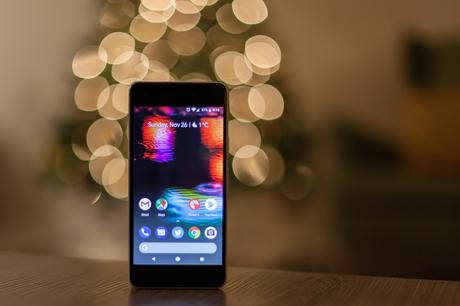
If you wonder how to find your lost Android phone, you are in good hands. And we know that it can happen in a few seconds: you leave your phone on the counter of a store and you go, or someone bumps into you on the street and takes your phone out of your pocket without you noticing.
The losing a phone, either by theft or by mistake, it is a very stressful experience. Not only are you without access to the rest of the world, but you have also lost the most personal device you can have: your cell phone.
Read more: How to Run Android apps on your Windows 10 PC
In case your phone is lost or stolen, don’t panic. There are tools built into every Android phone that makes it possible to lock and track it in case it is lost. But, first, you have to follow these steps to prepare.
1. Create a secure lock screen
Activate the access code and fingerprint authentication. Another thing: Don’t use facial recognition on your Android devices.
The technology used for facial recognition on Android devices can easily be fooled by something as simple as a photo of your face. Facial recognition could become more secure if Android Q adds official support for an authentication method similar to Face ID on Android, as some reports have suggested.
The next step is to create a passcode and configure fingerprint authentication in the Settings app under the Security section. Yes, I know that entering a code or scanning the fingerprint every time you want to use the phone can be annoying, but the idea of someone else having access to your photos, your banking apps, your email, and the rest of your personal information it’s very scary.
Read more: 7 Facts of An Android Smartphone Everyone to Know
2. Find My Device by Google
Every time you log into an Android device with a Google account, the Find My Device feature is already enabled. Find My Device is the function you will use to track your lost device, remotely lock it, and remotely erase it.
You can check to see if the feature is enabled by opening the Settings app, going to Security & Location> Find My Device. If your device does not have the Security & Location option, go to Google> Security> Find My Device.
Find My Device must be activated. If it isn’t, slide the switch to the “on” position and exit Settings.
Read more: Top 4 must have apps for android in 2020
3. Find My Mobile by Samsung
If you have a Samsung phone, then in addition to Google’s Find My Device service, you can and should set up Samsung’s Find My Mobile service. This will not only give you an extra service to track your phone in case it gets lost, but it also gives you tools that Google’s Find My Device doesn’t have.
With Samsung’s service, you can do things like create backups remotely or see if someone has changed the SIM card. You must have a Samsung account to use Find My Mobile.
On your Samsung phone, open the Settings app and go to Biometrics and security> Find My Mobile. If you were logged into your Samsung account during the initial setup of your device, Find My Mobile should already be activated. If that’s not the case, take a few seconds to log into your Samsung account and activate Find My Mobile.
Read more: Galaxy S20 Hacks: The Best Features of Samsung Galaxy S20
4. Use Find My Device
Using the Android built-in service requires you to remember a Web: android.com/find. This is the site you will go to in case you lose your phone. Make sure you sign in with the same Google account that is linked to your Android phone.
If you are not near a computer, you can use another Android device and the Find My Device app that you will have to download separately from the Google Play store. After entering the site or app, Google will try to locate your phone.
An alert will be sent to your phone to let anyone with your phone know that you are tracking it. Use the menu on the left side of the Find My Device site to play a sound (useful if you put your phone somewhere in the house), lock your phone, or erase the phone.
Selecting Secure Device will lock your phone, display a message of your choice on the lock screen, and log out of your Google account. Don’t worry, you can still locate the phone after you lock it. If you use Google Pay for mobile payments, locking your phone will prevent anyone from using your phone to make a purchase.
If you use the Erase Device feature, you will not be able to trace your phone once it has been erased. Reserve this feature as the last option.
If the thief decides to turn off the phone, you won’t be able to track it until it is turned on again and has a cellular or Wi-Fi connection. Google will send you an email once it locates your device.
For Samsung Users
Owners of a Samsung Galaxy phone have the advantage of being able to use Google and Samsung services to locate a lost device, but I recommend using Samsung’s service. As you will see below, the added capabilities are invaluable.
To track a lost device with the Samsung service, you must visit findmymobile.samsung.com. There is a companion app, so you will have to use the mobile browser on another phone or computer.
Sign in with your Samsung account, then select the lost device on the left side of the screen. A map will show where your phone is located, and a menu of options will pop up on the right side of the screen.
I start with locking the phone, which will display a custom message on the lock screen, suspend your Samsung Pay cards, and prevent your phone from turning off.
Then create a backup of your phone. If you lose your phone forever, you’ll want to have a recent backup of your phone. If your phone is moving from location to location, use the location tracking feature.
By activating this feature, you will be able to track the location of your phone every 15 minutes. Then activate the feature to extend battery life, which will disable almost everything on the phone, except for location tracking.
5. Contact your operator and file an insurance claim
If it becomes obvious that you will no longer be able to get your phone back, contact your operator and report your phone as lost or stolen. By doing this, your phone will be blacklisted in the carrier’s database, preventing someone else from using the device.
When you call, the operator will also want to suspend cellular service. This is a good idea if you want to prevent someone from using your phone. However, keep in mind that if you are still tracking your phone, you will lose your mobile connection and the ability to track it, unless your phone is registered to a Wi-Fi network.
Finally, if you pay for insurance for your phone, you will have to file a claim and pay the deductible to get a replacement unit. Start the claim process through your operator, who will refer you to an outside insurance company that will replace your phone.
Good luck. We hope you never have to go through the emotional roller coaster of losing a phone, tracking it, and trying to get it back. But, in case this happens, you have this guide.
5 / 5 ( 1 vote )