


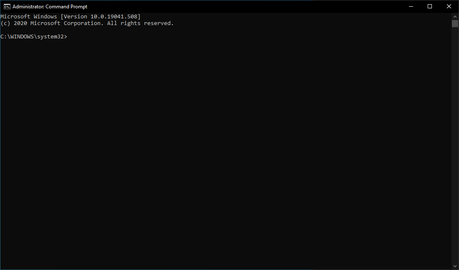
We talk about Command Prompt quite often in our Windows 10 tutorial articles. Some people unknowingly refer to commands as Command Prompt codes. Speaking of which, there are tons of Windows Command Prompt tricks you can learn, use, and impress your friends.
For example, some people may not know how to cancel an order or how to watch Star Wars in the command prompt. Here we are going to tell you about these cool command prompt tips.
Windows Command Prompt may look like a black and white world to some users. But power users know the power of Command Prompt and use various cool command hacks and tricks.
So to improve your Windows Command Prompt experience, in this article we are going to tell you about some useful Command Prompt tricks that will save you a few extra clicks.
Be sure to check out our long list of Windows CMD commands from A to Z in your spare time.
How to use Command Prompt in Windows 10?
Maybe I don't need to tell you that. But those who don't know, you can launch Command Prompt by typing CMD in Windows Search. Right click on CMD to run it as administrator.
You can also open Run (Windows + R)> type cmd and press Enter. It doesn't matter if you are using Windows 10 or earlier, the method is the same.
27 useful tips for Windows command prompt
1. Order history
By using this command, you can find the history of your orders. This will come in handy when trying to search for a command that you have used in the past, but cannot remember.
2. Run multiple commands
If you feel the need to run two commands one after the other, you can do it easily. Add this to your collection of CMD hacks. Just put "&" between each command and save time. For example, here's how to run ipconfig and paint.
3. Use the function keys and become a professional user
One of the very useful CMD tricks is to use function keys. These keys can do a lot to improve your CMD experience.
Here is the list:
4. See the list of PC drivers
With a simple command, you can see all the drivers installed on your computer. All you have to do is run the driverquery command, and you'll see a list of all the drivers with their name, type, and other information.
5. Send the output to the clipboard
Quite often you may have felt the need to save the output of a command? Usually people use copy and paste. However, with a simple command that uses the channel operator, you can send the output of the command to the Windows clipboard. Here is how to send the ipconfig information:
6. Abandon an order
This handy Windows CMD trick comes to the rescue when you've hit Enter and need to stop the command in its tracks? To do this you have to do a Ctrl + C. However, it is not a magic trick that can undo a undoable thing.
7. make your command prompt colorful
You can change the color of Windows Command Prompt to make it visually appealing. To do this, right-click in the top corners of the Command Prompt window and select Properties. There, find the Colors tab and look for the options to change the background and text color.
8. Create a Wi-Fi hotspot directly from the command prompt
Before opening the command prompt to run the necessary commands for this purpose, you should open the Control Panel and find Change adapter settings in the Network and Sharing option. There, click on the connection you are using and click Properties. Now find the sharing tab and check the option "Allow other network users to connect through this computer's Internet connection".
Now open the command prompt with administrative privileges and enter the following command:
Once enabled, enter the following command to start the Wi-Fi hotspot
To stop it, just enter this command:
If you are using Windows 10?
Windows 10 comes with a built-in tool that allows users to create a WiFi hotspot. You can read our in-depth article on enabling mobile hotspot in Windows 10.
9. Scan system files for problems
The sfc / scannow command runs a system file checker that scans Windows system files and looks for problems. If some files are missing or corrupted, this command fixes them.
10. Start using batch files
You may already know that batch files can make your life easier when you process multiple orders more often. For example, if you are used to using the same CMD commands, you can create a batch file and get rid of the task of typing them over and over again. All you need to do is run the batch file.
You can read more about what is a batch file and how it works?
11. Troubleshoot issues with DNS resolver cache
You might know that DNS (Domain Name System) is an important thing that you cannot ignore while connecting to the internet. For faster access to websites, your computer usually maintains a local DNS resolver cache. But sometimes the cache can get corrupted and you might not be able to access your favorite sites.
In that case, you can try this Windows Command Prompt trick to save the day. You can use the Ipconfig utility to clear the DNS cache.
We have already covered many useful Command Prompt tips and cool hacks in our previous articles. You can read them and learn how to perform them by clicking on the links below:
12. Speed up the Internet using CMD Trick
13. Find the Wi-Fi password using the CMD of all connected networks
14. Create bootable USB drive in Windows 10 using command prompt
15. Remove virus from USB or any drive in Windows 10 using CMD
16. Hide any drive in Windows: command prompt trick
17. Activate Ctrl + C / Ctrl + V to copy and paste in the command prompt
18. Verify DNS Records Using Basic Nslookup Command Examples
19. Watch Star Wars: Command Prompt Tip
20. Check battery capacity and battery status report in Windows using CMD
21. Scan for and eliminate Windows 10 remote login malware
22. Fix "Do you want to scan and repair removable disk" error in Windows
23. Use Netstat commands to monitor the network on Windows using CMD
24. Use Netstat commands to monitor the network
25. Run Ping of Death Attack: CMD Trick
26. Find the Windows license key using CMD
27. New Windows 10 keyboard shortcuts in Command Prompt
CMD alternative: Powershell and Windows Terminal
Over the years, Microsoft has started to switch from the good old command prompt to its modern successor Powershell. If you noticed, places where you could see CMD earlier now show Powershell as an option because it is the default shell in Windows 10. For example, in the context menu of the Start button.
You can use it because commands for CMD also work on Powershell.
In addition, Microsoft has developed a whole new command line experience in the form of a new application called Windows Terminal. It combines Command Prompt, Powershell, and Windows Subsystem for Linux. You can read our in-depth article on setting up WSL on your Windows 10 PC.
Unlike CMD and Powershell, Windows Terminal is not preloaded on Windows 10 and you can get it from Microsoft Store. One thing to note is that Windows Terminal is not available for older versions of Windows.
Did you find this article useful? Tell us in the comments below. Also, if you have any cool tips on Windows Command Prompt, don't forget to share them.
The message 27 Helpful Windows Command Prompt Tips You Might Not Know appeared first on Fossbytes.






